> ## Documentation Index
> Fetch the complete documentation index at: https://docs.gmicloud.ai/llms.txt
> Use this file to discover all available pages before exploring further.
# Search and use an agent
> Find and start using an agent from the GMI AgentBox catalog.
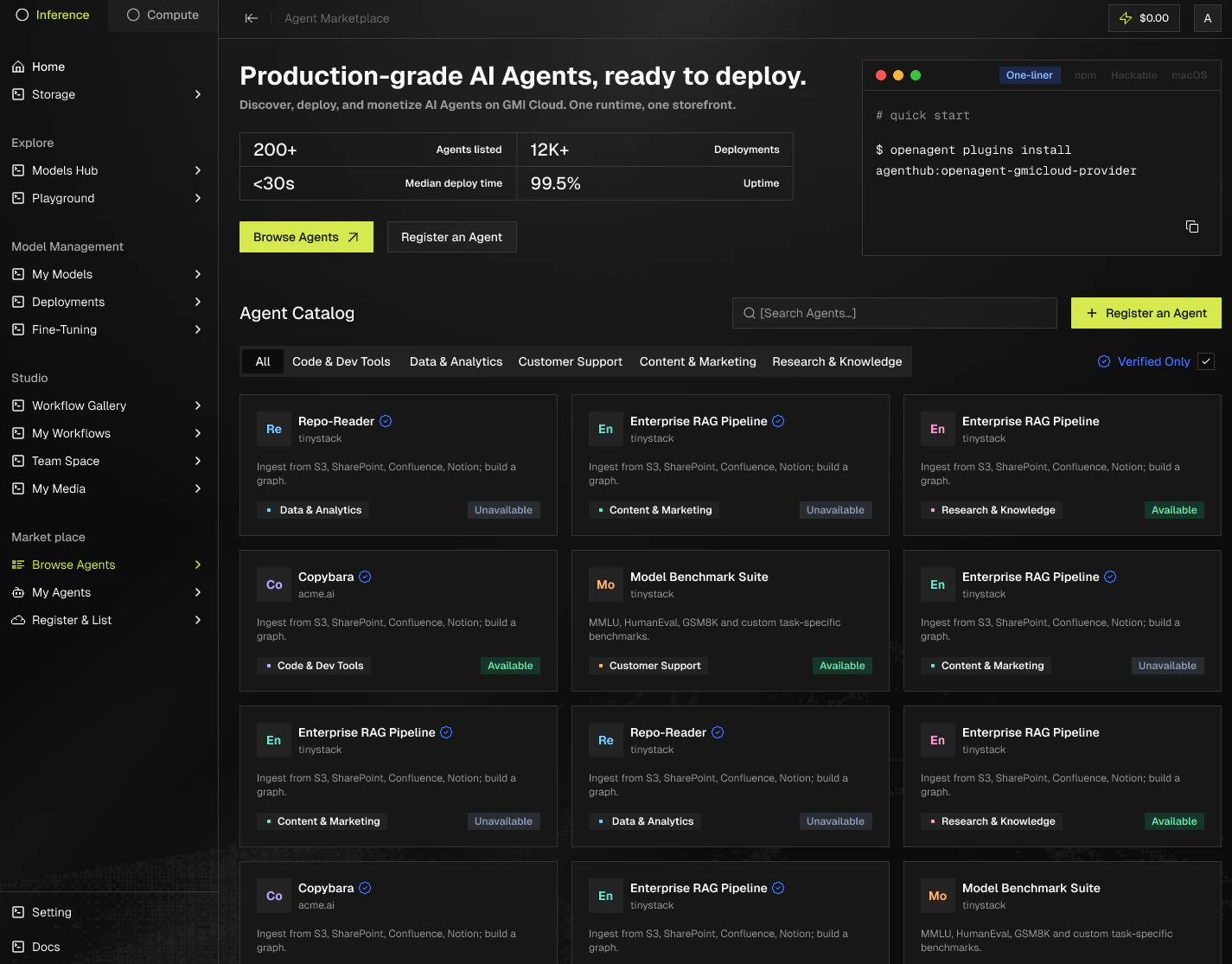
The catalog is built around fast search, clear filters, and a single click to start using.
 ## **Search**
* **Categories:** Code & Dev Tools | Data & Analytics | Customer Support | Content & Marketing | Research & Knowledge.
* **Infrastructure filters:** Verified, Powered by GMI Infrastructure, Powered by GMI MaaS.
## **Open an agent**
The agent Detail page shows the description, publisher, infrastructure badges, and a preview of the interface. It also surfaces:
* **Keyword tags.** Searchable labels that describe the agent, for example `open source` or `hermes`.
* **How a session works.** A step-by-step breakdown of what happens when you access the agent, from sign-in through the request/response loop.
* **For publishers.** A packaging section explaining how the agent is built and deployed, useful if you want to list something similar.
* **Demo media.** Embedded demo videos and screenshots so you can see the agent in action before using it.
## **Use it**
* Click **Access agent**, or **Request Early Access** if it's in beta.
* Sign in with your GMI account.
* For agents hosted on GMI, usage bills against your GMI account, line-item on every call. If the agent redirects you to its own product website, billing is handled by that agent provider.
## **Tips**
* The **Verified** badge is the strongest reliability signal.
* Community agents can be excellent, but they aren't GMI-managed. Read the publisher details.
* Check the infrastructure note before integrating into production.
## **Search**
* **Categories:** Code & Dev Tools | Data & Analytics | Customer Support | Content & Marketing | Research & Knowledge.
* **Infrastructure filters:** Verified, Powered by GMI Infrastructure, Powered by GMI MaaS.
## **Open an agent**
The agent Detail page shows the description, publisher, infrastructure badges, and a preview of the interface. It also surfaces:
* **Keyword tags.** Searchable labels that describe the agent, for example `open source` or `hermes`.
* **How a session works.** A step-by-step breakdown of what happens when you access the agent, from sign-in through the request/response loop.
* **For publishers.** A packaging section explaining how the agent is built and deployed, useful if you want to list something similar.
* **Demo media.** Embedded demo videos and screenshots so you can see the agent in action before using it.
## **Use it**
* Click **Access agent**, or **Request Early Access** if it's in beta.
* Sign in with your GMI account.
* For agents hosted on GMI, usage bills against your GMI account, line-item on every call. If the agent redirects you to its own product website, billing is handled by that agent provider.
## **Tips**
* The **Verified** badge is the strongest reliability signal.
* Community agents can be excellent, but they aren't GMI-managed. Read the publisher details.
* Check the infrastructure note before integrating into production.