> ## Documentation Index
> Fetch the complete documentation index at: https://docs.gmicloud.ai/llms.txt
> Use this file to discover all available pages before exploring further.
# Dify
> Build a Deep Research agent in Dify with GMI Cloud as the model provider.
Wire GMI Cloud's models into Dify's **DeepResearch** template to spin up a multi-step research agent in about five minutes. You'll swap Dify's default LLM and reasoning nodes for GMI-served models (GLM-4.6 + Qwen3 235B Thinking), then run a real query end-to-end.
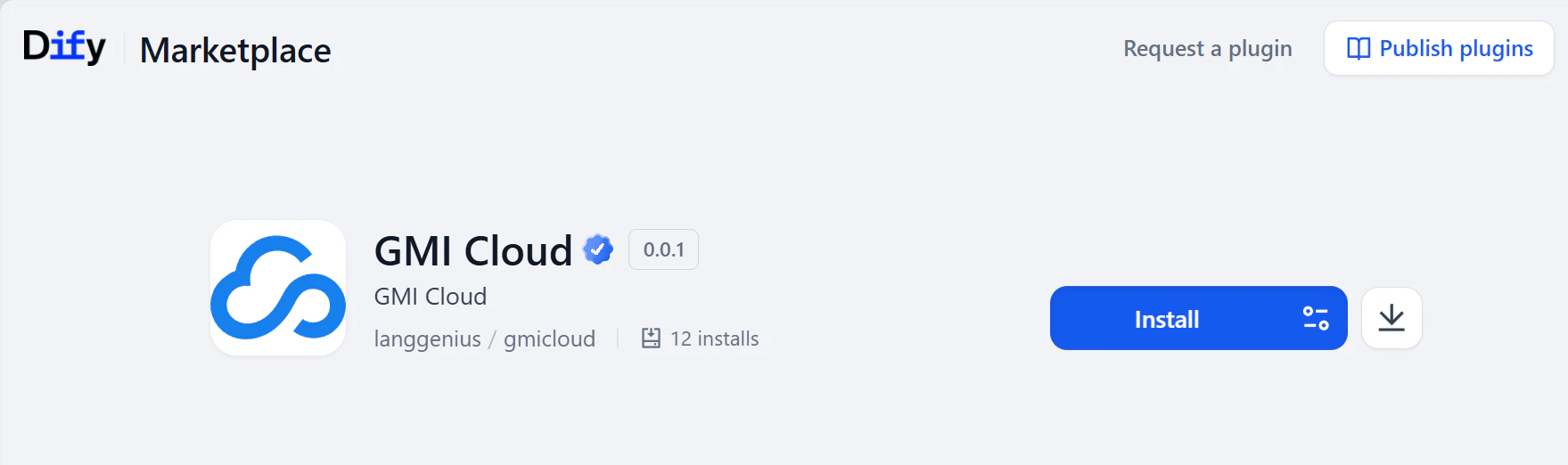 The GMI Cloud plugin exposes the full model catalog through an OpenAI-compatible API, chat, streaming, tool calling, and custom endpoints all work the way Dify expects. The plugin page lists the current preset models: [marketplace.dify.ai/plugins/langgenius/gmicloud](https://marketplace.dify.ai/plugins/langgenius/gmicloud).
## Prerequisites
* A GMI Cloud account at [console.gmicloud.ai](https://console.gmicloud.ai)
* A Dify account at [dify.ai](https://dify.ai)
* About 5 minutes
***
## Step 1. Get your GMI Cloud API key
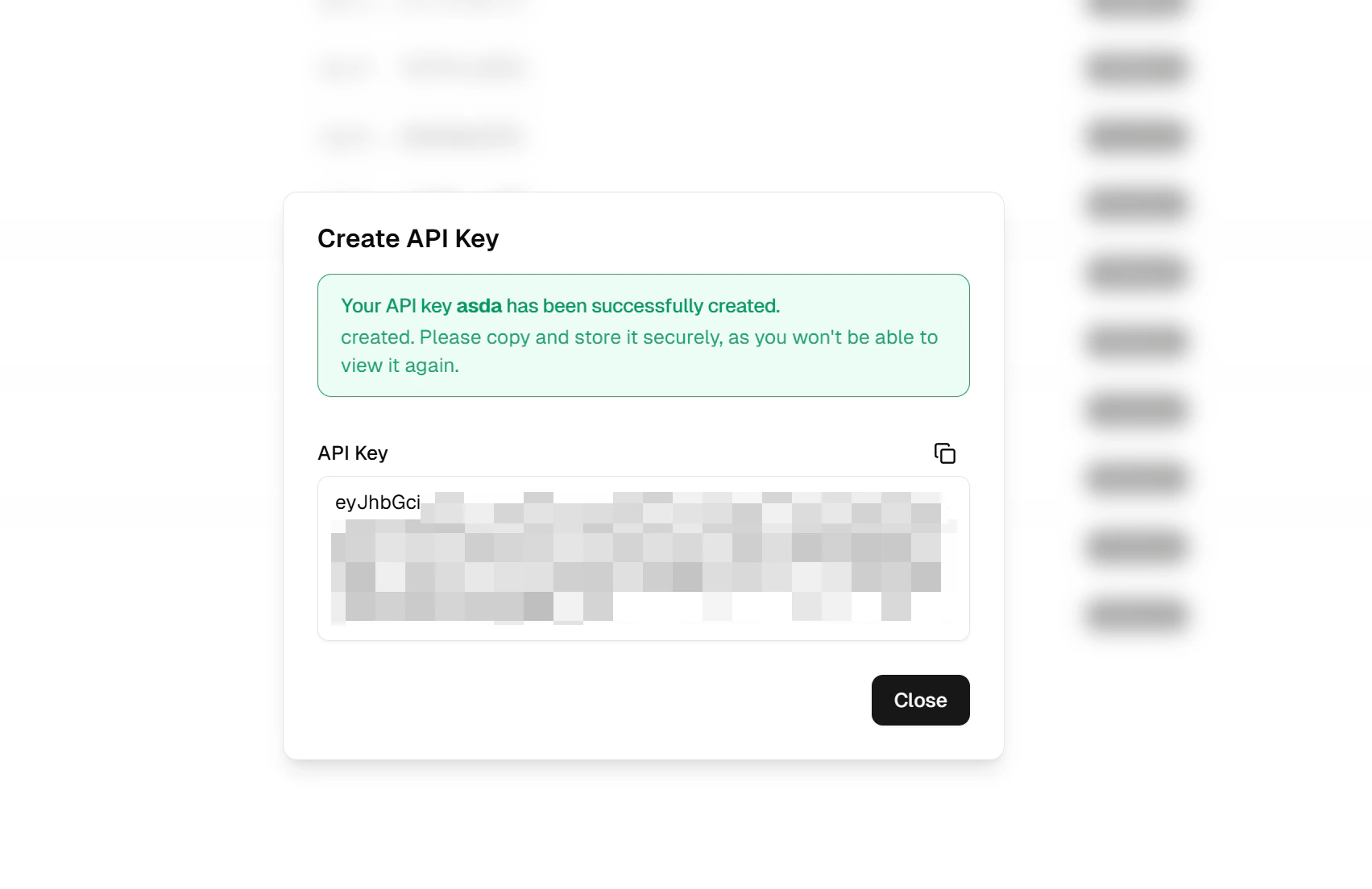
1. Sign in to the [API Key Management](https://console.gmicloud.ai/user-setting/organization/api-key-management) page.
2. Click **Create API Key**, name it, and set **Scope** to **Inference**.
3. Copy the key now, it won't be shown again.
The GMI Cloud plugin exposes the full model catalog through an OpenAI-compatible API, chat, streaming, tool calling, and custom endpoints all work the way Dify expects. The plugin page lists the current preset models: [marketplace.dify.ai/plugins/langgenius/gmicloud](https://marketplace.dify.ai/plugins/langgenius/gmicloud).
## Prerequisites
* A GMI Cloud account at [console.gmicloud.ai](https://console.gmicloud.ai)
* A Dify account at [dify.ai](https://dify.ai)
* About 5 minutes
***
## Step 1. Get your GMI Cloud API key
1. Sign in to the [API Key Management](https://console.gmicloud.ai/user-setting/organization/api-key-management) page.
2. Click **Create API Key**, name it, and set **Scope** to **Inference**.
3. Copy the key now, it won't be shown again.
 ## Step 2. Install the GMI plugin in Dify
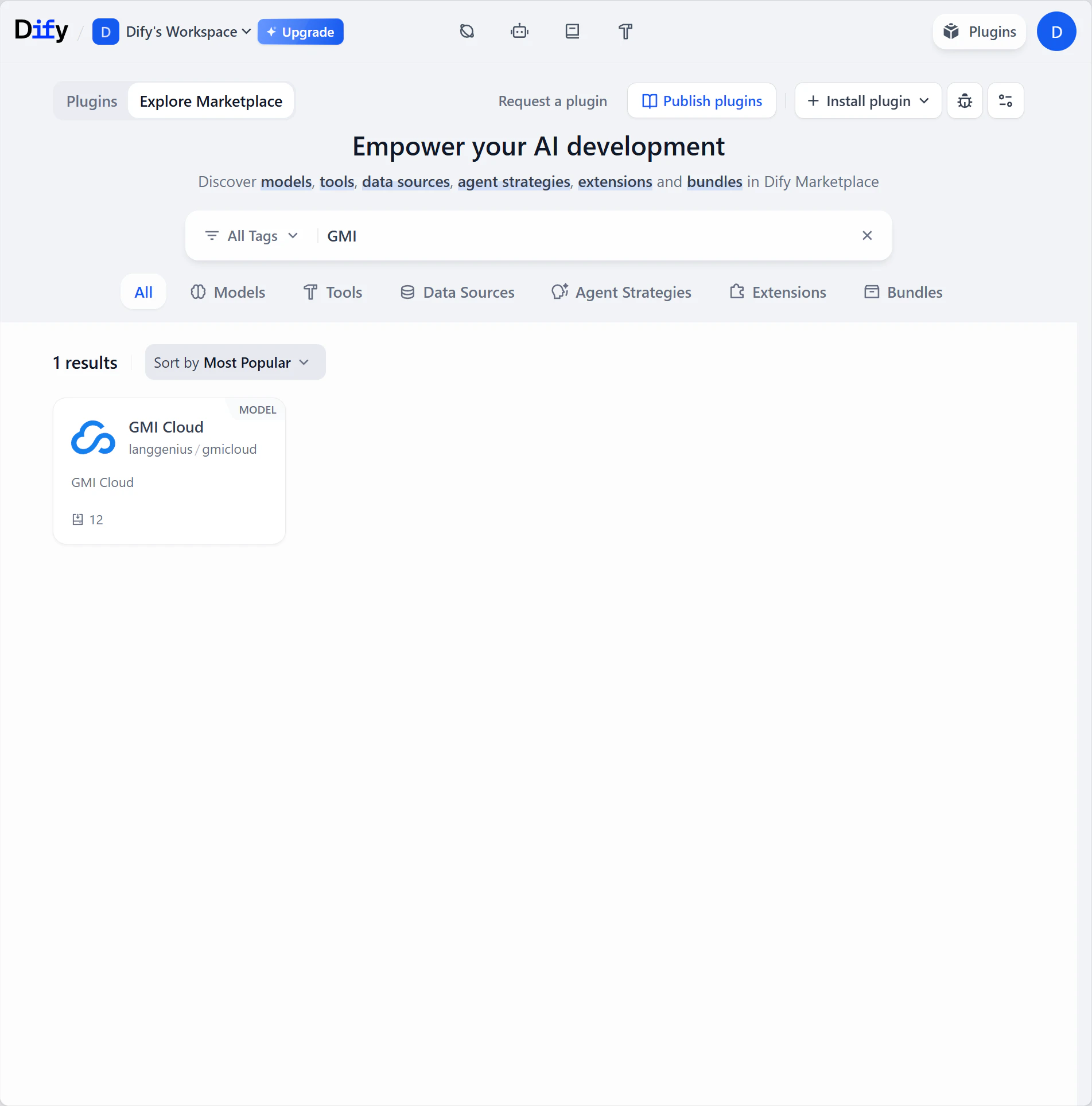
Open the [Dify plugin marketplace](https://cloud.dify.ai/plugins?category=discover), search **GMI Cloud**, and install.
## Step 2. Install the GMI plugin in Dify
Open the [Dify plugin marketplace](https://cloud.dify.ai/plugins?category=discover), search **GMI Cloud**, and install.
 ## Step 3. Configure the plugin
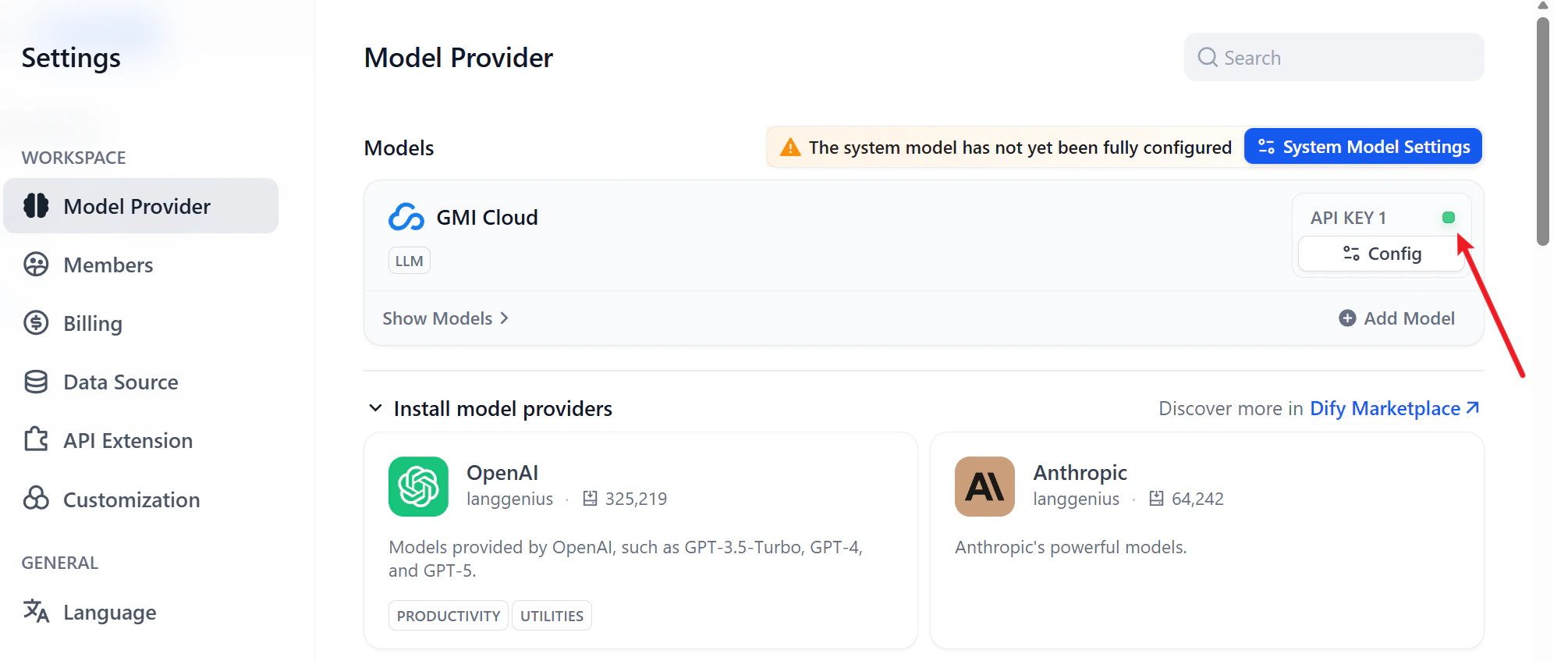
1. In Dify, open **Settings → Model Provider**.
2. Find **GMI Cloud** and click **Setup**.
3. Paste your API key. Custom endpoint is optional; default is `https://api.gmi-serving.com/v1`.
4. **Save**. Dify hits `/v1/models` to validate.
## Step 3. Configure the plugin
1. In Dify, open **Settings → Model Provider**.
2. Find **GMI Cloud** and click **Setup**.
3. Paste your API key. Custom endpoint is optional; default is `https://api.gmi-serving.com/v1`.
4. **Save**. Dify hits `/v1/models` to validate.
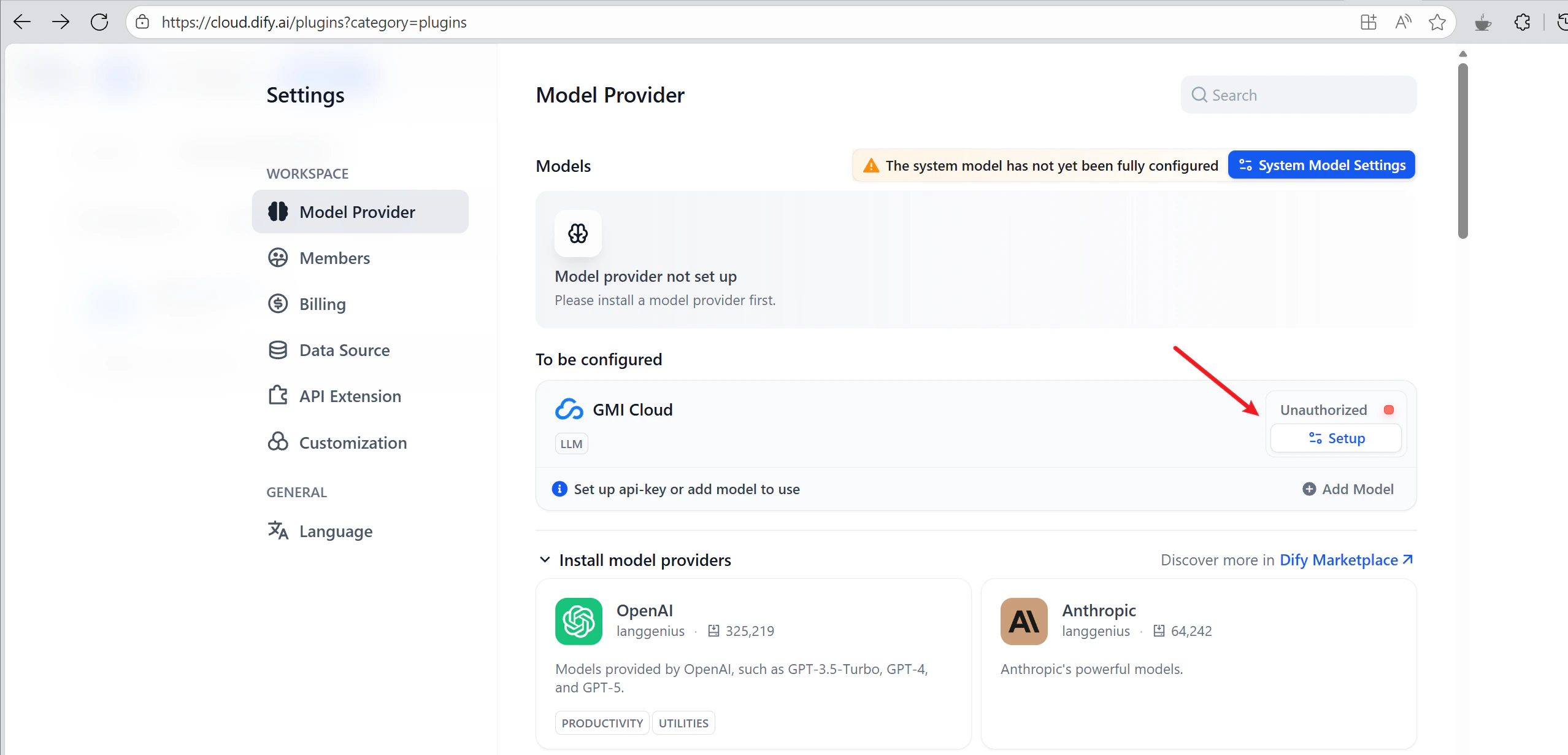 A green light means you're connected.
 ## Step 4. Build the workflow
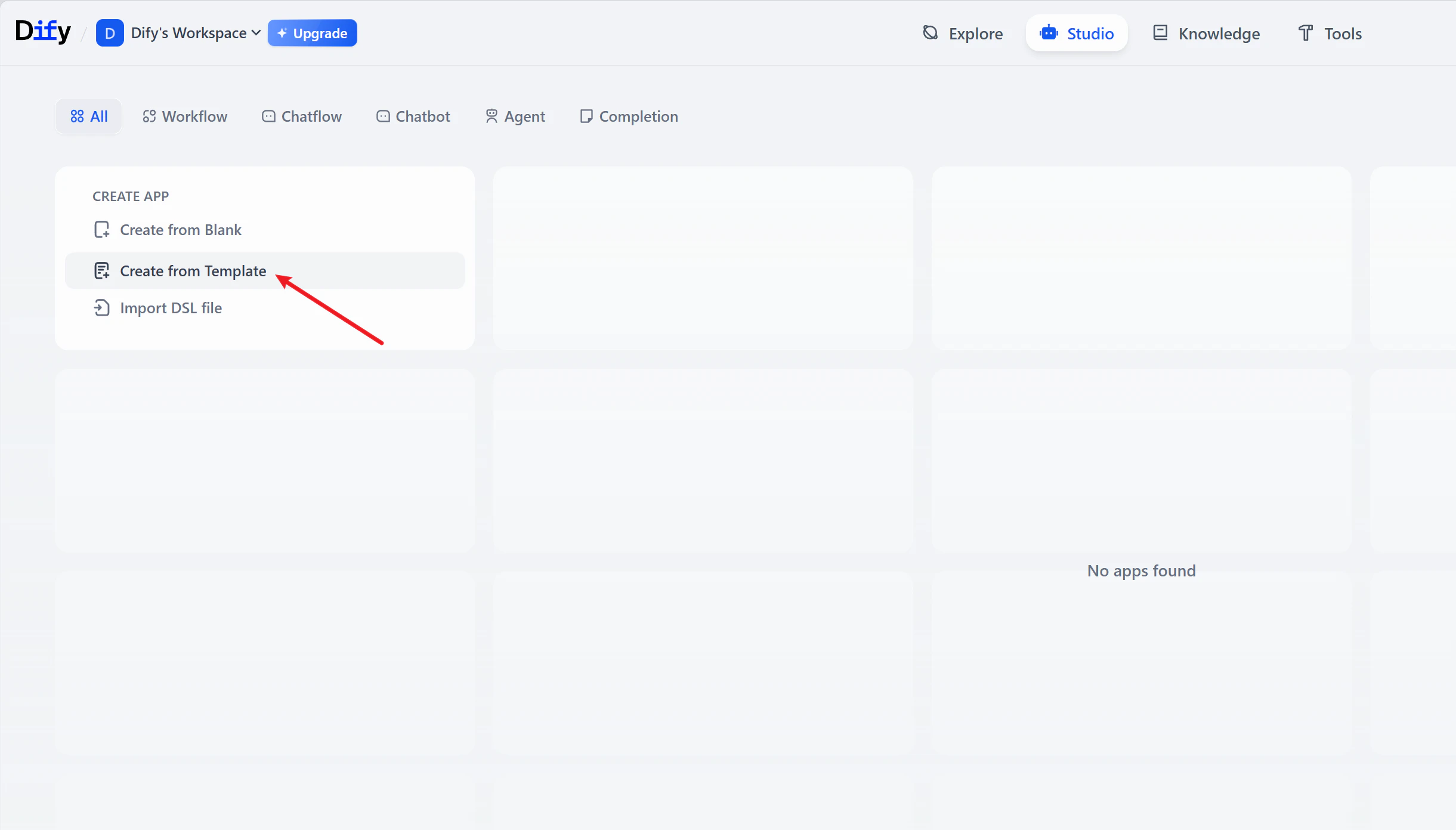
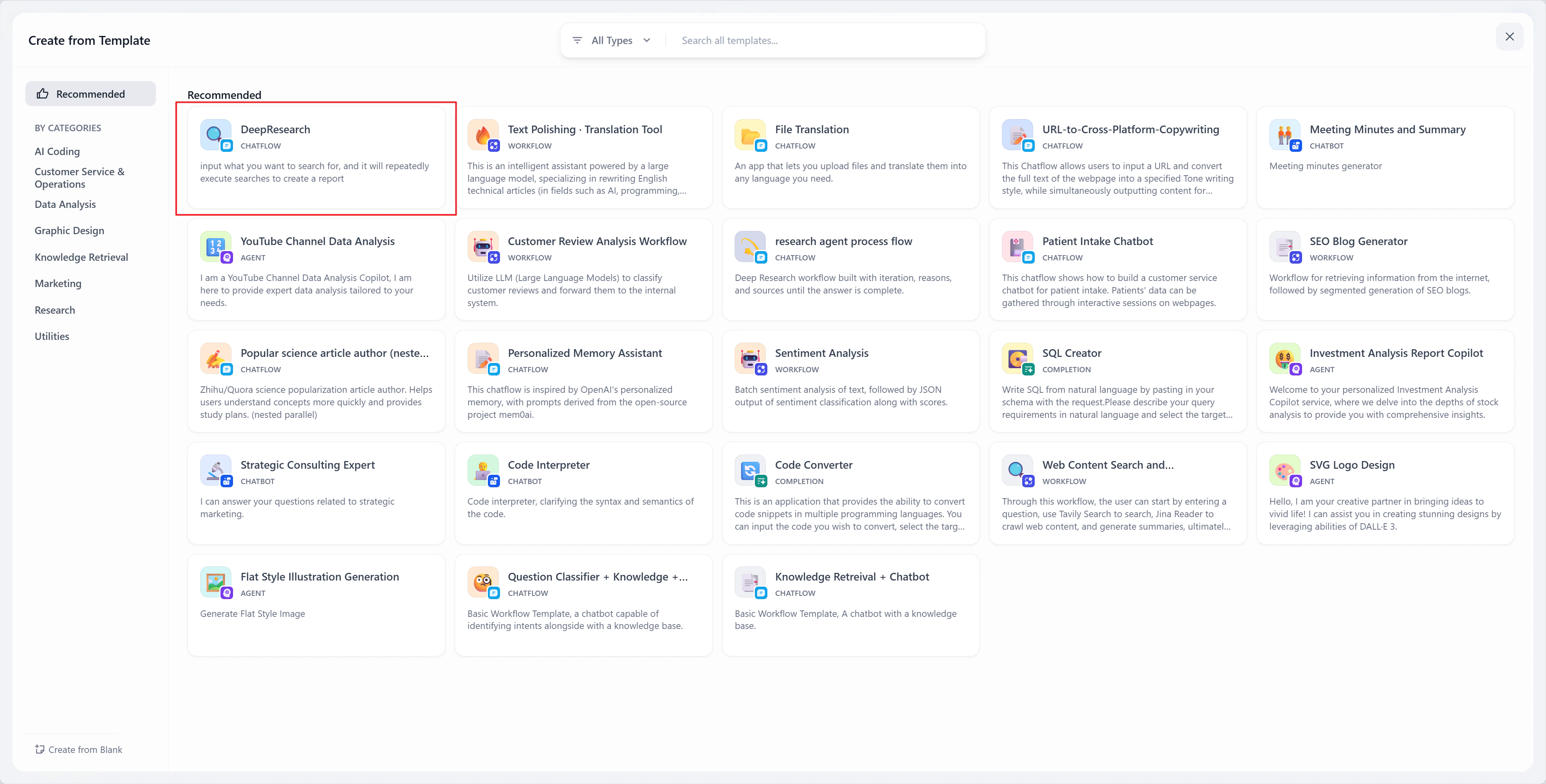
From Dify's home, click **Create from Template** and pick **DeepResearch**.
## Step 4. Build the workflow
From Dify's home, click **Create from Template** and pick **DeepResearch**.
 On the install screen, enable **Tavily** and **JSON Process**. Skip the other two model-provider plugins. GMI Cloud handles inference.
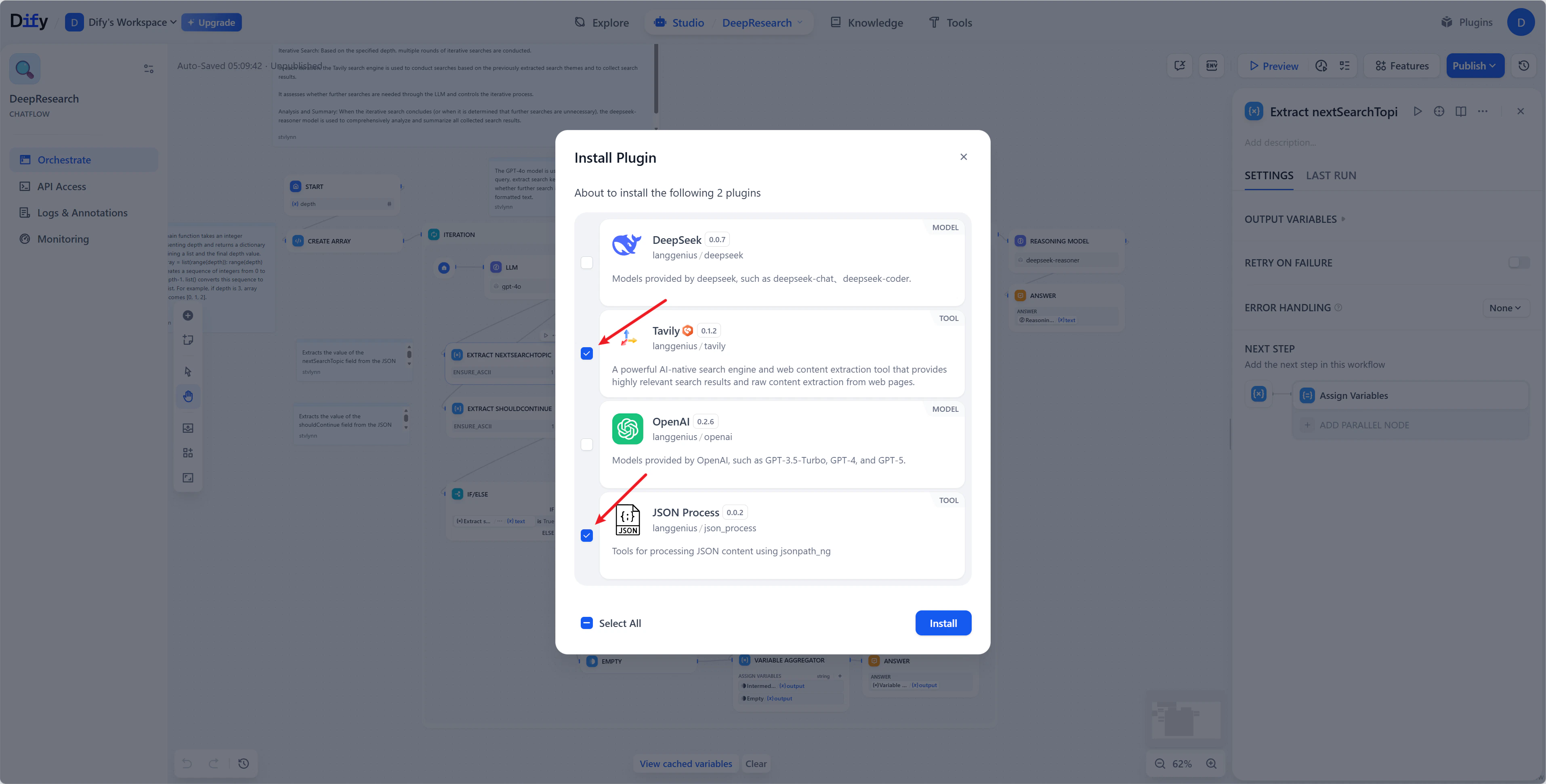 The graph looks busy, but only two nodes matter: **LLM** and **Reasoning Model**. Both will point at GMI.
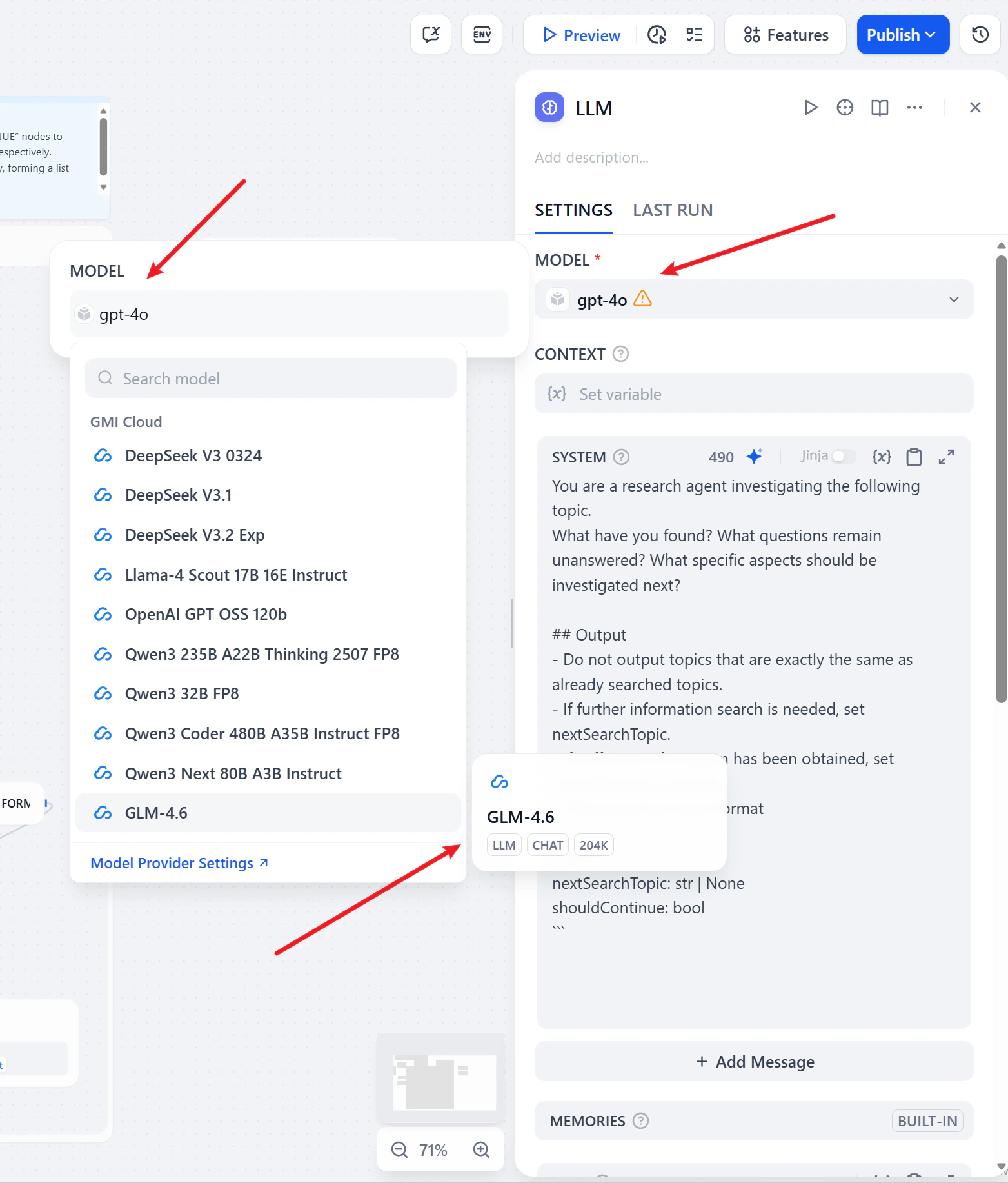
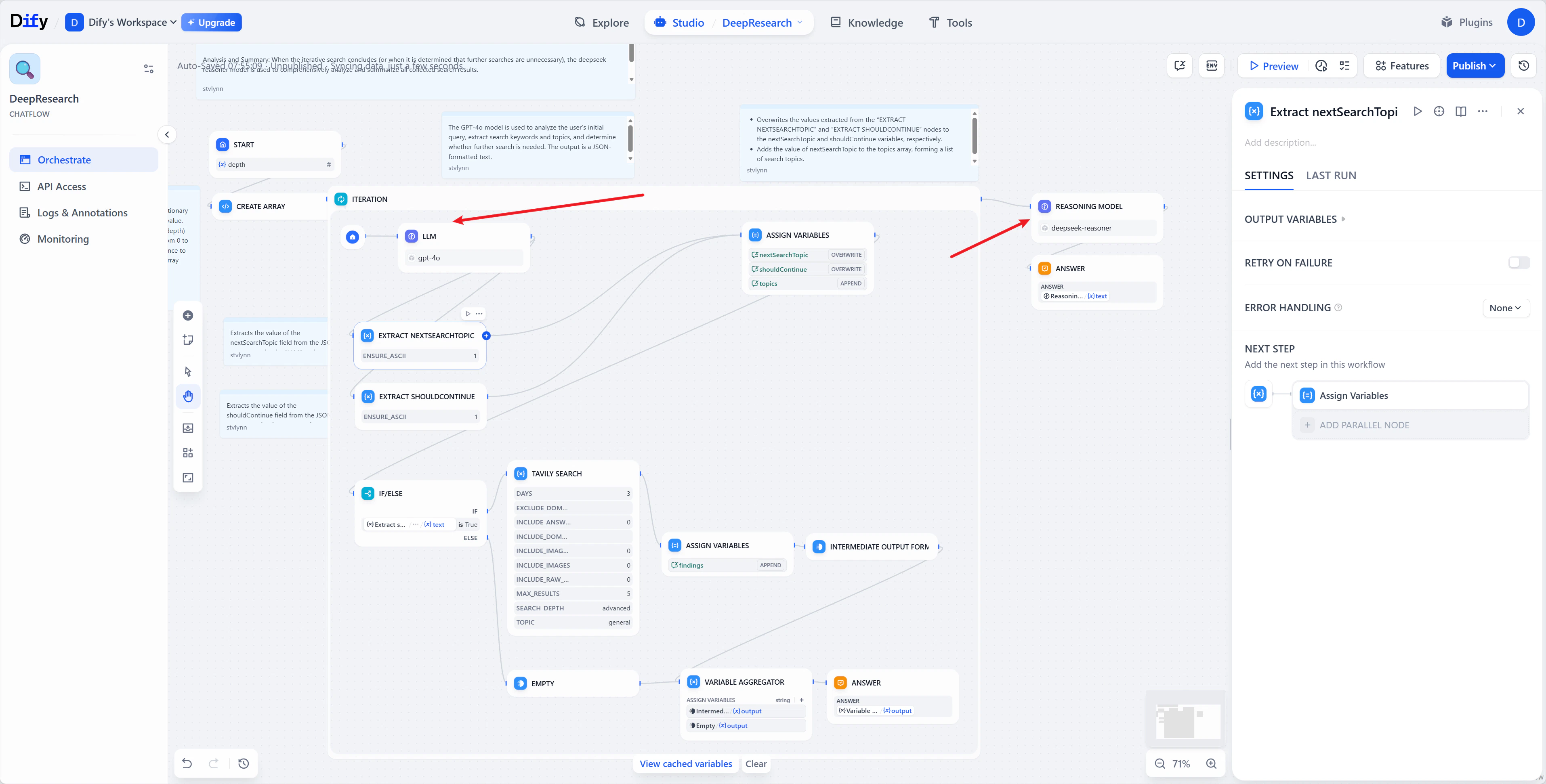 * **LLM node** → swap `gpt-4o` for **GLM-4.6** ([model card](https://huggingface.co/zai-org/GLM-4.6)).
 * **Reasoning Model node** → swap for **Qwen3 235B A22B Thinking 2507 FP8** ([model card](https://huggingface.co/Qwen/Qwen3-235B-A22B-Thinking-2507-FP8)).
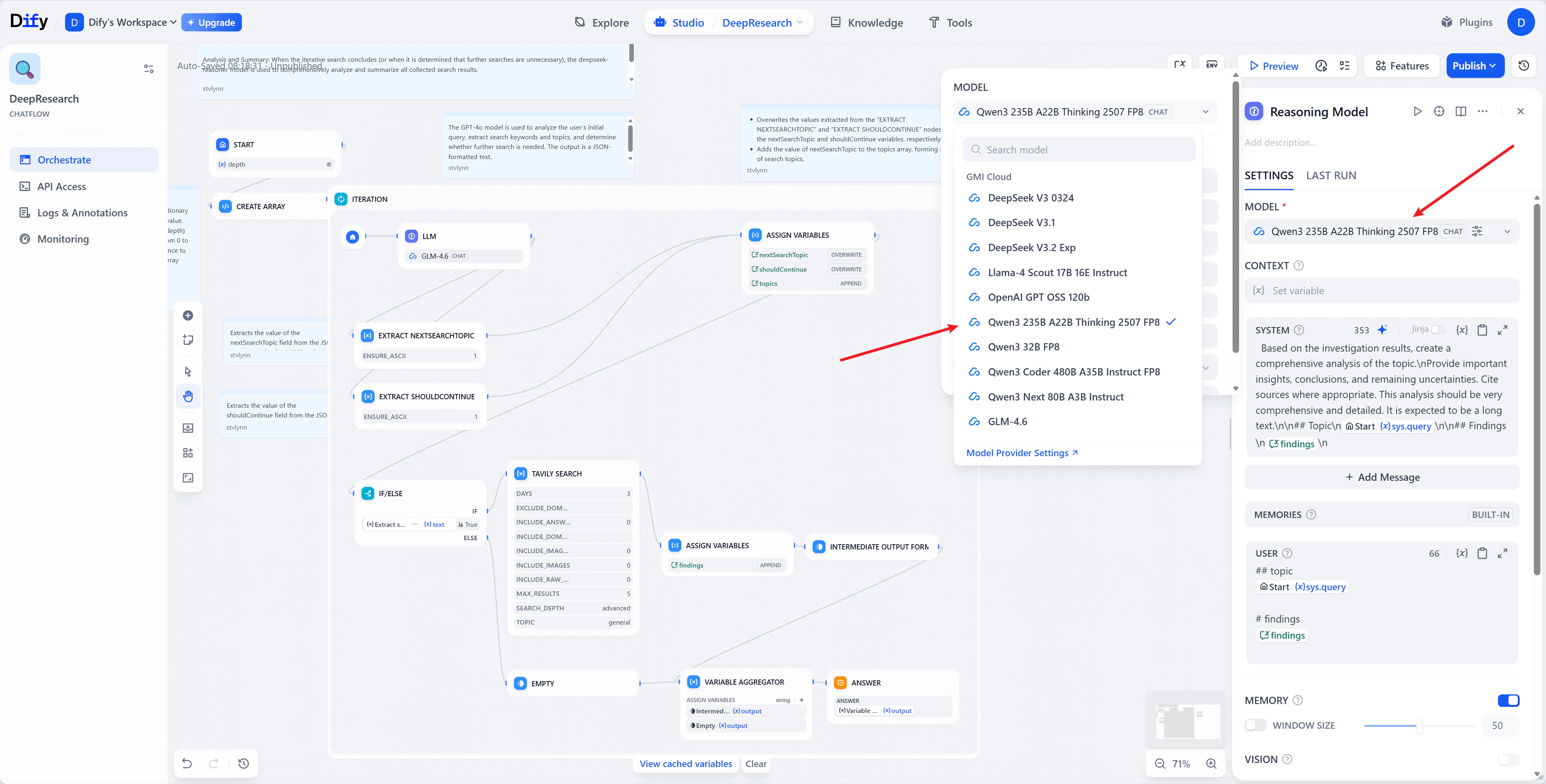 Hit **Publish**.
## Step 5. Run it
Open the workflow app. Set **Depth** to control how many search rounds the agent runs - `2` is a good default.
Sample prompt:
```
Which industries are showing the strongest early signals of disruption from generative AI?
```
Hit **Publish**.
## Step 5. Run it
Open the workflow app. Set **Depth** to control how many search rounds the agent runs - `2` is a good default.
Sample prompt:
```
Which industries are showing the strongest early signals of disruption from generative AI?
```
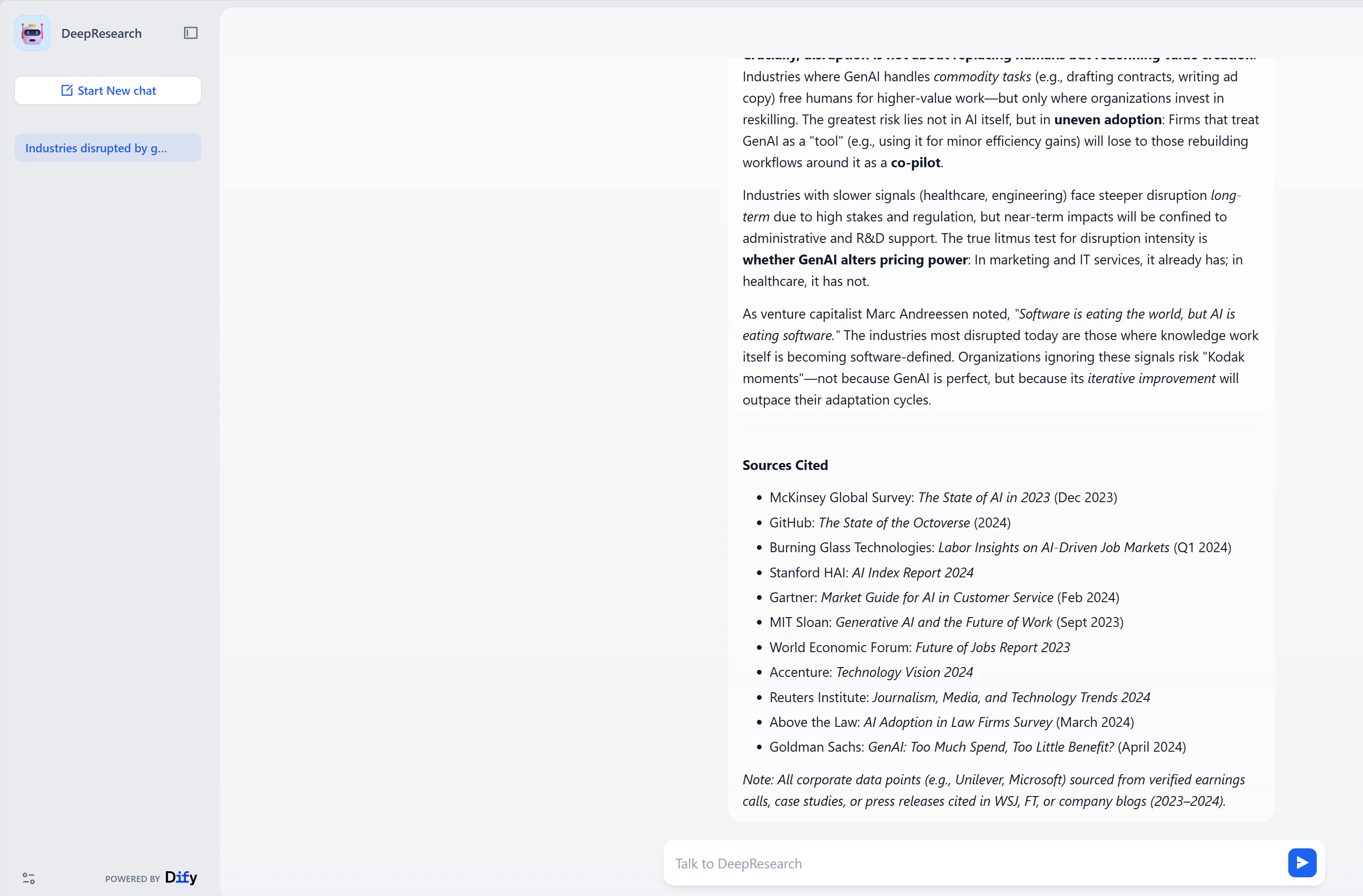
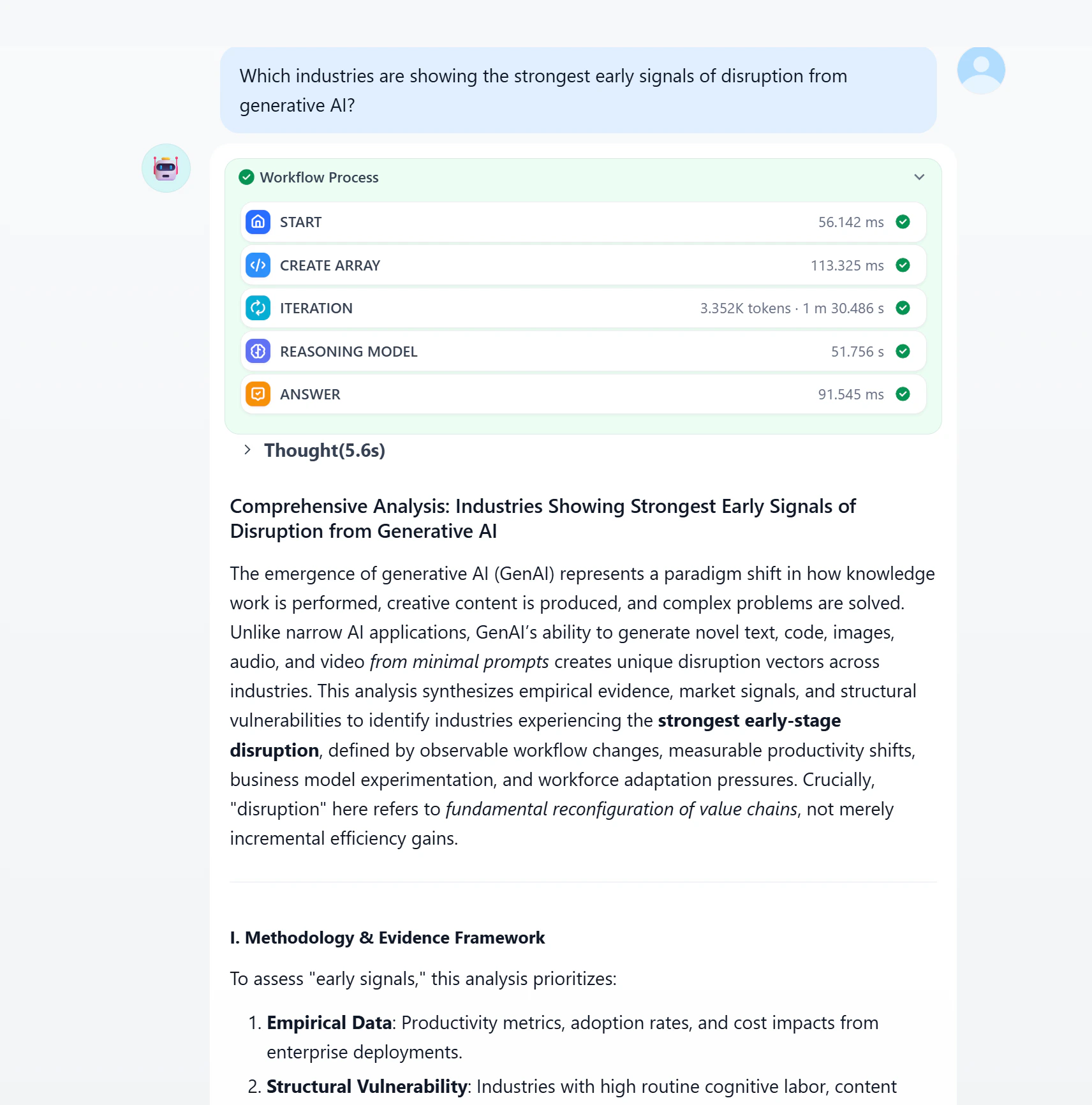 Deep runs take a minute or two while the agent iterates. The output is a sourced report.
 ***
## Next steps
* Try a different agent framework: [Hermes Agent](/agents/set-up-hermes-agent-with-gmi-cloud) or [OpenClaw](/agents/openclaw).
* Swap models from the [Text catalog](/model-quickstarts/text/overview).
* Stuck? Email [support@gmicloud.ai](mailto:support@gmicloud.ai).
***
## Next steps
* Try a different agent framework: [Hermes Agent](/agents/set-up-hermes-agent-with-gmi-cloud) or [OpenClaw](/agents/openclaw).
* Swap models from the [Text catalog](/model-quickstarts/text/overview).
* Stuck? Email [support@gmicloud.ai](mailto:support@gmicloud.ai).