> ## Documentation Index
> Fetch the complete documentation index at: https://docs.gmicloud.ai/llms.txt
> Use this file to discover all available pages before exploring further.
# Bare Metal Resources
> List, configure, and manage bare-metal servers attached to your organization.
URL: `https://console.gmicloud.ai/user-console/ce/bare-metals`
The Bare Metals page lists provisioned bare-metal servers attached to your organization. Access is gated by product entitlement.
 ## Gated state
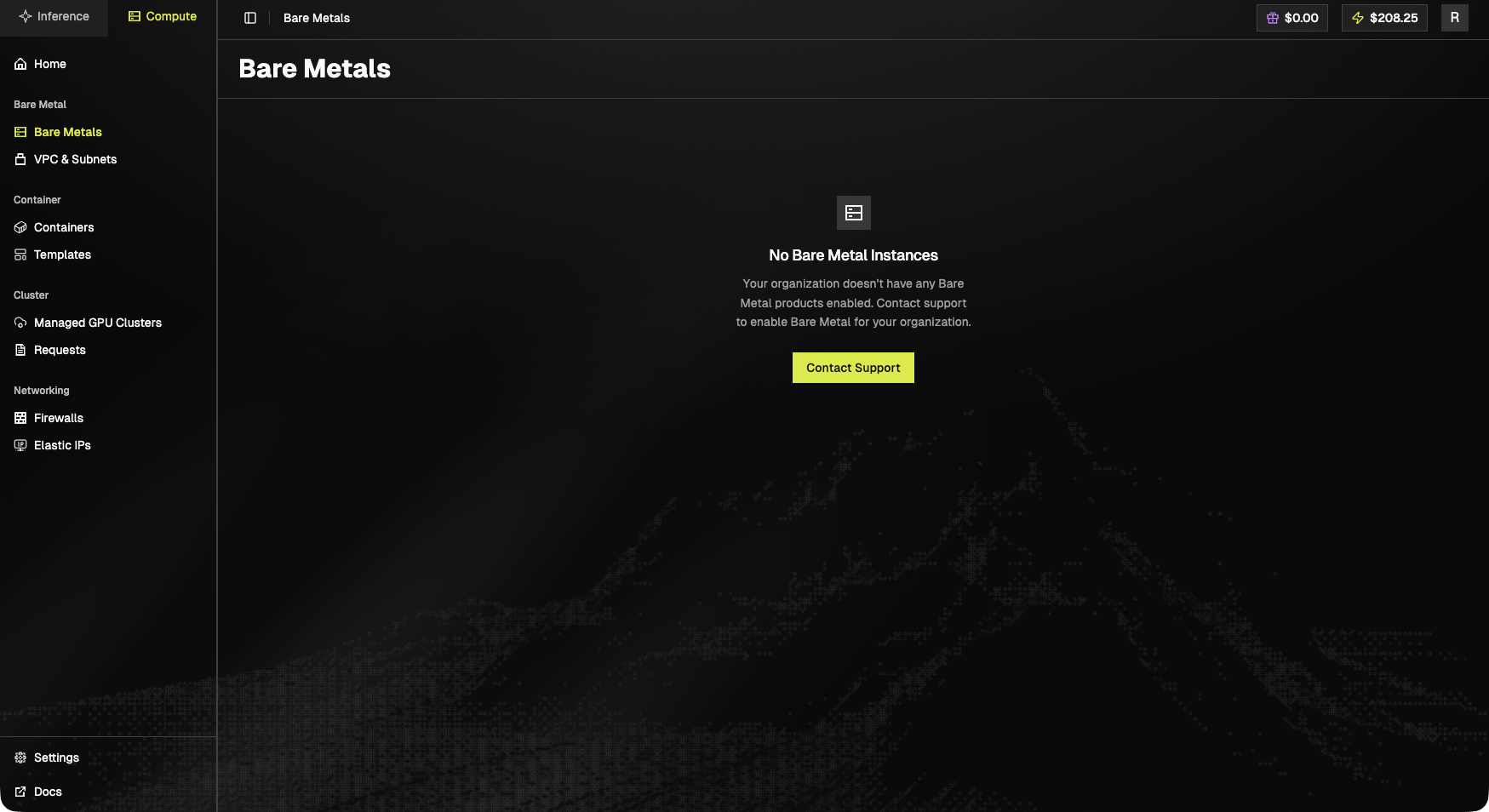
If your organization hasn't been enabled for Bare Metal yet:
> **No Bare Metal Instances.** Your organization doesn't have any Bare Metal products enabled. Contact support to enable Bare Metal for your organization.
A **Contact Support** button is shown.
## Enabled state
When populated, the page shows a table of provisioned instances with **name**, **region / IDC**, **GPU type**, **status**, **IP**, and per-instance actions (power, console, delete).
## Manage Bare Metal Servers
1. Click "**Bare Metals**" in the left sidebar under the "Bare Metal" section
## Gated state
If your organization hasn't been enabled for Bare Metal yet:
> **No Bare Metal Instances.** Your organization doesn't have any Bare Metal products enabled. Contact support to enable Bare Metal for your organization.
A **Contact Support** button is shown.
## Enabled state
When populated, the page shows a table of provisioned instances with **name**, **region / IDC**, **GPU type**, **status**, **IP**, and per-instance actions (power, console, delete).
## Manage Bare Metal Servers
1. Click "**Bare Metals**" in the left sidebar under the "Bare Metal" section
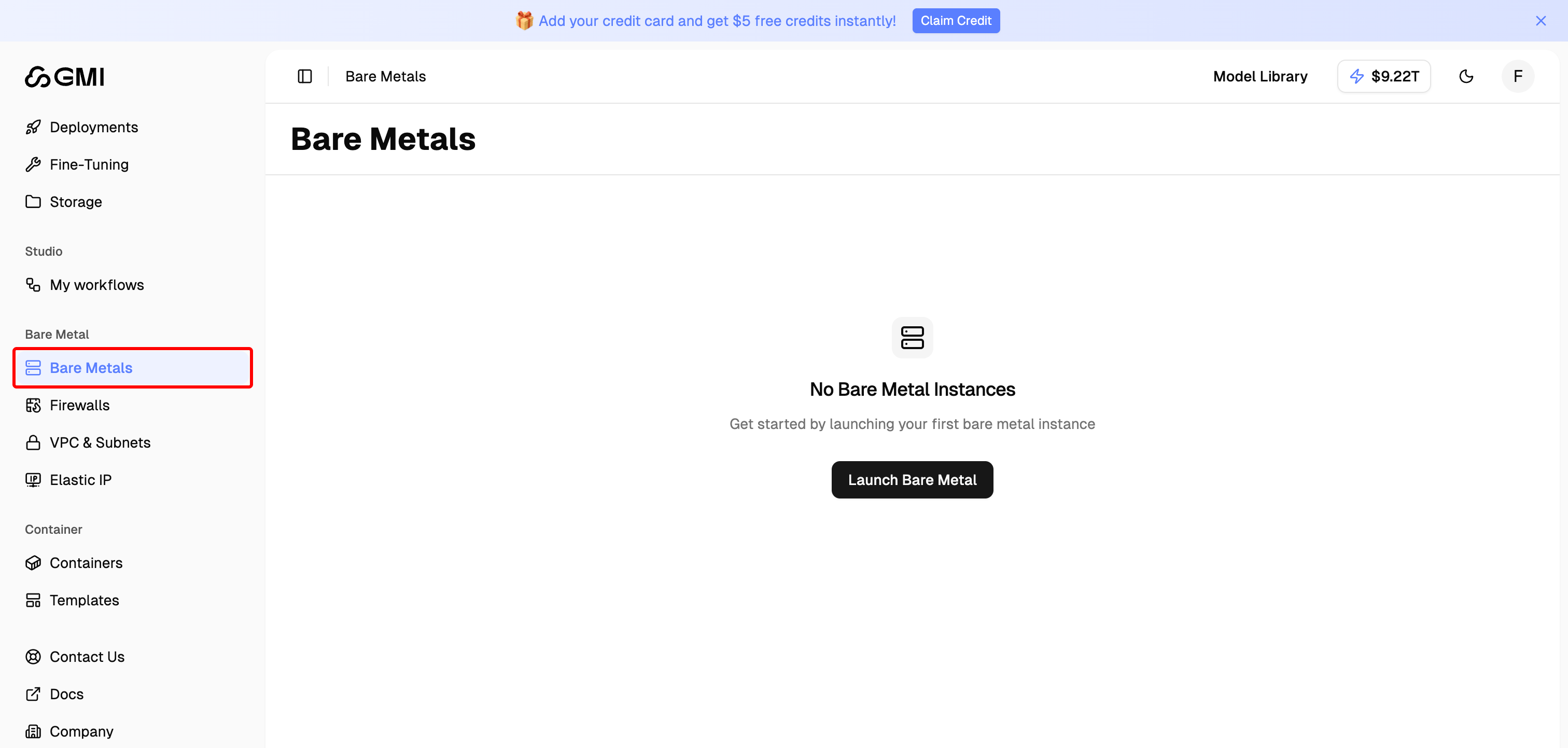 2. You will see all launched bare metal servers in the Bare Metals page
### Rename a bare metal server
1. Locate the bare metal server you want to rename
2. Click the "More actions" button (three dots icon)
3. Select "**Rename**" from the dropdown menu
2. You will see all launched bare metal servers in the Bare Metals page
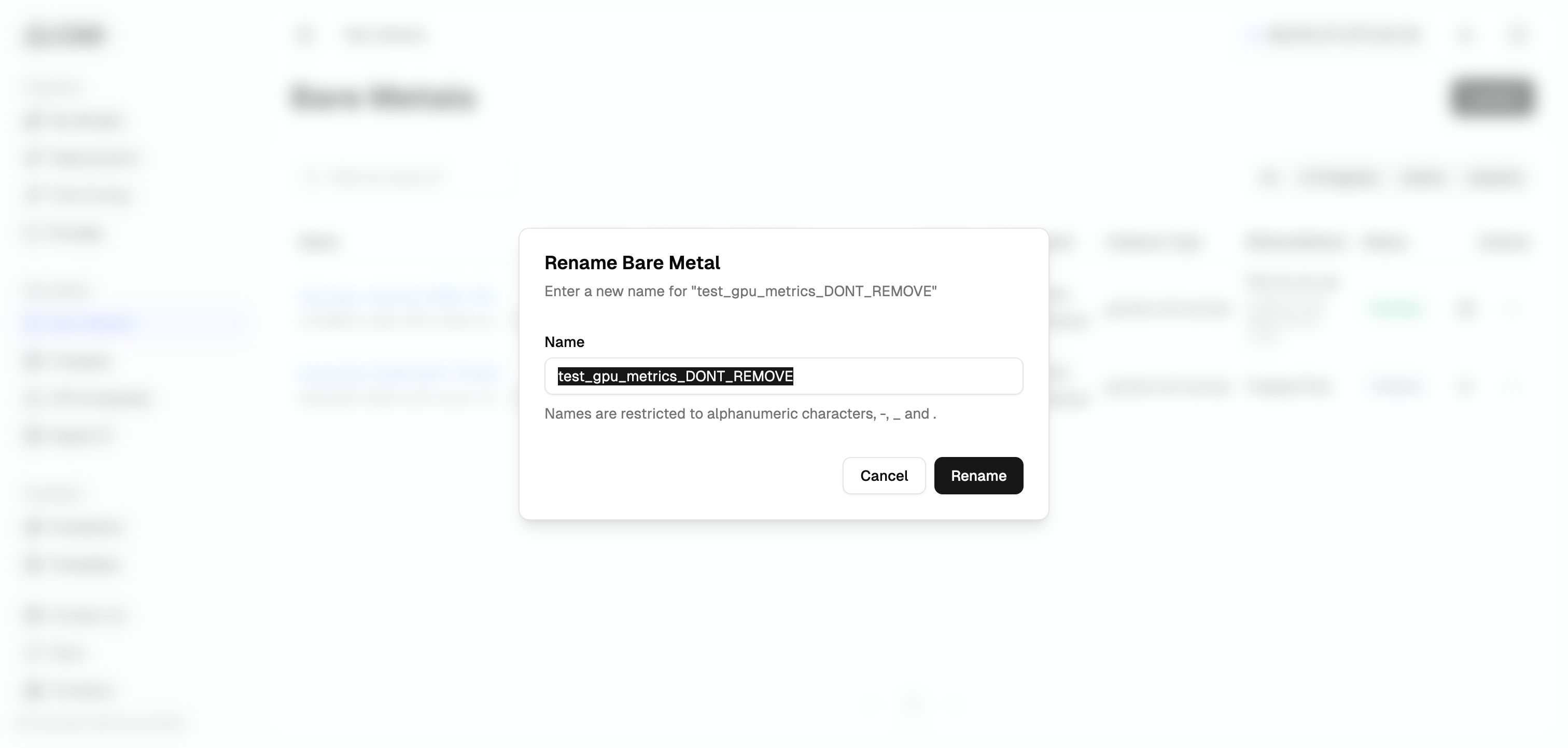
### Rename a bare metal server
1. Locate the bare metal server you want to rename
2. Click the "More actions" button (three dots icon)
3. Select "**Rename**" from the dropdown menu
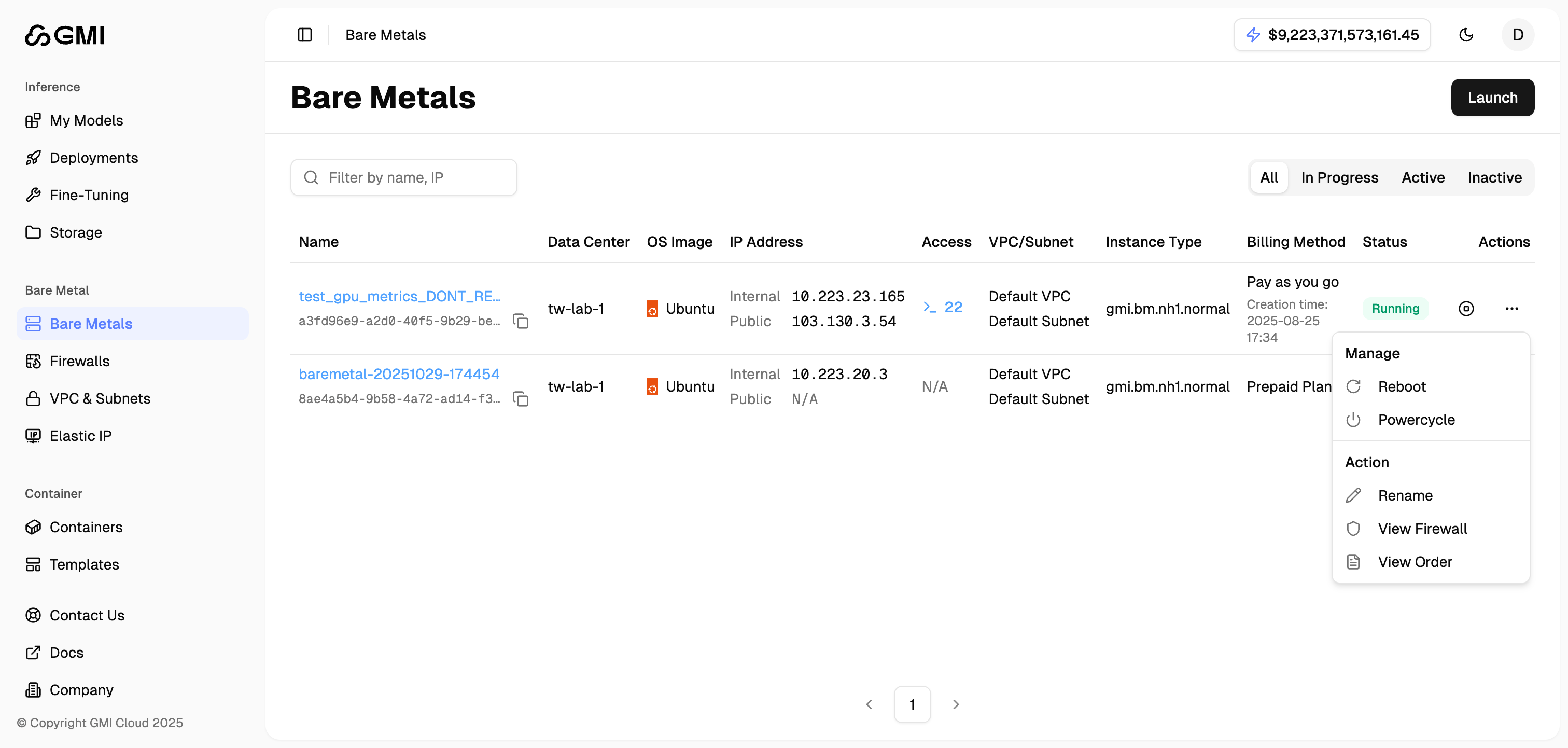 4. Enter a new name and click "**Submit**"
 ### Stop a running bare metal server
1. Locate the bare metal server you want to stop
2. Click the "**Stop**" icon button
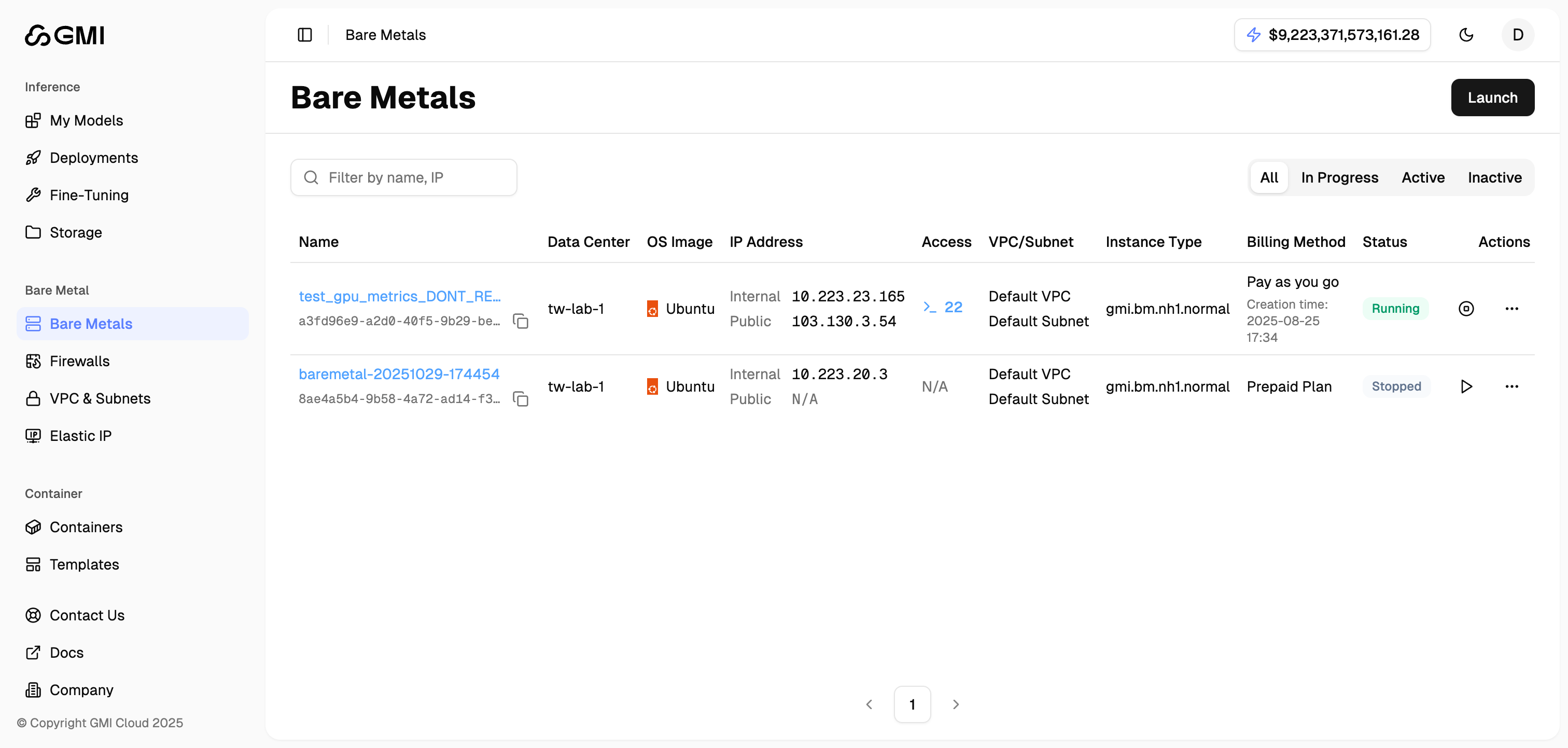
### Stop a running bare metal server
1. Locate the bare metal server you want to stop
2. Click the "**Stop**" icon button
 ### Start a stopped bare metal server
1. Locate the bare metal server you want to start
2. Click the "**Start**" icon button
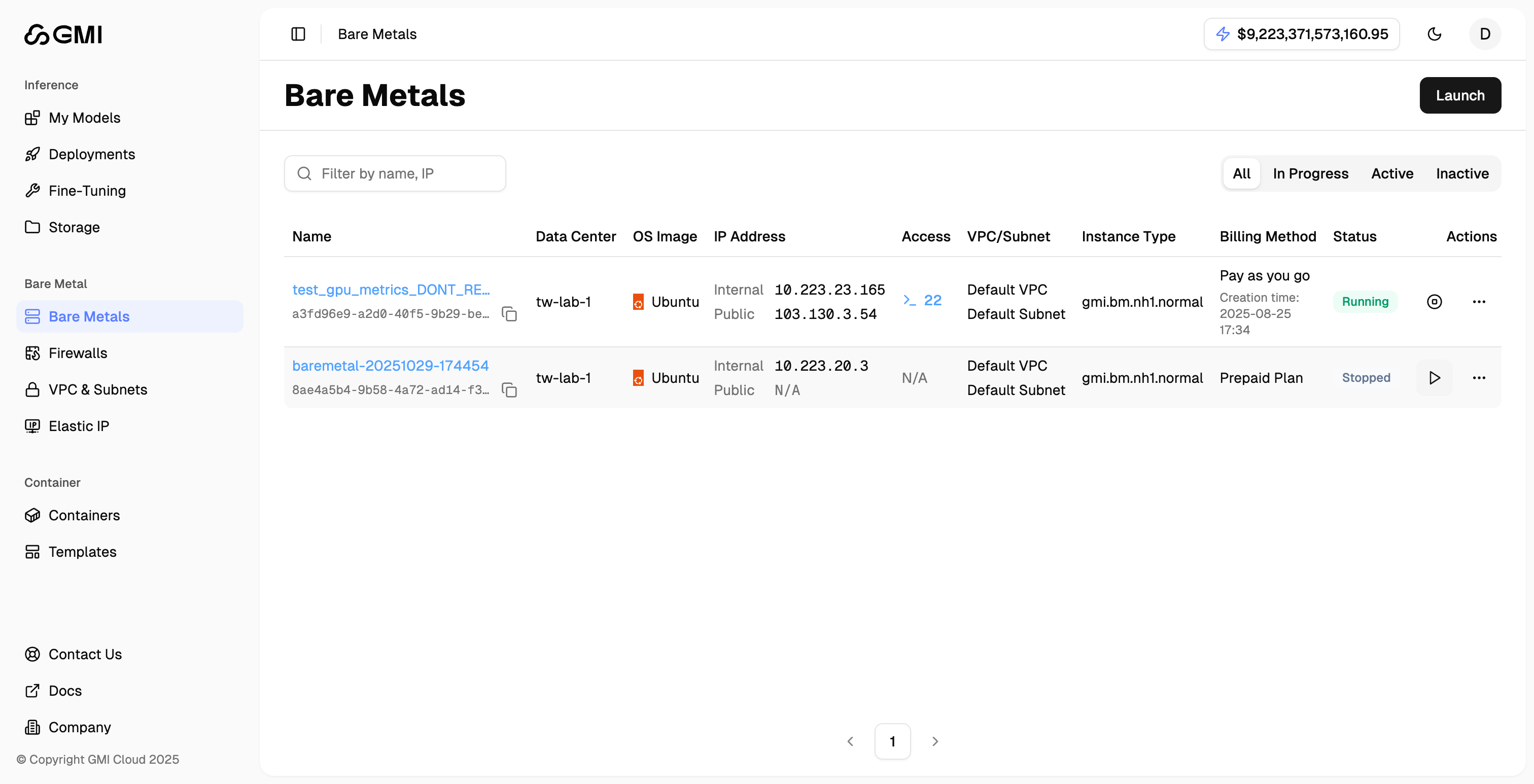
### Start a stopped bare metal server
1. Locate the bare metal server you want to start
2. Click the "**Start**" icon button
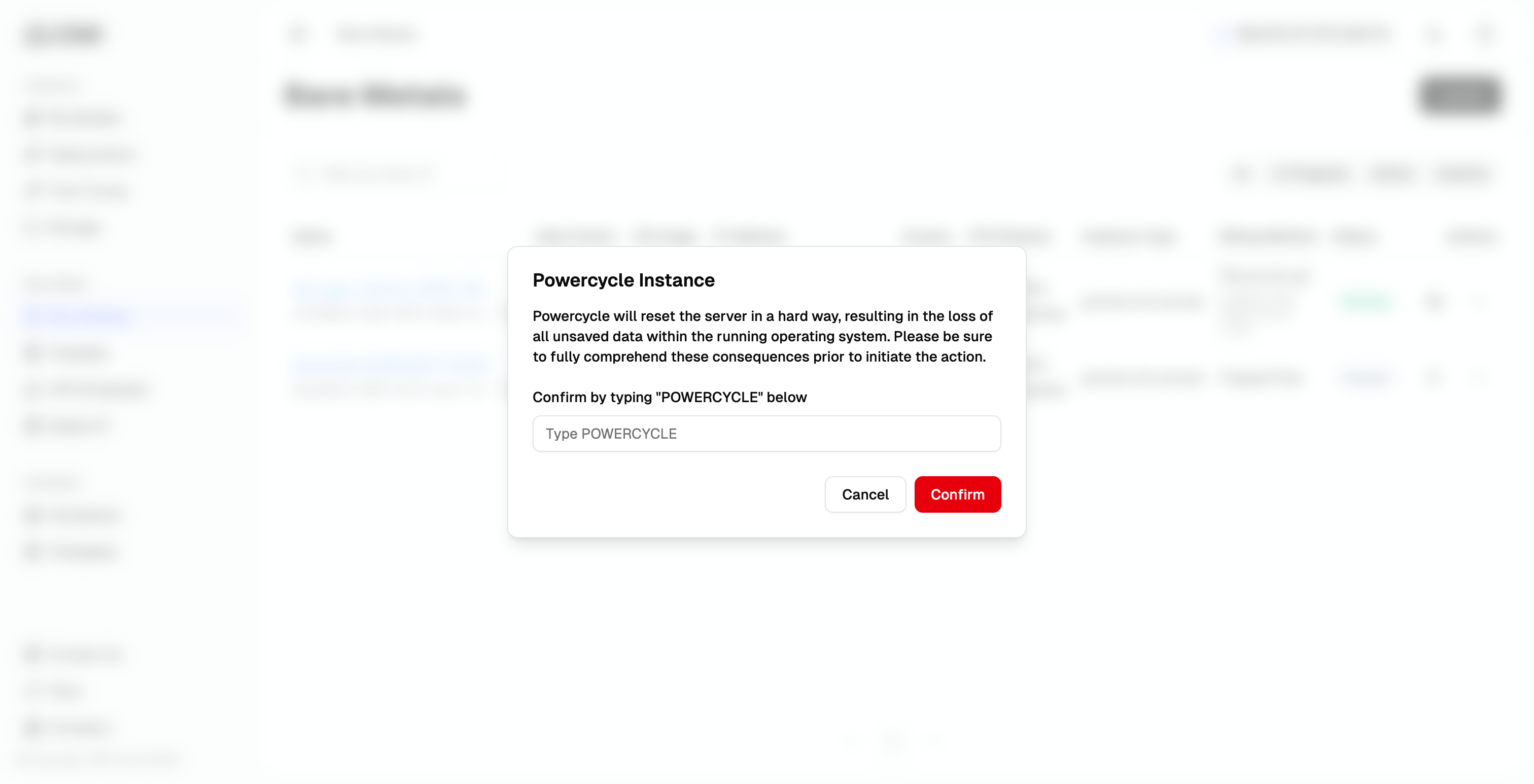
 ### PowerCycle a bare metal server
1. Locate the bare metal server you want to perform power cycle
2. Click the "More actions" button (three dots icon)
3. Select "**PowerCycle**" from the dropdown menu
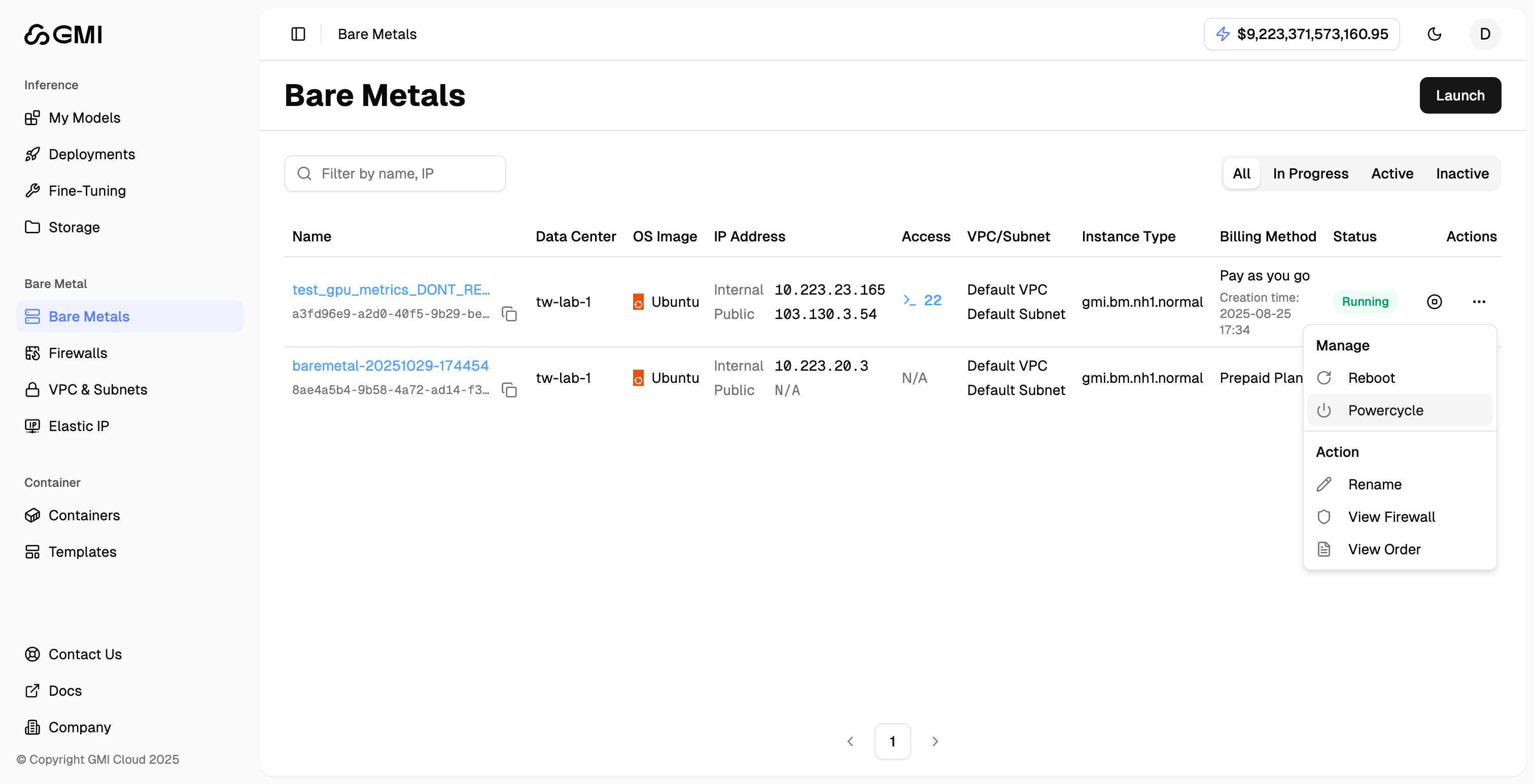
### PowerCycle a bare metal server
1. Locate the bare metal server you want to perform power cycle
2. Click the "More actions" button (three dots icon)
3. Select "**PowerCycle**" from the dropdown menu
 4. Enter the confirmation text as shown in the dialog
5. Click "**Confirm**" to proceed
4. Enter the confirmation text as shown in the dialog
5. Click "**Confirm**" to proceed
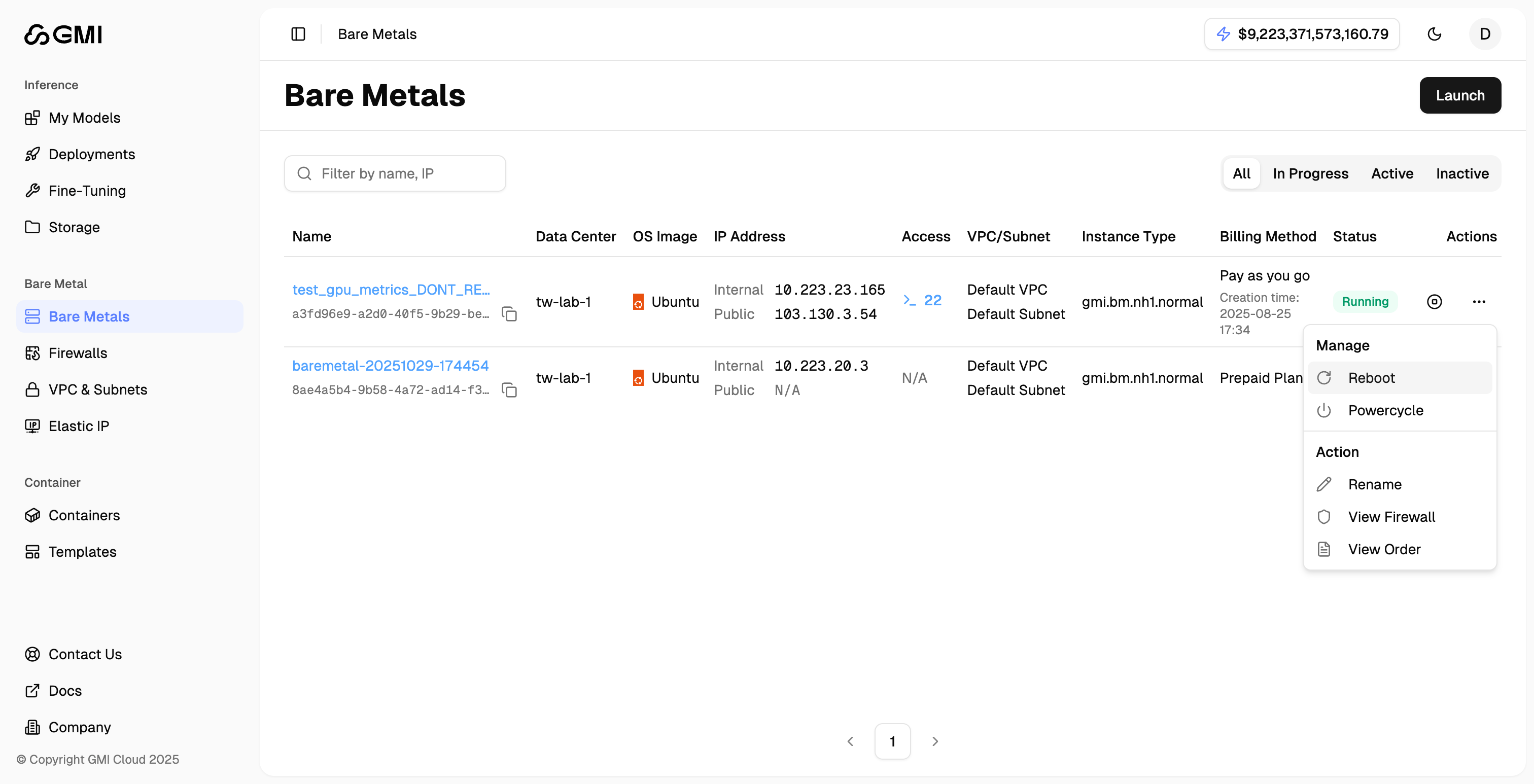
 ### Reboot a bare metal server
1. Locate the bare metal server you want to reboot
2. Click the "More actions" button (three dots icon)
3. Select "**Reboot**" from the dropdown menu
### Reboot a bare metal server
1. Locate the bare metal server you want to reboot
2. Click the "More actions" button (three dots icon)
3. Select "**Reboot**" from the dropdown menu
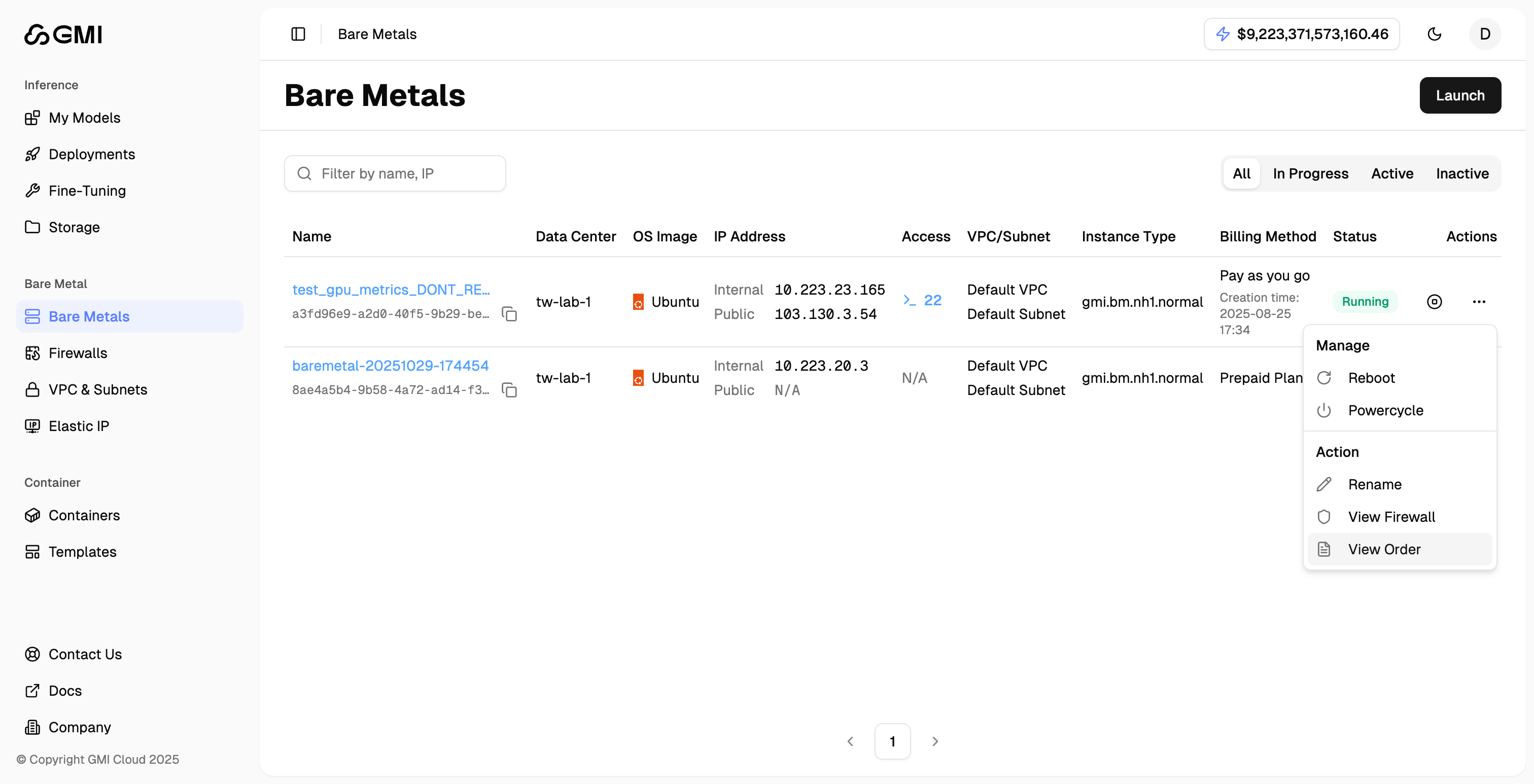
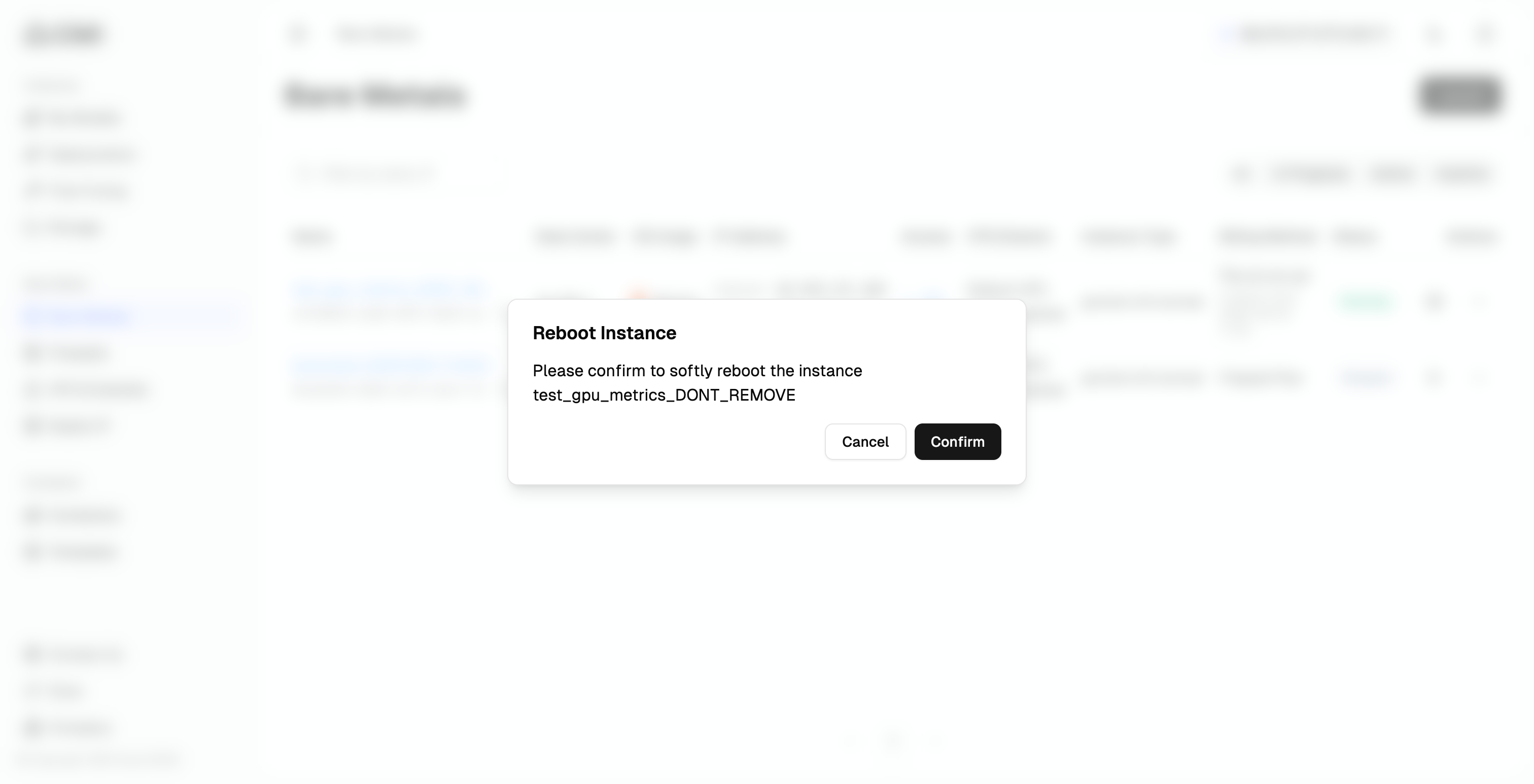
 4. Click "**Reboot**" to confirm
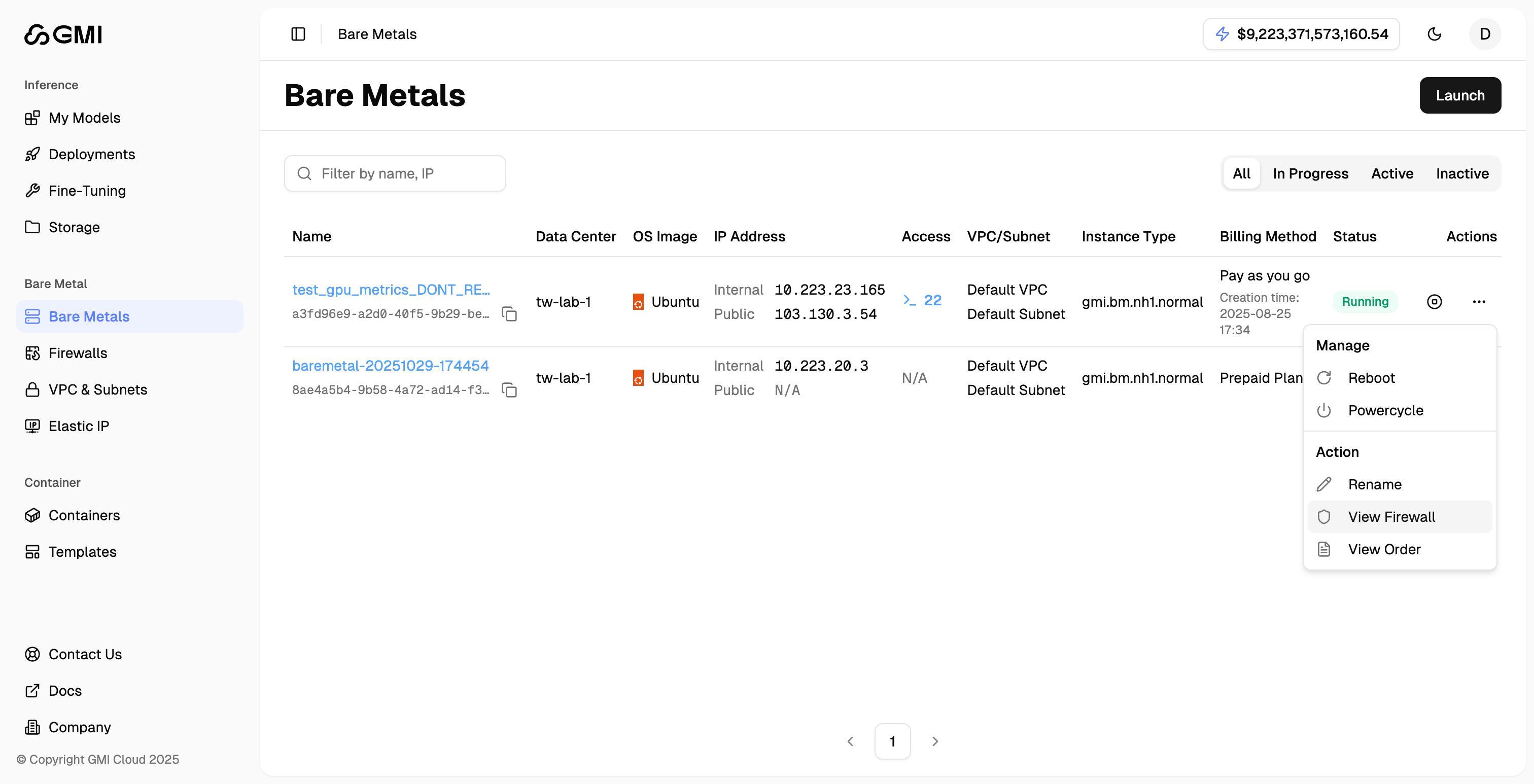
 ### View Firewall settings
1. Locate the bare metal server
2. Click the "More actions" button (three dots icon)
3. Select "**View Firewall**" from the dropdown menu to navigate to the Firewall management page
Alternatively, you can access Firewalls directly from the left sidebar.
### View Firewall settings
1. Locate the bare metal server
2. Click the "More actions" button (three dots icon)
3. Select "**View Firewall**" from the dropdown menu to navigate to the Firewall management page
Alternatively, you can access Firewalls directly from the left sidebar.
 ### View associated order
1. Locate the bare metal server
2. Click the "More actions" button (three dots icon)
3. Select "**View Order**" from the dropdown menu to see the associated order details
### View associated order
1. Locate the bare metal server
2. Click the "More actions" button (three dots icon)
3. Select "**View Order**" from the dropdown menu to see the associated order details