> ## Documentation Index
> Fetch the complete documentation index at: https://docs.gmicloud.ai/llms.txt
> Use this file to discover all available pages before exploring further.
# Elastic IP
> Allocate, attach, and release static IPv4 addresses for GMI Cloud Compute resources.
URL: `https://console.gmicloud.ai/user-console/ce/elastic-ip`
Elastic IPs are static public IPv4 addresses that you can allocate and attach to bare metal servers or container instances. Unlike dynamic IPs, Elastic IPs persist across server restarts and can be remapped to different instances.
 ## Empty state
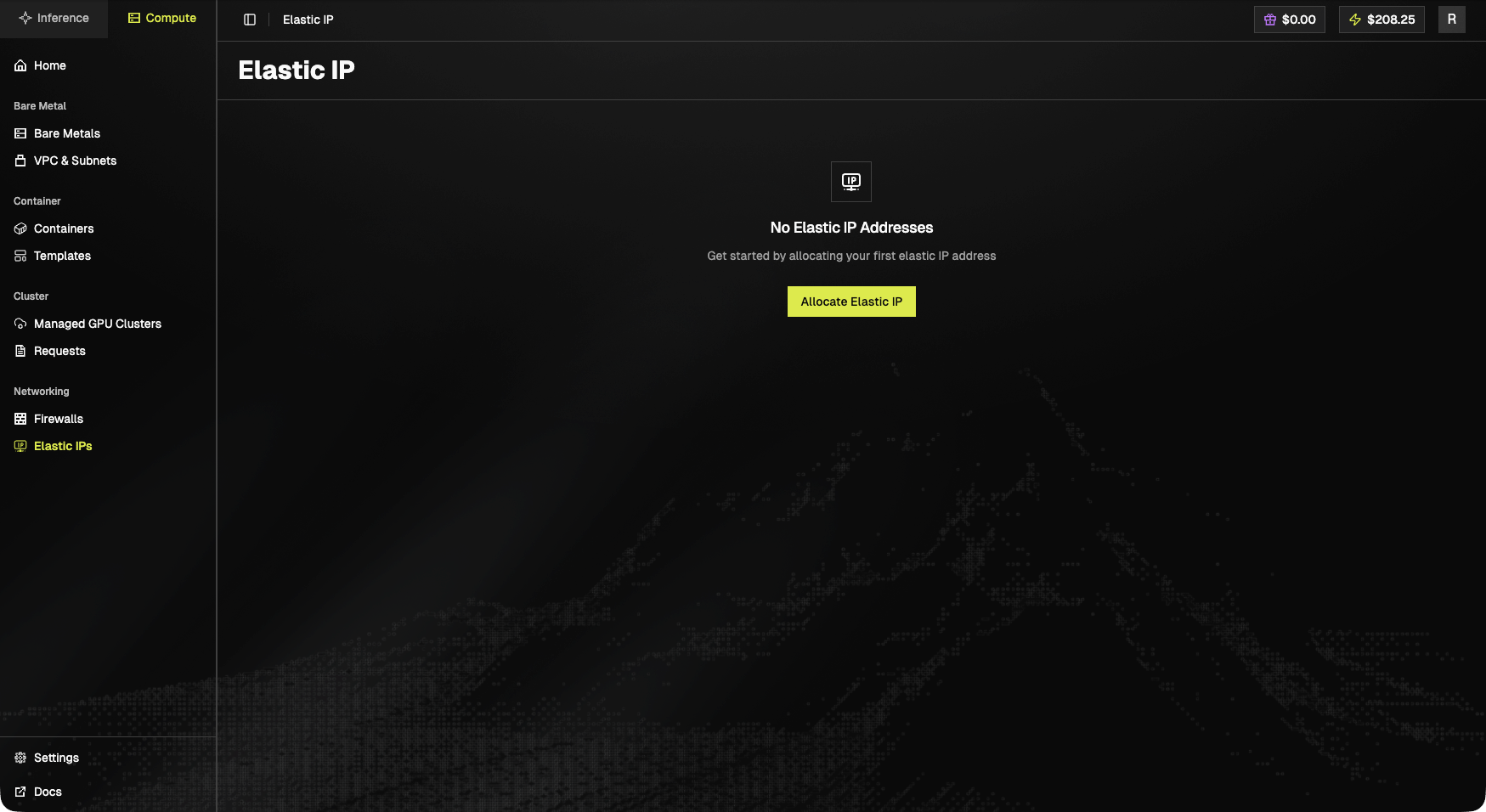
> **No Elastic IP Addresses.** Get started by allocating your first elastic IP address.
The **Allocate Elastic IP** button starts the allocation flow.
## Access Elastic IP
1. Click "**Elastic IP**" in the left sidebar under the "Networking" section
## Empty state
> **No Elastic IP Addresses.** Get started by allocating your first elastic IP address.
The **Allocate Elastic IP** button starts the allocation flow.
## Access Elastic IP
1. Click "**Elastic IP**" in the left sidebar under the "Networking" section
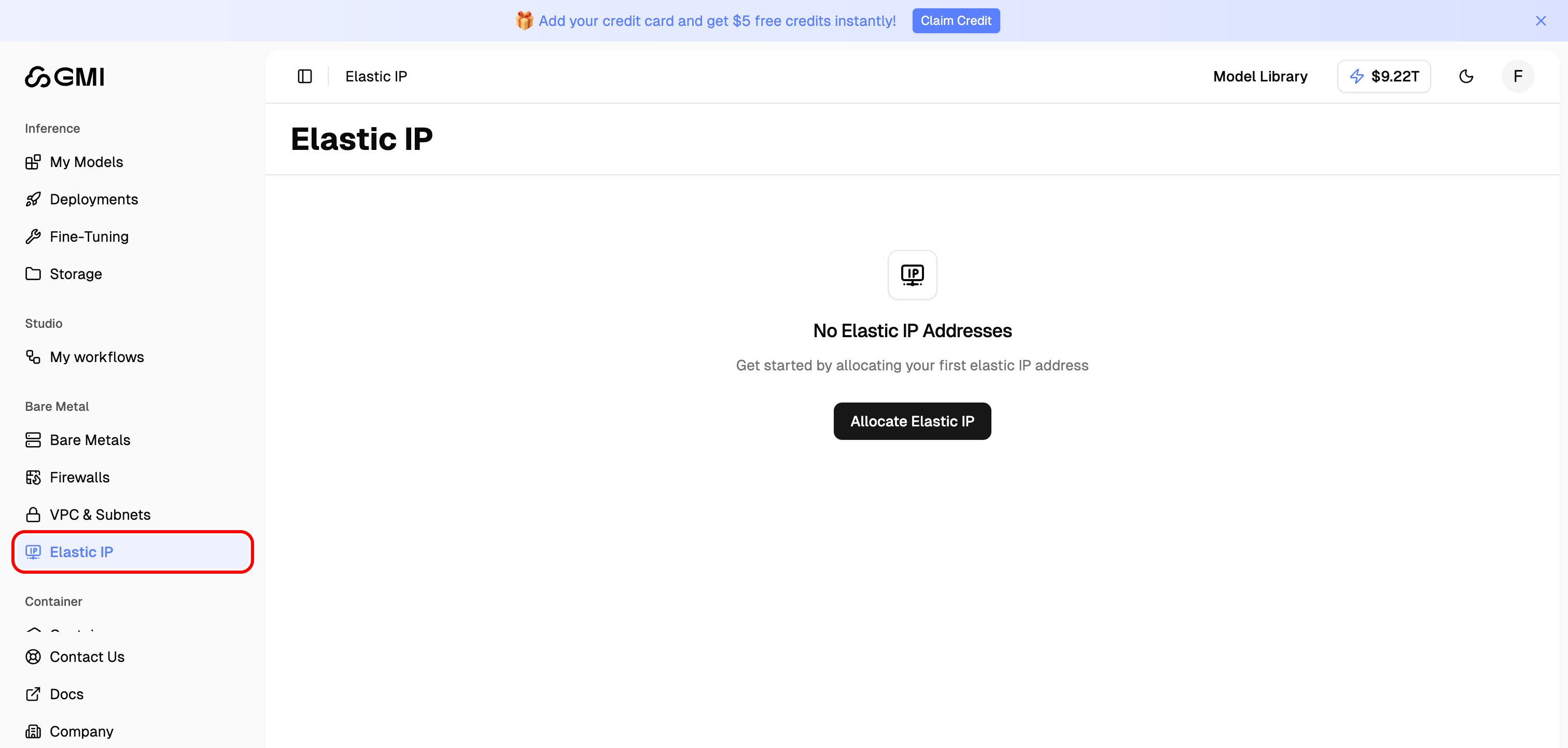 2. You will see the Elastic IP list page
 ## Allocate an Elastic IP
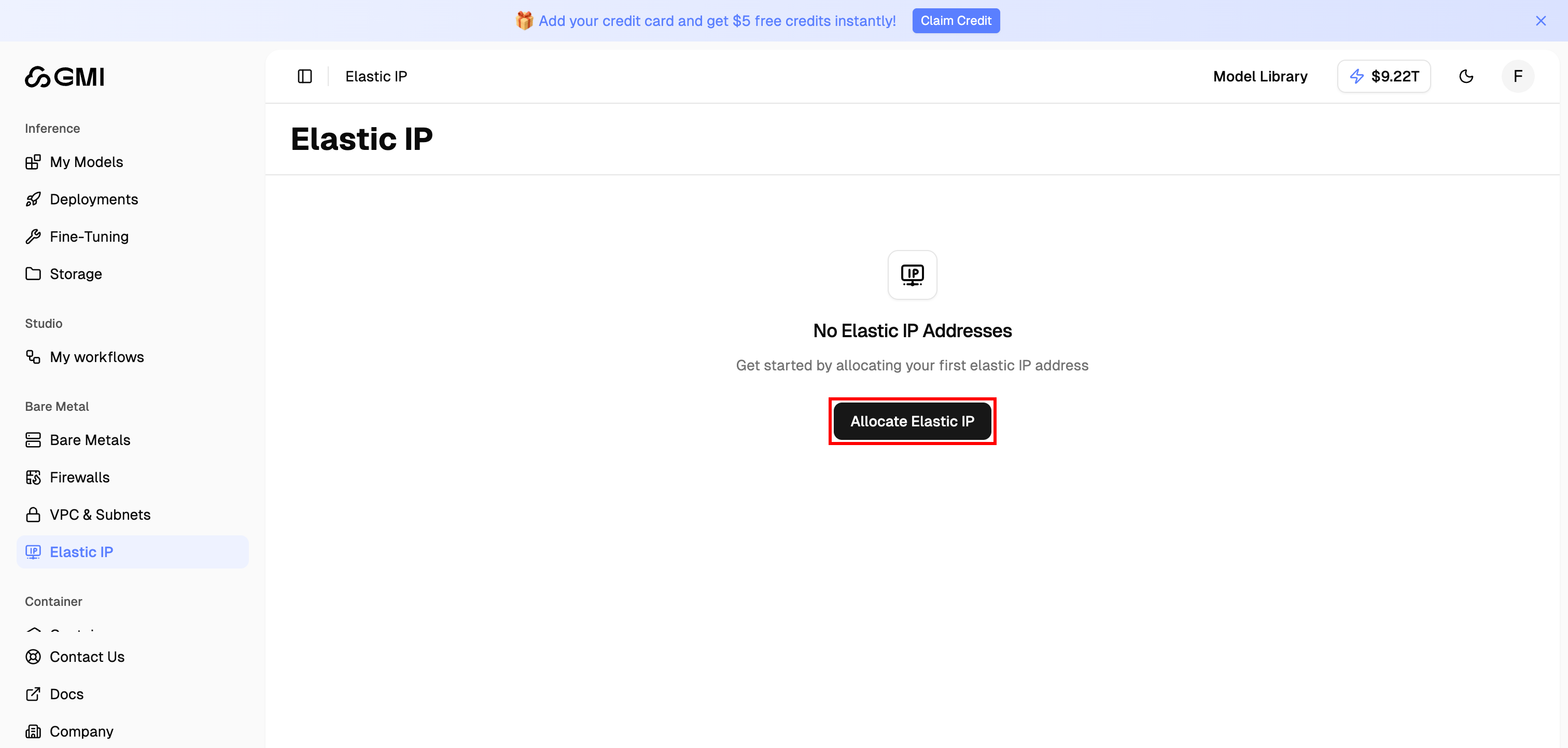
1. Click the "**Allocate Elastic IP**" button
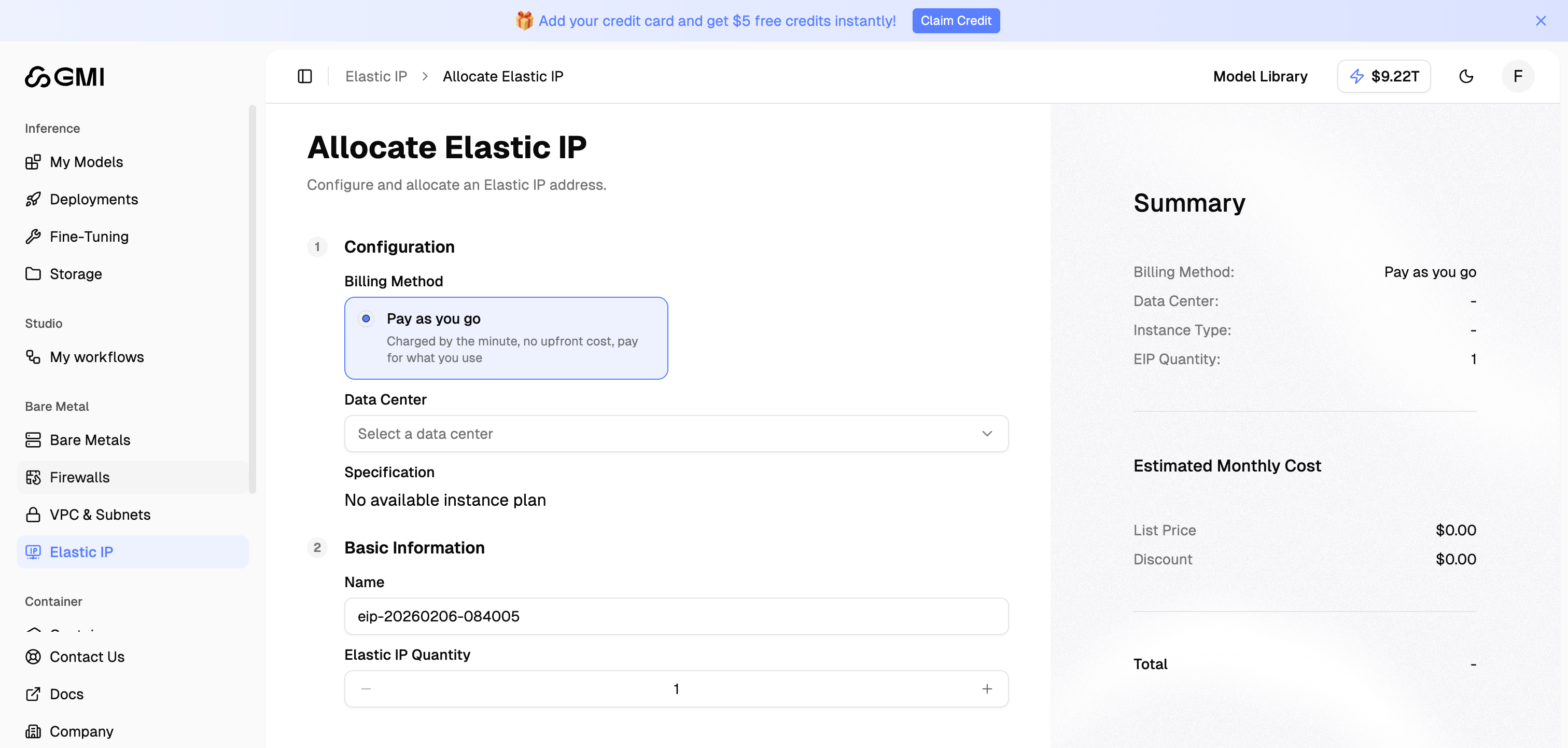
2. Configure the Elastic IP settings:
## Allocate an Elastic IP
1. Click the "**Allocate Elastic IP**" button
2. Configure the Elastic IP settings:
 ### Configuration
| Field | Description |
| ------------------ | ------------------------------------------------------------------------------- |
| **Billing Method** | Currently supports "Pay as you go" - charged by the minute with no upfront cost |
| **Data Center** | Select the data center where the Elastic IP will be allocated |
| **Specification** | Choose the bandwidth specification (available after selecting a data center) |
### Basic Information
| Field | Description |
| ----------------------- | ---------------------------------------------------------- |
| **Name** | Auto-generated name for the Elastic IP (can be customized) |
| **Elastic IP Quantity** | Number of Elastic IPs to allocate (default: 1) |
### Summary
The Summary panel shows:
* Billing method
* Selected data center
* Instance type
* EIP quantity
* Estimated monthly cost breakdown (List Price, Discount, Total)
3. Click "**Go to Pay**" to complete the allocation
## Associate an Elastic IP
You can associate an allocated Elastic IP with either a **Bare Metal** server or a **Container** instance.
1. On the Elastic IP list page, locate the EIP you want to associate
2. Click the "**Associate**" button in the Actions column
### Configuration
| Field | Description |
| ------------------ | ------------------------------------------------------------------------------- |
| **Billing Method** | Currently supports "Pay as you go" - charged by the minute with no upfront cost |
| **Data Center** | Select the data center where the Elastic IP will be allocated |
| **Specification** | Choose the bandwidth specification (available after selecting a data center) |
### Basic Information
| Field | Description |
| ----------------------- | ---------------------------------------------------------- |
| **Name** | Auto-generated name for the Elastic IP (can be customized) |
| **Elastic IP Quantity** | Number of Elastic IPs to allocate (default: 1) |
### Summary
The Summary panel shows:
* Billing method
* Selected data center
* Instance type
* EIP quantity
* Estimated monthly cost breakdown (List Price, Discount, Total)
3. Click "**Go to Pay**" to complete the allocation
## Associate an Elastic IP
You can associate an allocated Elastic IP with either a **Bare Metal** server or a **Container** instance.
1. On the Elastic IP list page, locate the EIP you want to associate
2. Click the "**Associate**" button in the Actions column
 3. In the **Associate Elastic IP** dialog:
* **Product Type**: Select **Container** (or Bare Metal)
* **Target Instance**: Pick the instance to attach the EIP to
The dialog shows the selected instance's details (Instance Name, Private IPv4 address, Creation Time) for confirmation.
3. In the **Associate Elastic IP** dialog:
* **Product Type**: Select **Container** (or Bare Metal)
* **Target Instance**: Pick the instance to attach the EIP to
The dialog shows the selected instance's details (Instance Name, Private IPv4 address, Creation Time) for confirmation.
 4. Click "**Confirm**" to complete the association
After the association succeeds, the EIP row shows the **Associated Instance Name**, **Associated Product** (Container or Bare Metal), and **Status** updates to **Associated**:
4. Click "**Confirm**" to complete the association
After the association succeeds, the EIP row shows the **Associated Instance Name**, **Associated Product** (Container or Bare Metal), and **Status** updates to **Associated**:
 Only instances in the **same data center** as the Elastic IP will appear in the Target Instance list. If no instances are listed, make sure the EIP and the instance share the same data center.
## Disassociate an Elastic IP
Detach an Elastic IP from its current instance while keeping the IP allocated to your account.
1. On the Elastic IP list page, locate an EIP with status **Associated**
2. Click the "**Disassociate**" button in the Actions column
Only instances in the **same data center** as the Elastic IP will appear in the Target Instance list. If no instances are listed, make sure the EIP and the instance share the same data center.
## Disassociate an Elastic IP
Detach an Elastic IP from its current instance while keeping the IP allocated to your account.
1. On the Elastic IP list page, locate an EIP with status **Associated**
2. Click the "**Disassociate**" button in the Actions column
 3. In the confirmation dialog, type **`DISASSOCIATE`** in the input field to confirm
 4. Click "**Confirm**" to detach the Elastic IP
After disassociation, the EIP returns to the **Disassociated** state and remains in your account. You can associate it with another instance later or release it entirely.
Disassociated Elastic IPs **continue to incur charges**. Release the EIP if you no longer need it (see Manage Elastic IPs below).
## Release an Elastic IP
Permanently release an Elastic IP back to the pool when you no longer need it. This stops all billing for the EIP.
Once released, the EIP is **permanently returned to the pool** and you likely will not be able to get the same IP address back by allocating a new one. Make sure no instance or service depends on this IP before releasing.
1. On the Elastic IP list page, locate a **Disassociated** EIP (you must disassociate first if it's still attached)
2. Click the "**More actions**" button (three dots) in the Actions column and choose "**Release**"
4. Click "**Confirm**" to detach the Elastic IP
After disassociation, the EIP returns to the **Disassociated** state and remains in your account. You can associate it with another instance later or release it entirely.
Disassociated Elastic IPs **continue to incur charges**. Release the EIP if you no longer need it (see Manage Elastic IPs below).
## Release an Elastic IP
Permanently release an Elastic IP back to the pool when you no longer need it. This stops all billing for the EIP.
Once released, the EIP is **permanently returned to the pool** and you likely will not be able to get the same IP address back by allocating a new one. Make sure no instance or service depends on this IP before releasing.
1. On the Elastic IP list page, locate a **Disassociated** EIP (you must disassociate first if it's still attached)
2. Click the "**More actions**" button (three dots) in the Actions column and choose "**Release**"
 3. In the confirmation dialog, type **`RELEASE`** in the input field to confirm
 4. Click "**Confirm**" to release the Elastic IP
After release, the EIP is removed from your account and billing stops immediately.
## Manage Elastic IPs
From the Elastic IP list page, you can:
* **Associate**: Attach an Elastic IP to a bare metal server or container
* **Disassociate**: Detach an Elastic IP from its current instance (the IP remains allocated)
* **Release**: Permanently release an Elastic IP back to the pool
## Best Practices
* **Use Elastic IPs for services that require consistent public addresses** - such as web servers, APIs, or any service that needs a stable endpoint
* **Release unused Elastic IPs** - You are charged for allocated Elastic IPs even when not associated with an instance
* **Plan your IP allocation** - Elastic IPs are limited resources; allocate only what you need
4. Click "**Confirm**" to release the Elastic IP
After release, the EIP is removed from your account and billing stops immediately.
## Manage Elastic IPs
From the Elastic IP list page, you can:
* **Associate**: Attach an Elastic IP to a bare metal server or container
* **Disassociate**: Detach an Elastic IP from its current instance (the IP remains allocated)
* **Release**: Permanently release an Elastic IP back to the pool
## Best Practices
* **Use Elastic IPs for services that require consistent public addresses** - such as web servers, APIs, or any service that needs a stable endpoint
* **Release unused Elastic IPs** - You are charged for allocated Elastic IPs even when not associated with an instance
* **Plan your IP allocation** - Elastic IPs are limited resources; allocate only what you need