> ## Documentation Index
> Fetch the complete documentation index at: https://docs.gmicloud.ai/llms.txt
> Use this file to discover all available pages before exploring further.
# Firewalls
> Control inbound traffic to bare-metal servers and container instances.
URL: `https://console.gmicloud.ai/user-console/ce/firewalls`
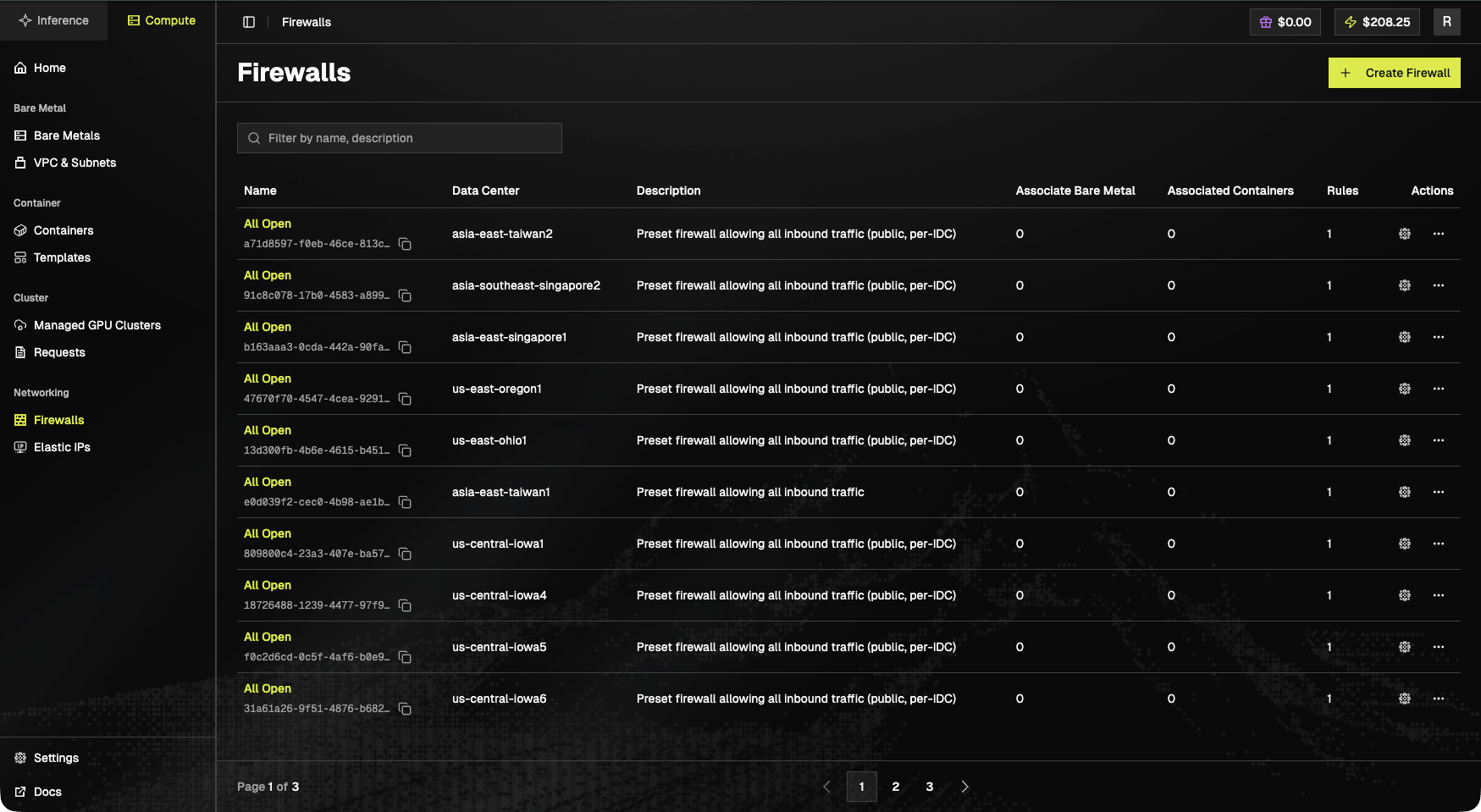
Firewalls let you control incoming network traffic to your bare metal servers and container instances by defining security rules. Each firewall is scoped to a single IDC (data center).
 ## Toolbar
* **+ Create Firewall** (top-right).
* Filter by name or description.
## Table columns
| Column | Notes |
| ------------------------- | -------------------------------------------- |
| **Name** | Friendly name + UUID (copyable) |
| **Data Center** | IDC slug, e.g. `us-east-oregon1` |
| **Description** | Free text |
| **Associate Bare Metal** | Count of attached BM instances |
| **Associated Containers** | Count of attached containers |
| **Rules** | Rule count |
| **Actions** | Gear (edit rules) and `•••` (rename, delete) |
## Built-in firewalls
Every available IDC ships with a pre-provisioned **All Open** firewall: *preset firewall allowing all inbound traffic (public, per-IDC)*. Examples include `asia-east-taiwan1/2`, `asia-east-singapore1`, `asia-southeast-singapore2`, `us-east-oregon1`, `us-east-ohio1`, `us-central-iowa1/4/5/6`.
## Access Firewalls
1. Click "**Firewalls**" in the left sidebar under the "Networking" section
## Toolbar
* **+ Create Firewall** (top-right).
* Filter by name or description.
## Table columns
| Column | Notes |
| ------------------------- | -------------------------------------------- |
| **Name** | Friendly name + UUID (copyable) |
| **Data Center** | IDC slug, e.g. `us-east-oregon1` |
| **Description** | Free text |
| **Associate Bare Metal** | Count of attached BM instances |
| **Associated Containers** | Count of attached containers |
| **Rules** | Rule count |
| **Actions** | Gear (edit rules) and `•••` (rename, delete) |
## Built-in firewalls
Every available IDC ships with a pre-provisioned **All Open** firewall: *preset firewall allowing all inbound traffic (public, per-IDC)*. Examples include `asia-east-taiwan1/2`, `asia-east-singapore1`, `asia-southeast-singapore2`, `us-east-oregon1`, `us-east-ohio1`, `us-central-iowa1/4/5/6`.
## Access Firewalls
1. Click "**Firewalls**" in the left sidebar under the "Networking" section
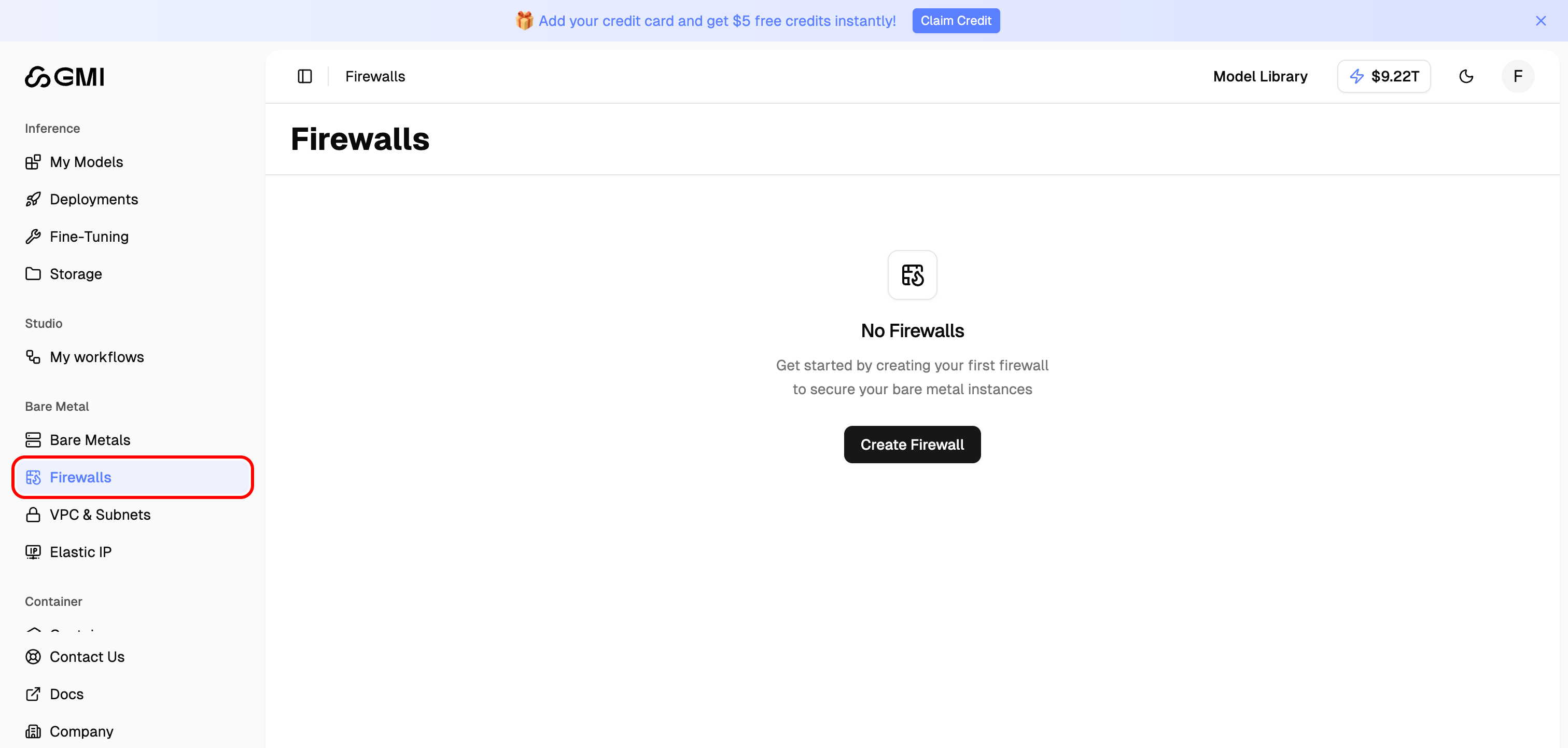 2. You will see the Firewalls list page showing all your firewall configurations. The **Associate Bare Metal** and **Associated Containers** columns show how many instances each firewall is attached to.
 ## Create a Firewall
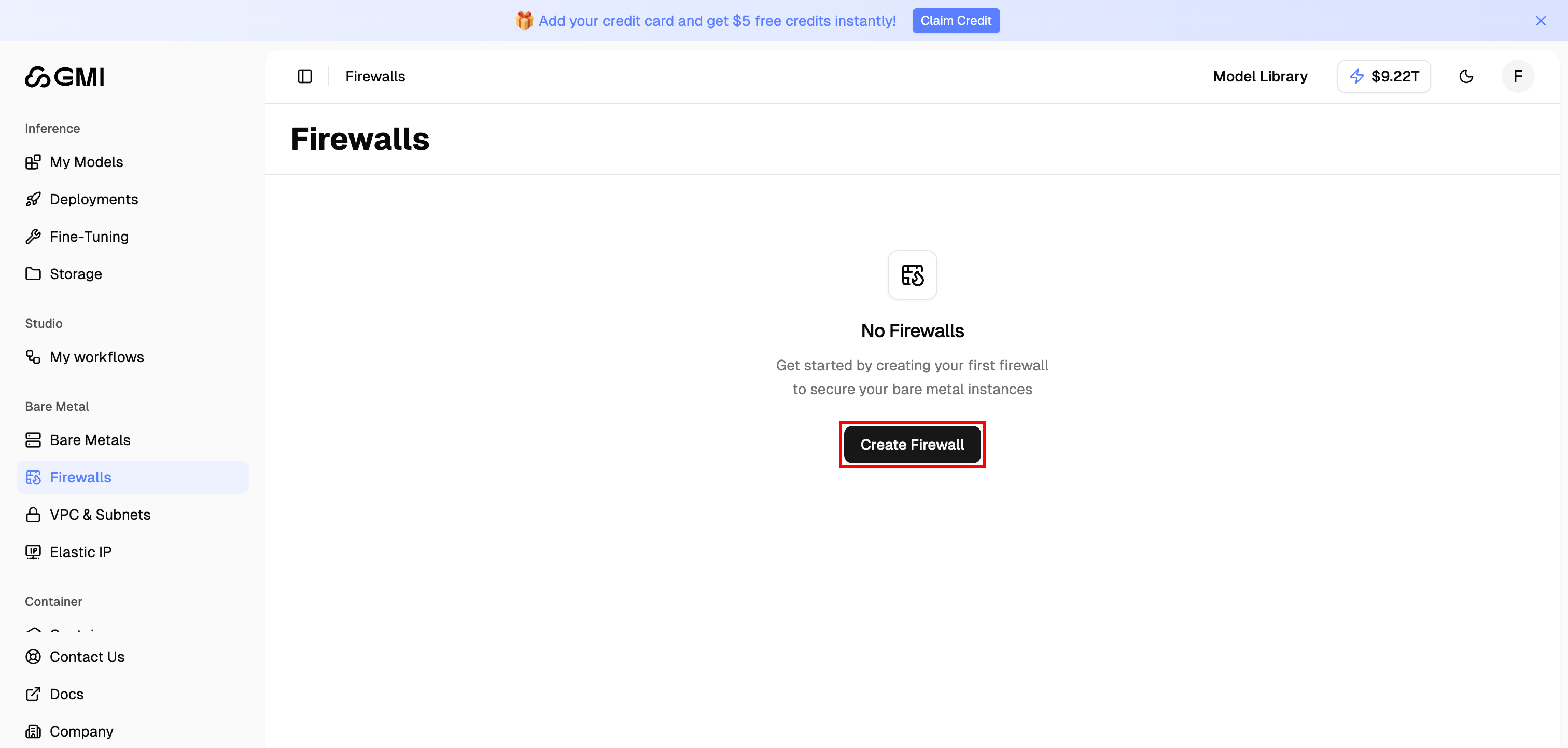
1. Click the "**Create Firewall**" button in the top right corner
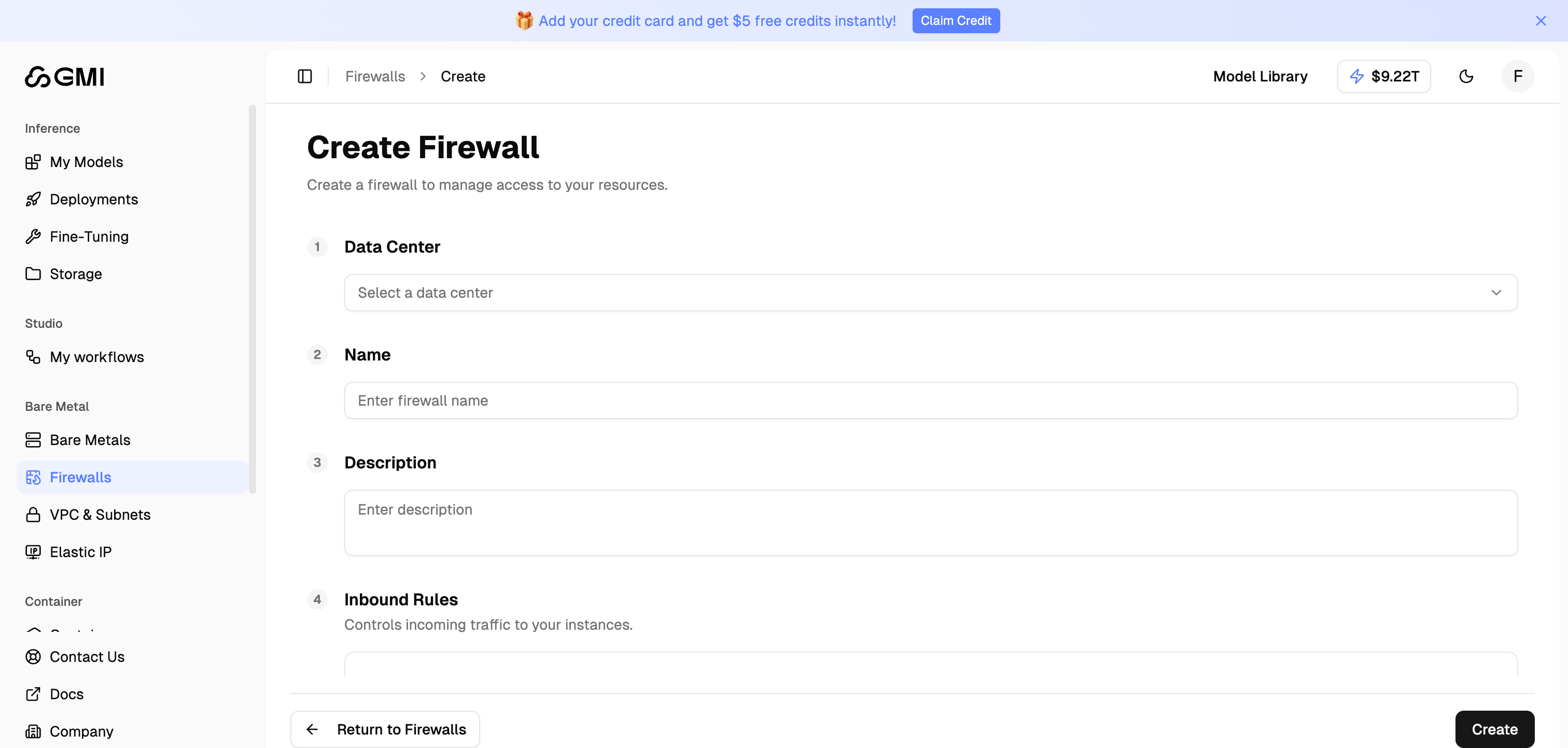
2. Fill in the firewall configuration form:
## Create a Firewall
1. Click the "**Create Firewall**" button in the top right corner
2. Fill in the firewall configuration form:
 ### Configuration Fields
| Field | Description |
| --------------- | --------------------------------------------------------- |
| **Data Center** | Select the data center where the firewall will be created |
| **Name** | Enter a name for your firewall |
| **Description** | Optional description for the firewall |
### Inbound Rules
Inbound rules control incoming traffic to the attached instances. Each rule consists of:
| Field | Description |
| -------------- | ---------------------------------------------------------------------------- |
| **Type** | The type of traffic (e.g., SSH, HTTP, HTTPS, Custom) |
| **Protocol** | Network protocol (TCP, UDP, ICMP) |
| **Port Range** | The port range to allow (e.g., 22-22 for SSH) |
| **Sources** | IP addresses or CIDR blocks allowed to connect (e.g., 0.0.0.0/0 for all IPs) |
Click "**Add Rule**" to add additional inbound rules.
3. Click "**Create**" to create the firewall
You can attach instances during creation, or at any time afterwards via the **Manage** page, see the next section.
## Associate a Firewall with Instances
A firewall can be associated with either **Bare Metal** servers or **Container** instances. The list page shows the current counts in the **Associate Bare Metal** and **Associated Containers** columns.
### Configuration Fields
| Field | Description |
| --------------- | --------------------------------------------------------- |
| **Data Center** | Select the data center where the firewall will be created |
| **Name** | Enter a name for your firewall |
| **Description** | Optional description for the firewall |
### Inbound Rules
Inbound rules control incoming traffic to the attached instances. Each rule consists of:
| Field | Description |
| -------------- | ---------------------------------------------------------------------------- |
| **Type** | The type of traffic (e.g., SSH, HTTP, HTTPS, Custom) |
| **Protocol** | Network protocol (TCP, UDP, ICMP) |
| **Port Range** | The port range to allow (e.g., 22-22 for SSH) |
| **Sources** | IP addresses or CIDR blocks allowed to connect (e.g., 0.0.0.0/0 for all IPs) |
Click "**Add Rule**" to add additional inbound rules.
3. Click "**Create**" to create the firewall
You can attach instances during creation, or at any time afterwards via the **Manage** page, see the next section.
## Associate a Firewall with Instances
A firewall can be associated with either **Bare Metal** servers or **Container** instances. The list page shows the current counts in the **Associate Bare Metal** and **Associated Containers** columns.
 1. On the Firewalls list page, click the **firewall name** (e.g., `All Open`) to open its detail page
2. On the detail page, click the "**Manage**" button in the top right corner
1. On the Firewalls list page, click the **firewall name** (e.g., `All Open`) to open its detail page
2. On the detail page, click the "**Manage**" button in the top right corner
 3. On the Manage page you will see two sections: **Bare Metal Association** and **Associate to Container**
 4. Click the dropdown of the section you want and select one or more instances (only instances in the **same data center** as the firewall are listed)
 5. Click "**Save**" to apply the association
The **All Open** preset firewall allows all inbound traffic (`0.0.0.0/0`), useful for testing, but not recommended for production workloads. Use a stricter custom firewall for instances that are exposed to the internet.
## Disassociate a Firewall from an Instance
To remove an instance from a firewall, use the same Manage page:
1. On the Firewalls list page, click the firewall name to open its detail page
2. Click "**Manage**" in the top right corner
3. In the **Bare Metal Association** or **Associate to Container** section, locate the chip for the instance you want to disassociate and click the "**×**" icon on that chip
5. Click "**Save**" to apply the association
The **All Open** preset firewall allows all inbound traffic (`0.0.0.0/0`), useful for testing, but not recommended for production workloads. Use a stricter custom firewall for instances that are exposed to the internet.
## Disassociate a Firewall from an Instance
To remove an instance from a firewall, use the same Manage page:
1. On the Firewalls list page, click the firewall name to open its detail page
2. Click "**Manage**" in the top right corner
3. In the **Bare Metal Association** or **Associate to Container** section, locate the chip for the instance you want to disassociate and click the "**×**" icon on that chip
 4. Click "**Save**" to apply the change
After saving, the instance's **Associated Firewall** returns to whatever default applies (for example, containers fall back to the system default). The firewall itself remains allocated and can be associated with other instances.
## Manage Firewalls
From the Firewalls list page, you can:
* **View details**, click the firewall name to inspect its rules and associations
* **Edit rules**, open the detail page and update inbound rules
* **Associate / Disassociate** instances, use the Manage page (see above)
* **Delete firewall**, from the detail page; only firewalls with no associated instances can be deleted
4. Click "**Save**" to apply the change
After saving, the instance's **Associated Firewall** returns to whatever default applies (for example, containers fall back to the system default). The firewall itself remains allocated and can be associated with other instances.
## Manage Firewalls
From the Firewalls list page, you can:
* **View details**, click the firewall name to inspect its rules and associations
* **Edit rules**, open the detail page and update inbound rules
* **Associate / Disassociate** instances, use the Manage page (see above)
* **Delete firewall**, from the detail page; only firewalls with no associated instances can be deleted