> ## Documentation Index
> Fetch the complete documentation index at: https://docs.gmicloud.ai/llms.txt
> Use this file to discover all available pages before exploring further.
# Managed GPU Clusters
> Provision and operate managed Kubernetes GPU clusters for large-scale AI workloads.
URL: `https://console.gmicloud.ai/user-console/ce/managed-clusters/clusters`
GMI Cloud's Managed GPU Cluster Service (MGCS) provides fully managed Kubernetes-based GPU clusters for large-scale AI workloads. Unlike individual containers, MGCS offers dedicated GPU worker nodes with Kubernetes orchestration, giving you cluster-level control over your compute resources.
Use [Cluster Requests](/cluster-engine/resources/cluster-requests) to launch new ones.
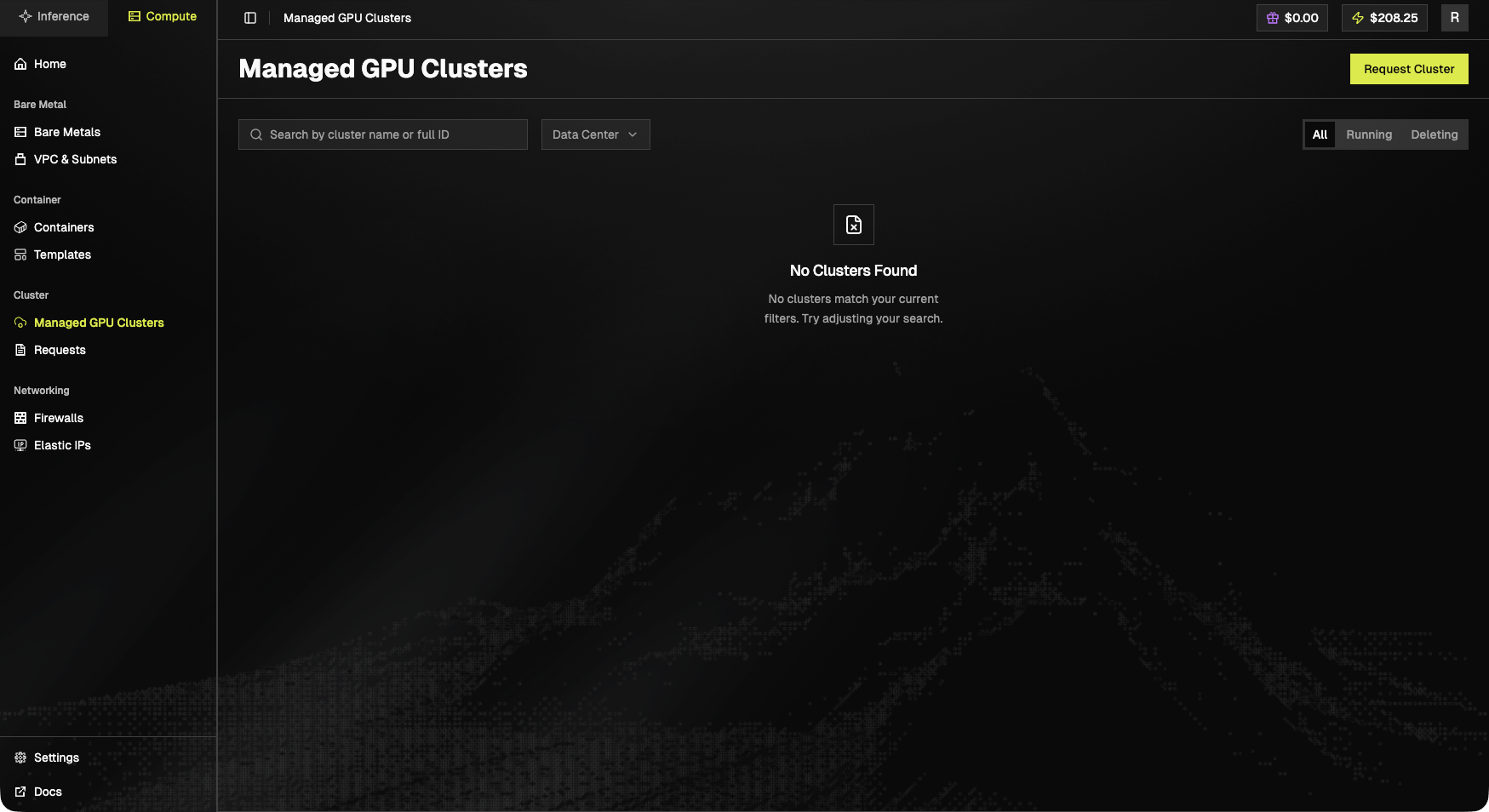 ## Toolbar
* Search by cluster name or full ID.
* **Data Center** dropdown filter.
* Status pills: **All**, **Running**, **Deleting**.
* **Request Cluster** (top-right), same flow as the Compute Home catalog.
## Empty state
> **No Clusters Found.** No clusters match your current filters. Try adjusting your search.
When populated, each cluster row exposes **name**, **ID**, **data center**, **node count**, **status**, and per-cluster actions (open, delete).
The request for GPU Cluster Service is not processed automatically. After submitting a request, please contact support to activate it.
## View Managed GPU Clusters
1. Click "**Managed GPU Clusters**" in the left sidebar under the "Cluster" section
## Toolbar
* Search by cluster name or full ID.
* **Data Center** dropdown filter.
* Status pills: **All**, **Running**, **Deleting**.
* **Request Cluster** (top-right), same flow as the Compute Home catalog.
## Empty state
> **No Clusters Found.** No clusters match your current filters. Try adjusting your search.
When populated, each cluster row exposes **name**, **ID**, **data center**, **node count**, **status**, and per-cluster actions (open, delete).
The request for GPU Cluster Service is not processed automatically. After submitting a request, please contact support to activate it.
## View Managed GPU Clusters
1. Click "**Managed GPU Clusters**" in the left sidebar under the "Cluster" section
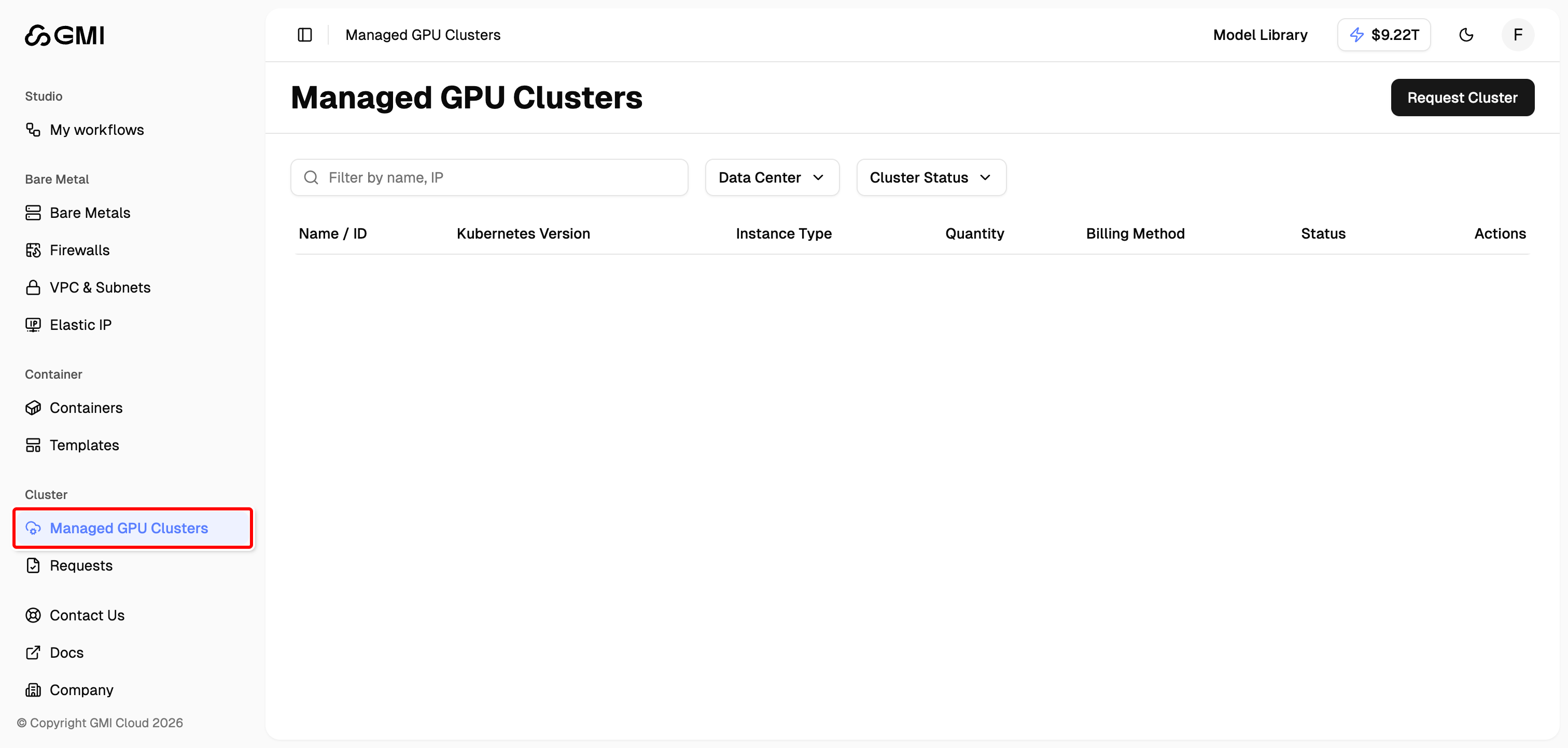 2. The cluster list displays the following information for each cluster:
| **Column** | **Description** |
| ---------------------- | ------------------------------------------------ |
| **Name / ID** | Cluster name and unique identifier |
| **Kubernetes Version** | The version of Kubernetes running on the cluster |
| **Instance Type** | GPU worker node specification |
| **Quantity** | Number of worker nodes in the cluster |
| **Billing Method** | Pay as you go or Prepaid |
| **Status** | Current cluster status |
| **Actions** | Available management actions |
3. Use the filters to narrow down your clusters:
* **Search**: Filter by cluster name or IP address
* **Data Center**: Filter by data center location
* **Cluster Status**: Filter by cluster status
## Request a New Cluster
To request a new managed GPU cluster, follow the 3-step configuration process:
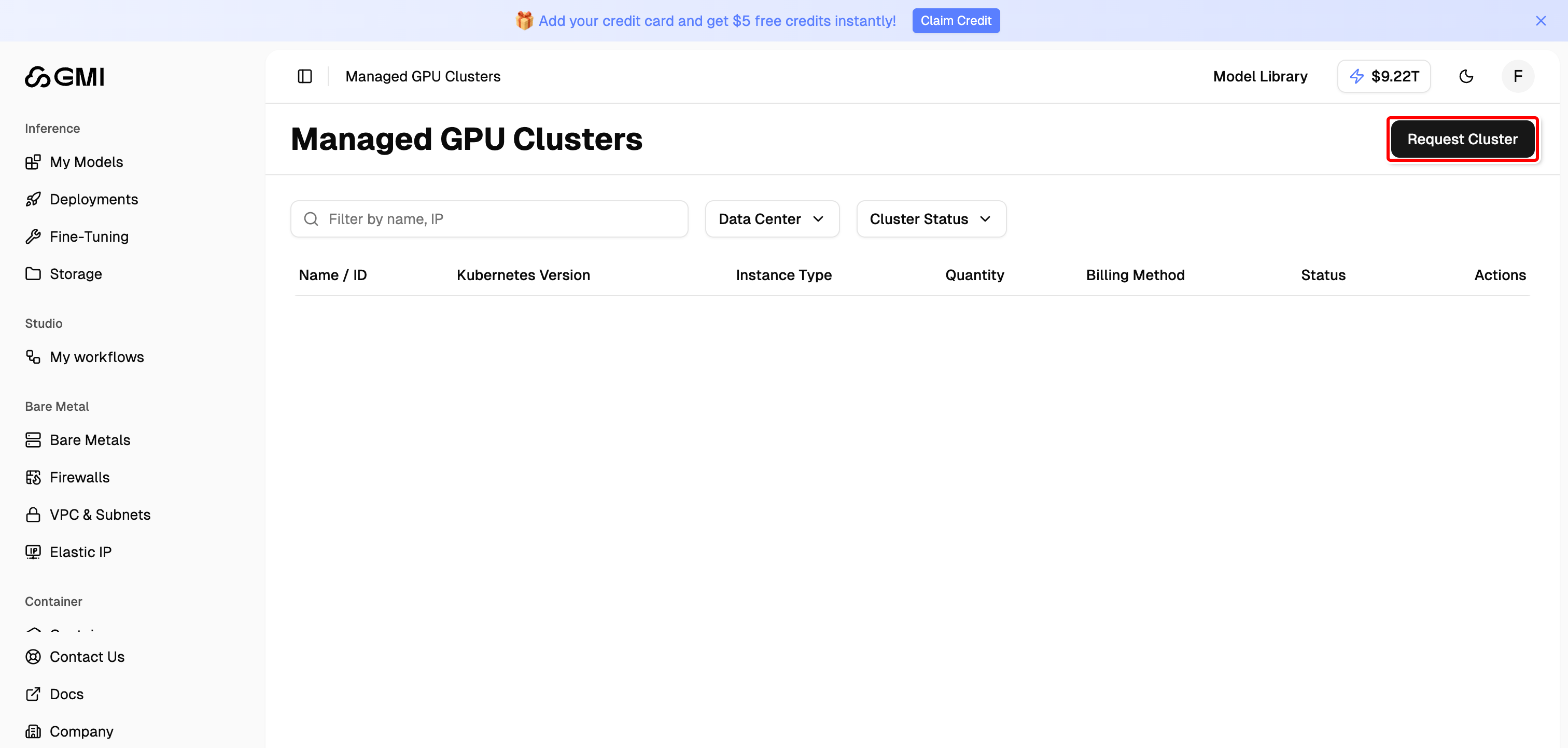
1. Click the "**Request Cluster**" button on the Managed GPU Clusters page or the Requests page
2. The cluster list displays the following information for each cluster:
| **Column** | **Description** |
| ---------------------- | ------------------------------------------------ |
| **Name / ID** | Cluster name and unique identifier |
| **Kubernetes Version** | The version of Kubernetes running on the cluster |
| **Instance Type** | GPU worker node specification |
| **Quantity** | Number of worker nodes in the cluster |
| **Billing Method** | Pay as you go or Prepaid |
| **Status** | Current cluster status |
| **Actions** | Available management actions |
3. Use the filters to narrow down your clusters:
* **Search**: Filter by cluster name or IP address
* **Data Center**: Filter by data center location
* **Cluster Status**: Filter by cluster status
## Request a New Cluster
To request a new managed GPU cluster, follow the 3-step configuration process:
1. Click the "**Request Cluster**" button on the Managed GPU Clusters page or the Requests page
 ### Step 1: Choose Your GPU Worker Node
Configure the compute resources for your cluster:
### Step 1: Choose Your GPU Worker Node
Configure the compute resources for your cluster:
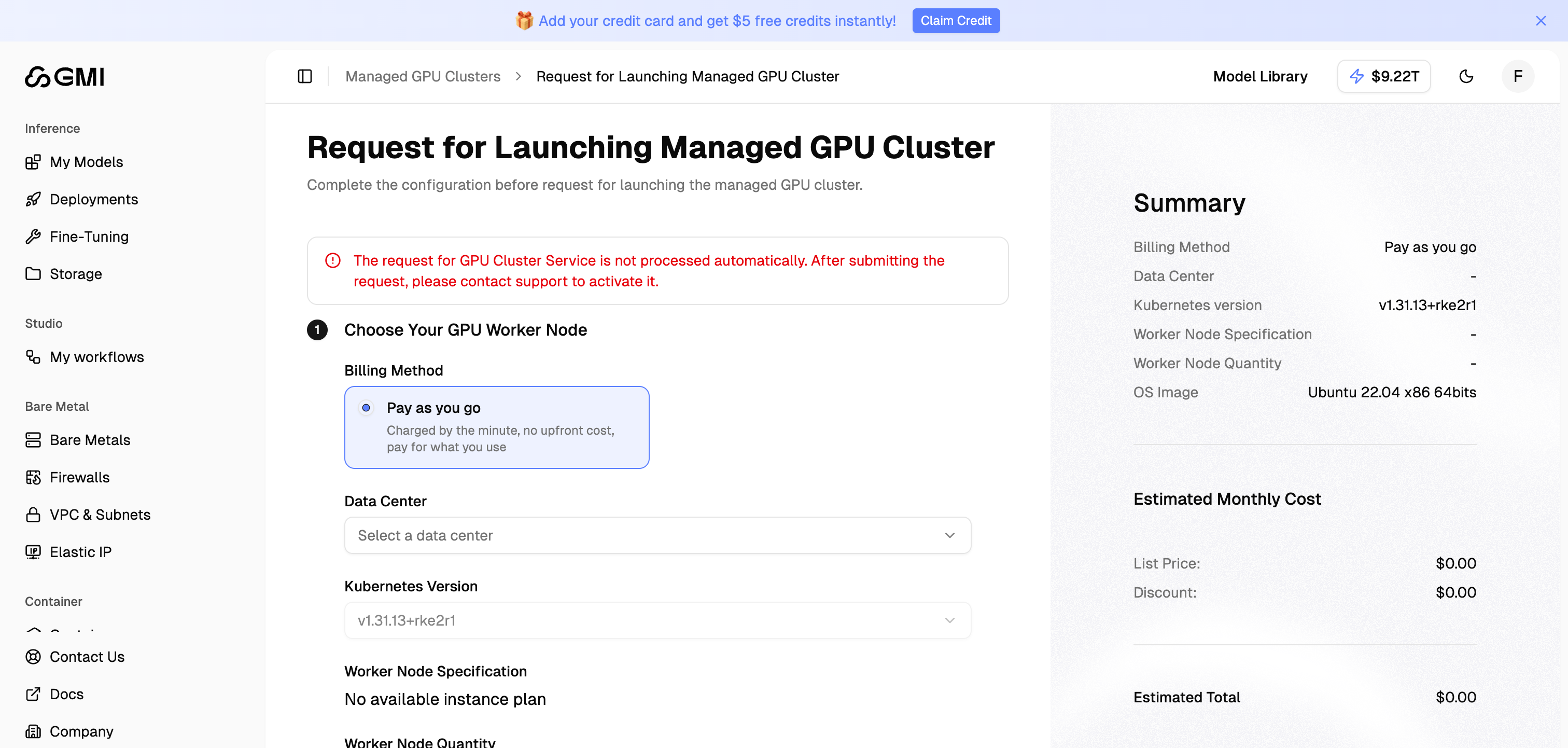 1. **Billing Method**: Select your preferred billing method
* **Pay as you go**: Charged by the minute, no upfront cost, pay for what you use
2. **Data Center**: Choose your preferred data center location
1. **Billing Method**: Select your preferred billing method
* **Pay as you go**: Charged by the minute, no upfront cost, pay for what you use
2. **Data Center**: Choose your preferred data center location
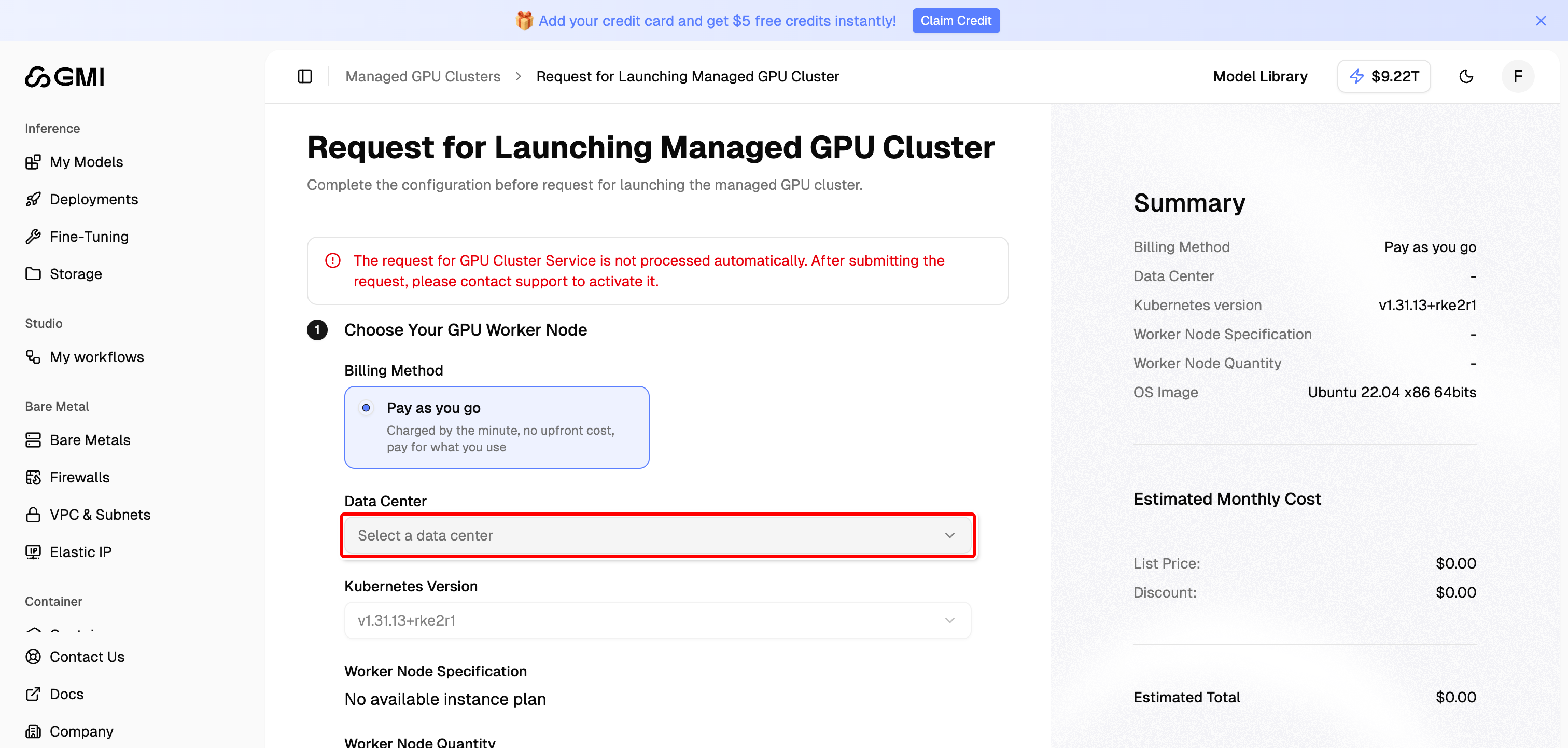 3. **Kubernetes Version**: Select the Kubernetes version for your cluster (available after selecting a data center)
4. **Worker Node Specification**: Choose the GPU instance type for your worker nodes (available after selecting a data center)
5. **Worker Node Quantity**: Set the number of worker nodes for your cluster
6. Click "**Continue**" to proceed to the next step
### Step 2: OS Image
Select the operating system image for your worker nodes. The default is **Ubuntu 22.04 x86 64bits**.
### Step 3: Basic Information
Provide the basic information for your cluster, such as the cluster name.
After completing all steps, review the **Summary** panel on the right side which shows:
* Billing Method
* Data Center
* Kubernetes Version
* Worker Node Specification
* Worker Node Quantity
* OS Image
* **Estimated Monthly Cost** (List Price, Discount, and Estimated Total)
Click "**Submit**" to send your cluster request.
The request for GPU Cluster Service is not processed automatically. After submitting the request, please contact support to activate it.
## View Cluster Requests
Track the status of your cluster requests on the Requests page.
1. Click "**Requests**" in the left sidebar under the "Cluster" section
3. **Kubernetes Version**: Select the Kubernetes version for your cluster (available after selecting a data center)
4. **Worker Node Specification**: Choose the GPU instance type for your worker nodes (available after selecting a data center)
5. **Worker Node Quantity**: Set the number of worker nodes for your cluster
6. Click "**Continue**" to proceed to the next step
### Step 2: OS Image
Select the operating system image for your worker nodes. The default is **Ubuntu 22.04 x86 64bits**.
### Step 3: Basic Information
Provide the basic information for your cluster, such as the cluster name.
After completing all steps, review the **Summary** panel on the right side which shows:
* Billing Method
* Data Center
* Kubernetes Version
* Worker Node Specification
* Worker Node Quantity
* OS Image
* **Estimated Monthly Cost** (List Price, Discount, and Estimated Total)
Click "**Submit**" to send your cluster request.
The request for GPU Cluster Service is not processed automatically. After submitting the request, please contact support to activate it.
## View Cluster Requests
Track the status of your cluster requests on the Requests page.
1. Click "**Requests**" in the left sidebar under the "Cluster" section
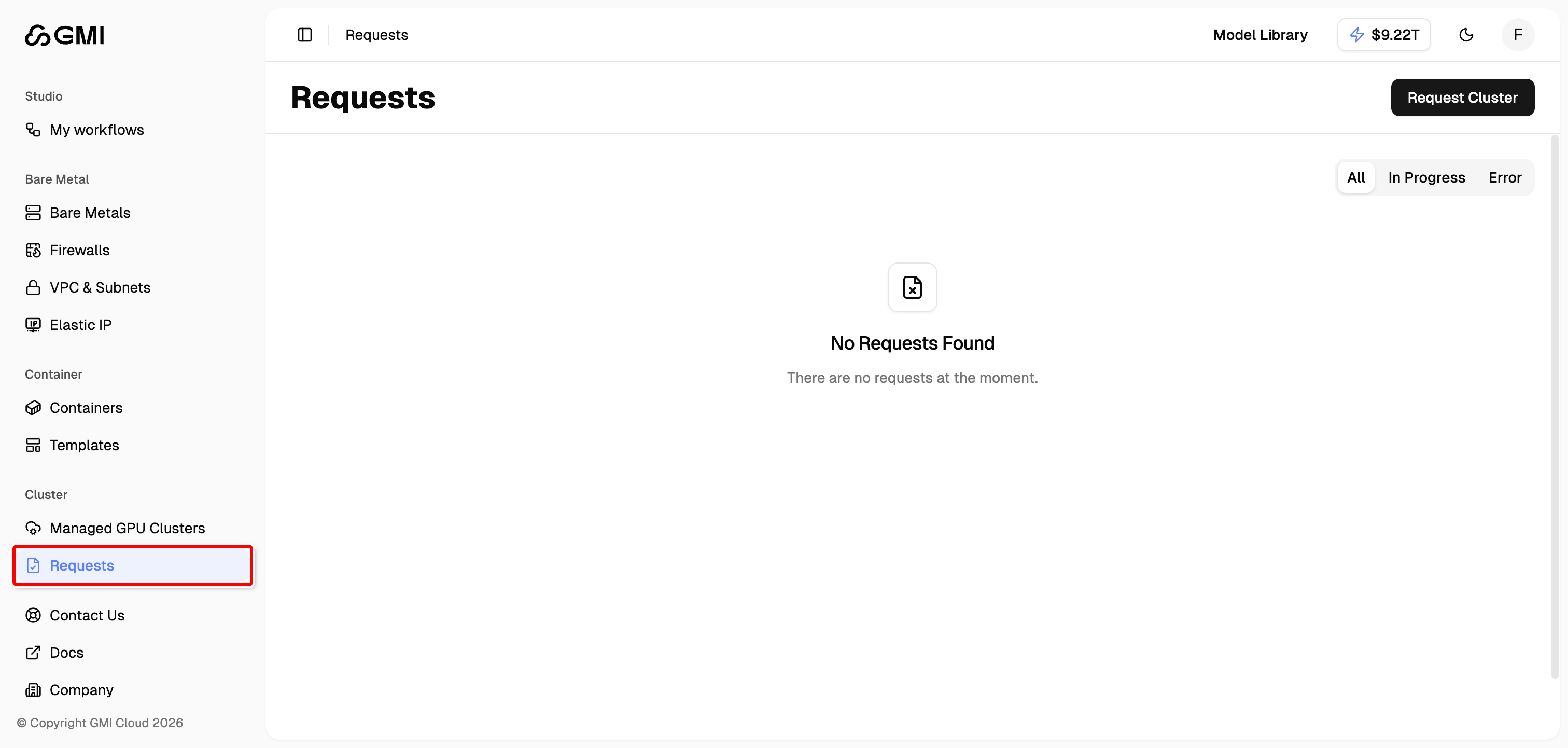 2. Use the tabs to filter requests by status:
* **All**: View all requests
* **In Progress**: View requests currently being processed
* **Error**: View requests that encountered errors
2. Use the tabs to filter requests by status:
* **All**: View all requests
* **In Progress**: View requests currently being processed
* **Error**: View requests that encountered errors