> ## Documentation Index
> Fetch the complete documentation index at: https://docs.gmicloud.ai/llms.txt
> Use this file to discover all available pages before exploring further.
# Library, Search & Blueprints
> Universal node search, Blueprints, Comfy, Partner, and Extensions filters in GMI Studio.
The Studio canvas is fed by a layered node browser:
1. The **Model Library** palette on the left (Audio, Image, Video, LLM, Task tabs).
2. The **Assets** and **Toolbox / Comfy Library** palettes accessed from the other inner-toolbar icons.
3. The **universal node search**, opened by **double-clicking** anywhere on the canvas, which spans every catalog above plus **Blueprints** (saved subgraphs / use cases), **Partner** models, and **Extensions**.
This page covers the universal search, where the recommendation system, "use cases", and tasks all live.
## Opening the search
Double-click on an empty area of the canvas. The "Add a node…" dialog appears:
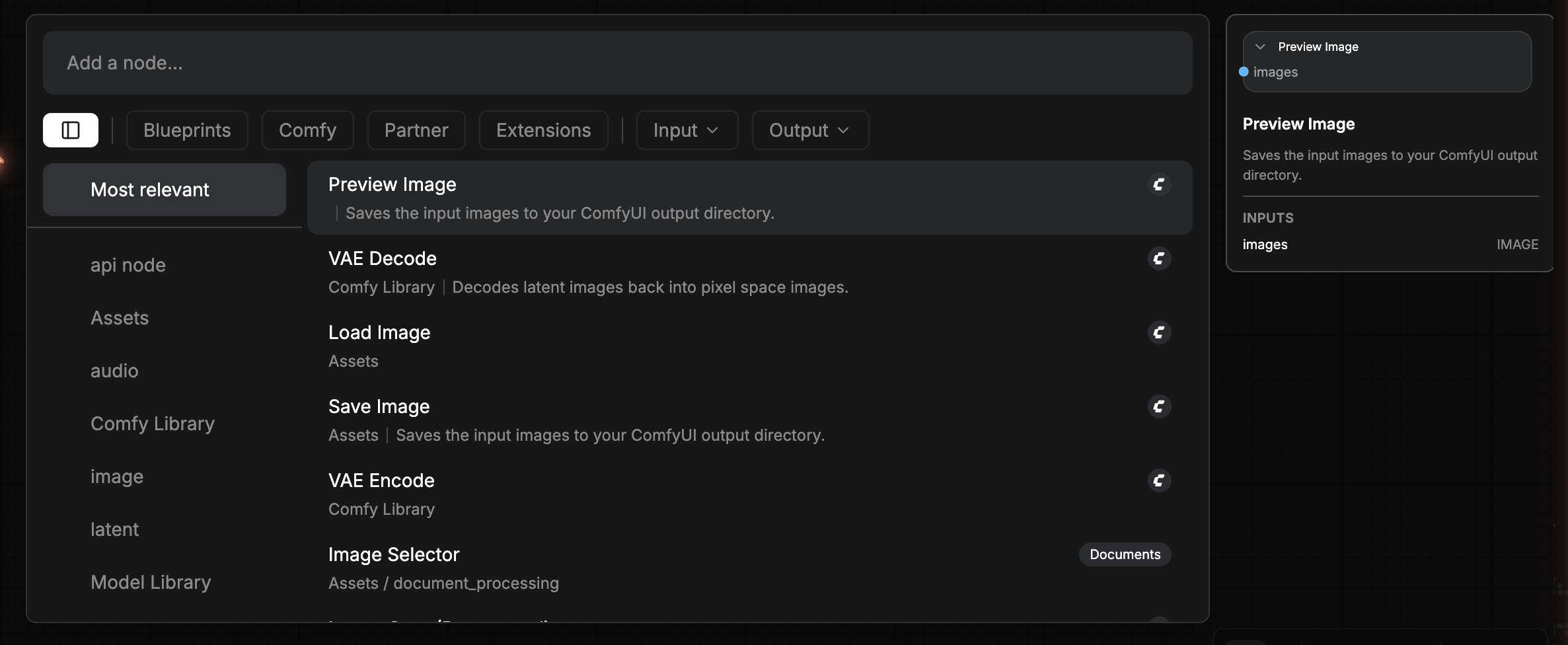 The dialog has three regions:
* **Top filter pills**: layout toggle (sidebar / no sidebar), **Blueprints**, **Comfy**, **Partner**, **Extensions**, **Input ▾**, **Output ▾**.
* **Left category sidebar**: contextual to the active filter. Default is **Most relevant** (heuristic).
* **Result list** (center): one row per match. Tag chips on the right show source (Blueprint / Documents / GMI\_Nodes / …).
* **Right preview panel**: detail of the highlighted result with INPUTS / OUTPUTS, description, and quick "Add" affordance.
A text search at the top searches across every catalog regardless of which filter pill is active. Pressing `Enter` adds the highlighted node to the canvas at the click position.
## Blueprints, Use Cases
The **Blueprints** filter is GMI Studio's library of prebuilt mini-workflows (called subgraph blueprints). Think of them as **use-case starting points**: drop one onto the canvas and you get a ready-to-tweak subgraph instead of having to wire from scratch.
The dialog has three regions:
* **Top filter pills**: layout toggle (sidebar / no sidebar), **Blueprints**, **Comfy**, **Partner**, **Extensions**, **Input ▾**, **Output ▾**.
* **Left category sidebar**: contextual to the active filter. Default is **Most relevant** (heuristic).
* **Result list** (center): one row per match. Tag chips on the right show source (Blueprint / Documents / GMI\_Nodes / …).
* **Right preview panel**: detail of the highlighted result with INPUTS / OUTPUTS, description, and quick "Add" affordance.
A text search at the top searches across every catalog regardless of which filter pill is active. Pressing `Enter` adds the highlighted node to the canvas at the click position.
## Blueprints, Use Cases
The **Blueprints** filter is GMI Studio's library of prebuilt mini-workflows (called subgraph blueprints). Think of them as **use-case starting points**: drop one onto the canvas and you get a ready-to-tweak subgraph instead of having to wire from scratch.
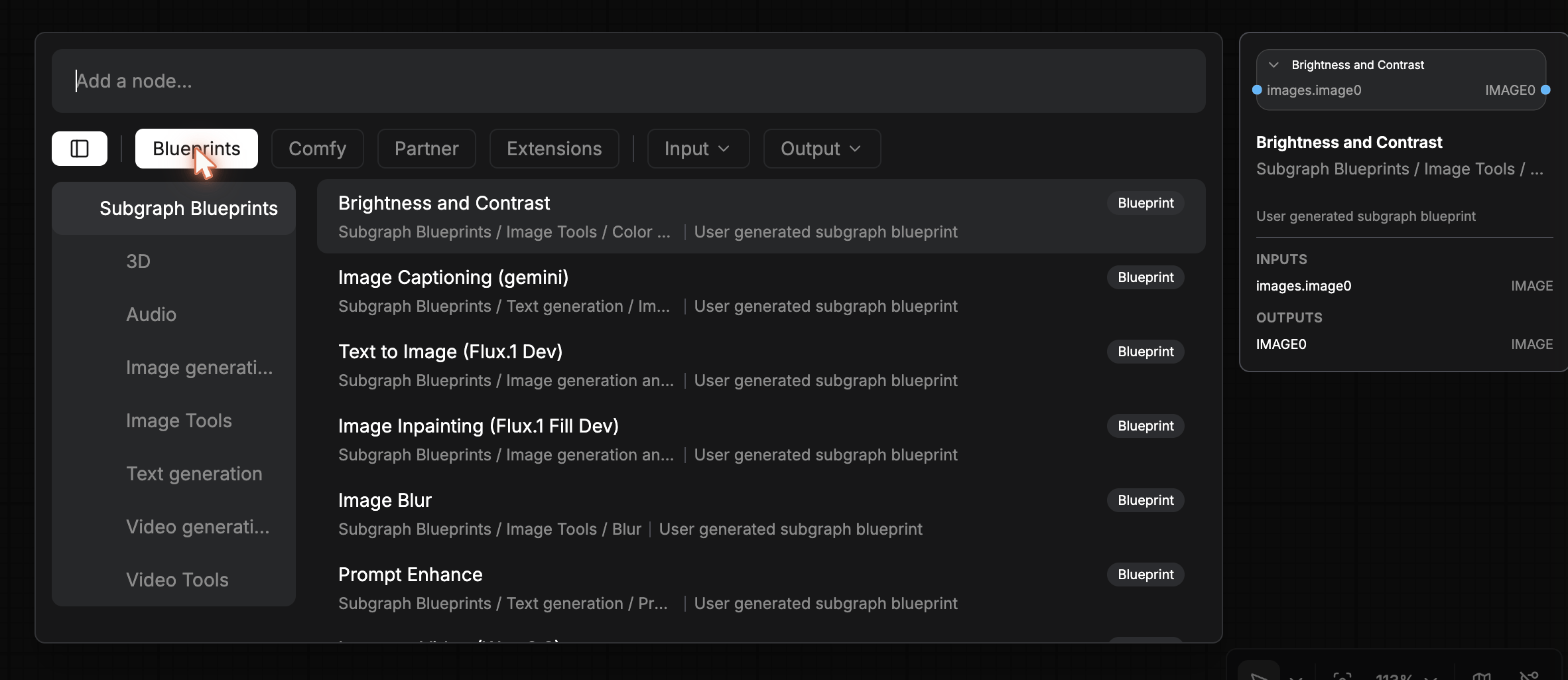 Categories shown in the sidebar:
* **Subgraph Blueprints** (top-level)
* **3D**
* **Audio**
* **Image generation**
* **Image Tools**
* **Text generation**
* **Video generation**
* **Video Tools**
Sample blueprints:
| Blueprint | Category | Description |
| ---------------------------------- | ------------------------ | --------------------------------- |
| Brightness and Contrast | Image Tools / Color | User generated subgraph blueprint |
| Image Captioning (gemini) | Text generation / Image | User generated subgraph blueprint |
| Text to Image (Flux.1 Dev) | Image generation | User generated subgraph blueprint |
| Image Inpainting (Flux.1 Fill Dev) | Image generation | User generated subgraph blueprint |
| Image Blur | Image Tools / Blur | User generated subgraph blueprint |
| Prompt Enhance | Text generation / Prompt | User generated subgraph blueprint |
The right panel previews the blueprint as if it were a single node, its INPUTS and OUTPUTS, because that's exactly how a subgraph behaves once placed.
## Comfy, native ComfyUI nodes
The **Comfy** filter narrows results to native ComfyUI nodes (anything sourced from the upstream ComfyUI repo). The sidebar categories include Comfy, Assets, audio, Comfy Library, image, latent, Model Library, Toolbox, utils.
Categories shown in the sidebar:
* **Subgraph Blueprints** (top-level)
* **3D**
* **Audio**
* **Image generation**
* **Image Tools**
* **Text generation**
* **Video generation**
* **Video Tools**
Sample blueprints:
| Blueprint | Category | Description |
| ---------------------------------- | ------------------------ | --------------------------------- |
| Brightness and Contrast | Image Tools / Color | User generated subgraph blueprint |
| Image Captioning (gemini) | Text generation / Image | User generated subgraph blueprint |
| Text to Image (Flux.1 Dev) | Image generation | User generated subgraph blueprint |
| Image Inpainting (Flux.1 Fill Dev) | Image generation | User generated subgraph blueprint |
| Image Blur | Image Tools / Blur | User generated subgraph blueprint |
| Prompt Enhance | Text generation / Prompt | User generated subgraph blueprint |
The right panel previews the blueprint as if it were a single node, its INPUTS and OUTPUTS, because that's exactly how a subgraph behaves once placed.
## Comfy, native ComfyUI nodes
The **Comfy** filter narrows results to native ComfyUI nodes (anything sourced from the upstream ComfyUI repo). The sidebar categories include Comfy, Assets, audio, Comfy Library, image, latent, Model Library, Toolbox, utils.
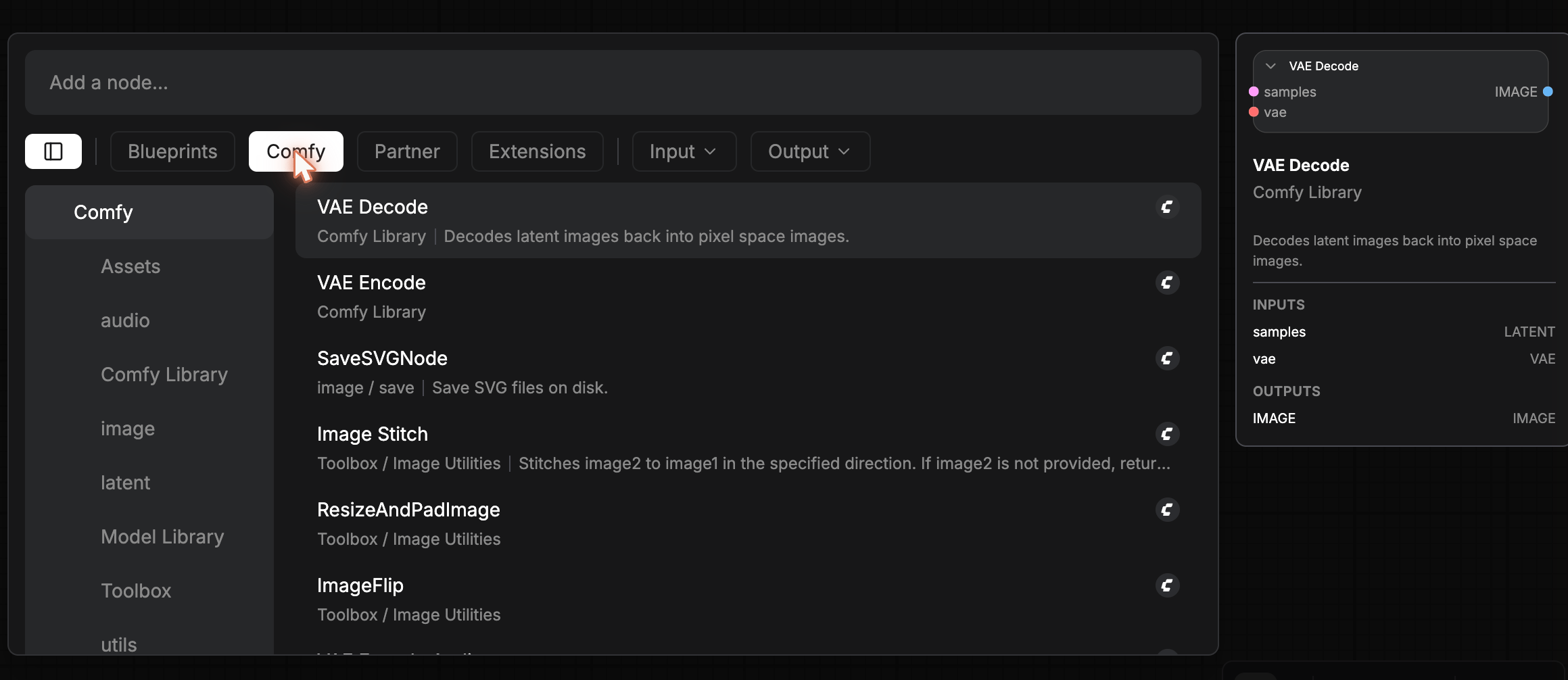 Examples: VAE Decode, VAE Encode, SaveSVGNode, Image Stitch, ResizeAndPadImage, ImageFlip. The right preview shows the canonical input/output spec of each node. For example, **VAE Decode** has INPUTS `samples LATENT` + `vae VAE` and OUTPUTS `IMAGE`.
## Partner, provider model nodes
The **Partner** filter shows nodes contributed by integrated partners. The sub-category **Use Case Models** is GMI's curated set of single-purpose model nodes that do exactly one thing well.
Examples: VAE Decode, VAE Encode, SaveSVGNode, Image Stitch, ResizeAndPadImage, ImageFlip. The right preview shows the canonical input/output spec of each node. For example, **VAE Decode** has INPUTS `samples LATENT` + `vae VAE` and OUTPUTS `IMAGE`.
## Partner, provider model nodes
The **Partner** filter shows nodes contributed by integrated partners. The sub-category **Use Case Models** is GMI's curated set of single-purpose model nodes that do exactly one thing well.
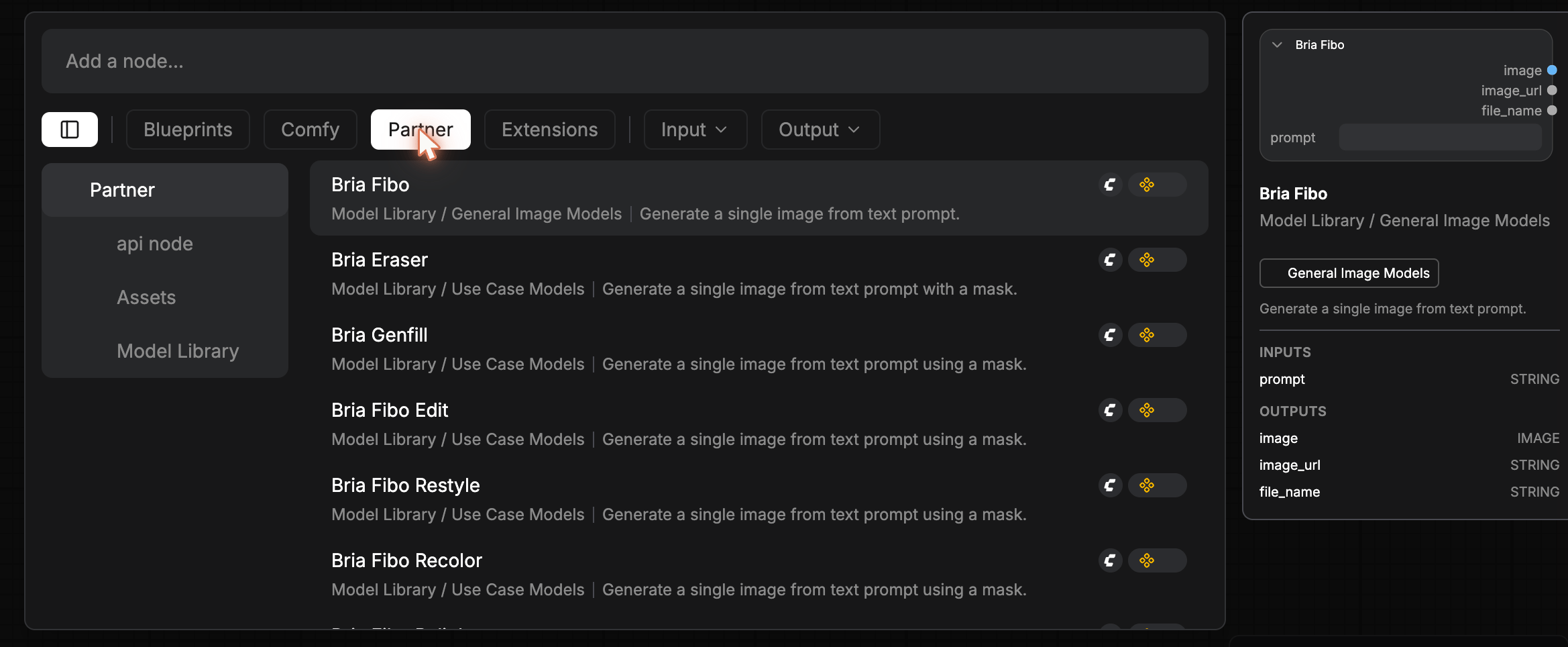 Sidebar: Partner / api node / Assets / Model Library.
Sample partner nodes (Bria family):
| Node | Sub-category | Description |
| --------------------------- | ------------------------------------ | ----------------------------------------------------- |
| Bria Fibo | Model Library / General Image Models | Generate a single image from text prompt |
| Bria Eraser | Model Library / Use Case Models | Generate a single image from text prompt with a mask |
| Bria Genfill | Model Library / Use Case Models | Generate a single image from text prompt using a mask |
| Bria Fibo Edit | Model Library / Use Case Models | Generate a single image from text prompt using a mask |
| Bria Fibo Restyle / Recolor | Model Library / Use Case Models | Restyle or recolor an image |
The right panel of Bria Fibo shows the standard model-node shape: INPUTS `prompt STRING`, OUTPUTS `image IMAGE` / `image_url STRING` / `file_name STRING`.
## Extensions, GMI-specific & document tools
The **Extensions** filter surfaces nodes tagged `GMI_Nodes` (Studio-specific utilities) and `Documents` (document processing).
Sidebar: Partner / api node / Assets / Model Library.
Sample partner nodes (Bria family):
| Node | Sub-category | Description |
| --------------------------- | ------------------------------------ | ----------------------------------------------------- |
| Bria Fibo | Model Library / General Image Models | Generate a single image from text prompt |
| Bria Eraser | Model Library / Use Case Models | Generate a single image from text prompt with a mask |
| Bria Genfill | Model Library / Use Case Models | Generate a single image from text prompt using a mask |
| Bria Fibo Edit | Model Library / Use Case Models | Generate a single image from text prompt using a mask |
| Bria Fibo Restyle / Recolor | Model Library / Use Case Models | Restyle or recolor an image |
The right panel of Bria Fibo shows the standard model-node shape: INPUTS `prompt STRING`, OUTPUTS `image IMAGE` / `image_url STRING` / `file_name STRING`.
## Extensions, GMI-specific & document tools
The **Extensions** filter surfaces nodes tagged `GMI_Nodes` (Studio-specific utilities) and `Documents` (document processing).
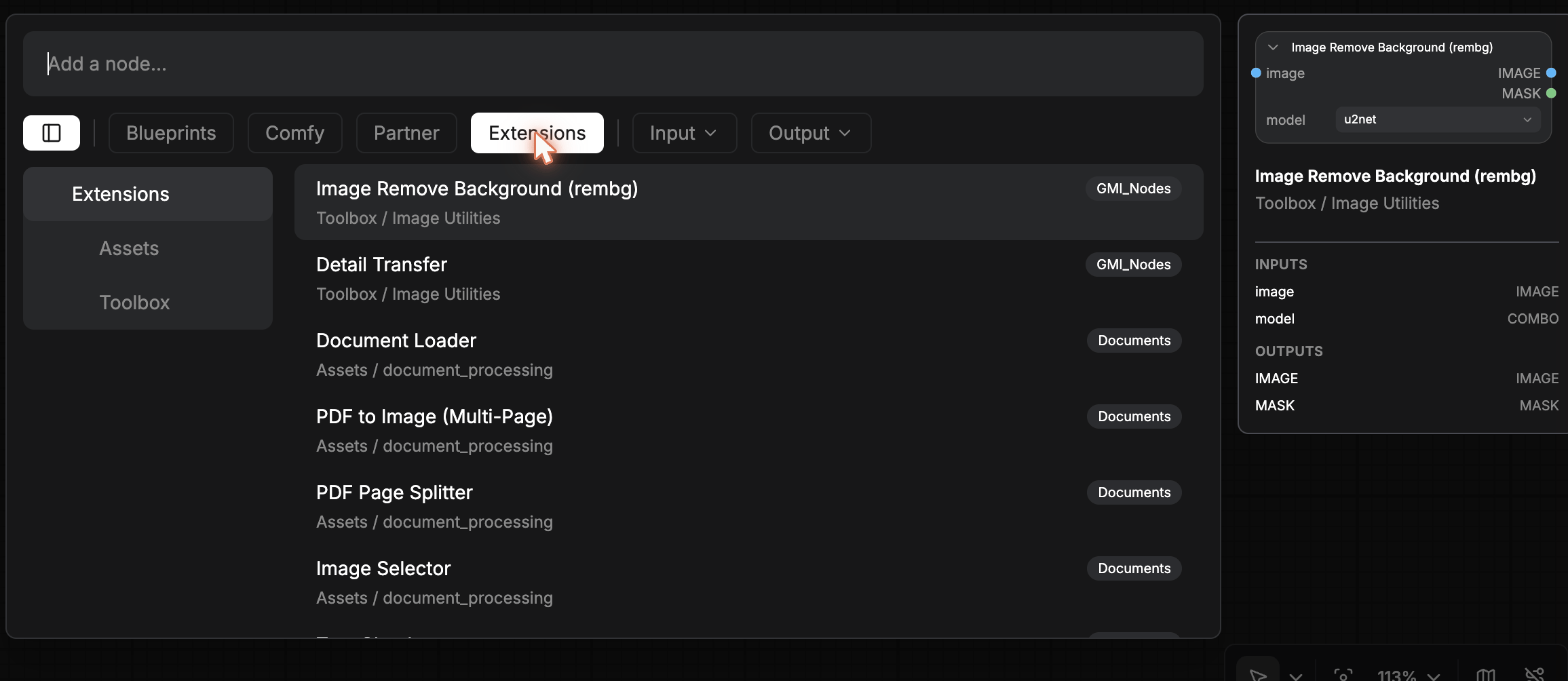 Sample extension nodes:
| Node | Tag | Sub-category |
| ------------------------------- | ---------- | ----------------------------- |
| Image Remove Background (rembg) | GMI\_Nodes | Toolbox / Image Utilities |
| Detail Transfer | GMI\_Nodes | Toolbox / Image Utilities |
| Document Loader | Documents | Assets / document\_processing |
| PDF to Image (Multi-Page) | Documents | Assets / document\_processing |
| PDF Page Splitter | Documents | Assets / document\_processing |
| Image Selector | Documents | Assets / document\_processing |
The right panel for **Image Remove Background** shows `image IMAGE` + `model COMBO` (e.g. `u2net`) inputs and `IMAGE` / `MASK` outputs.
## Type filters, Input and Output
The **Input ▾** and **Output ▾** pills open a multi-select dropdown of data types:
Sample extension nodes:
| Node | Tag | Sub-category |
| ------------------------------- | ---------- | ----------------------------- |
| Image Remove Background (rembg) | GMI\_Nodes | Toolbox / Image Utilities |
| Detail Transfer | GMI\_Nodes | Toolbox / Image Utilities |
| Document Loader | Documents | Assets / document\_processing |
| PDF to Image (Multi-Page) | Documents | Assets / document\_processing |
| PDF Page Splitter | Documents | Assets / document\_processing |
| Image Selector | Documents | Assets / document\_processing |
The right panel for **Image Remove Background** shows `image IMAGE` + `model COMBO` (e.g. `u2net`) inputs and `IMAGE` / `MASK` outputs.
## Type filters, Input and Output
The **Input ▾** and **Output ▾** pills open a multi-select dropdown of data types:
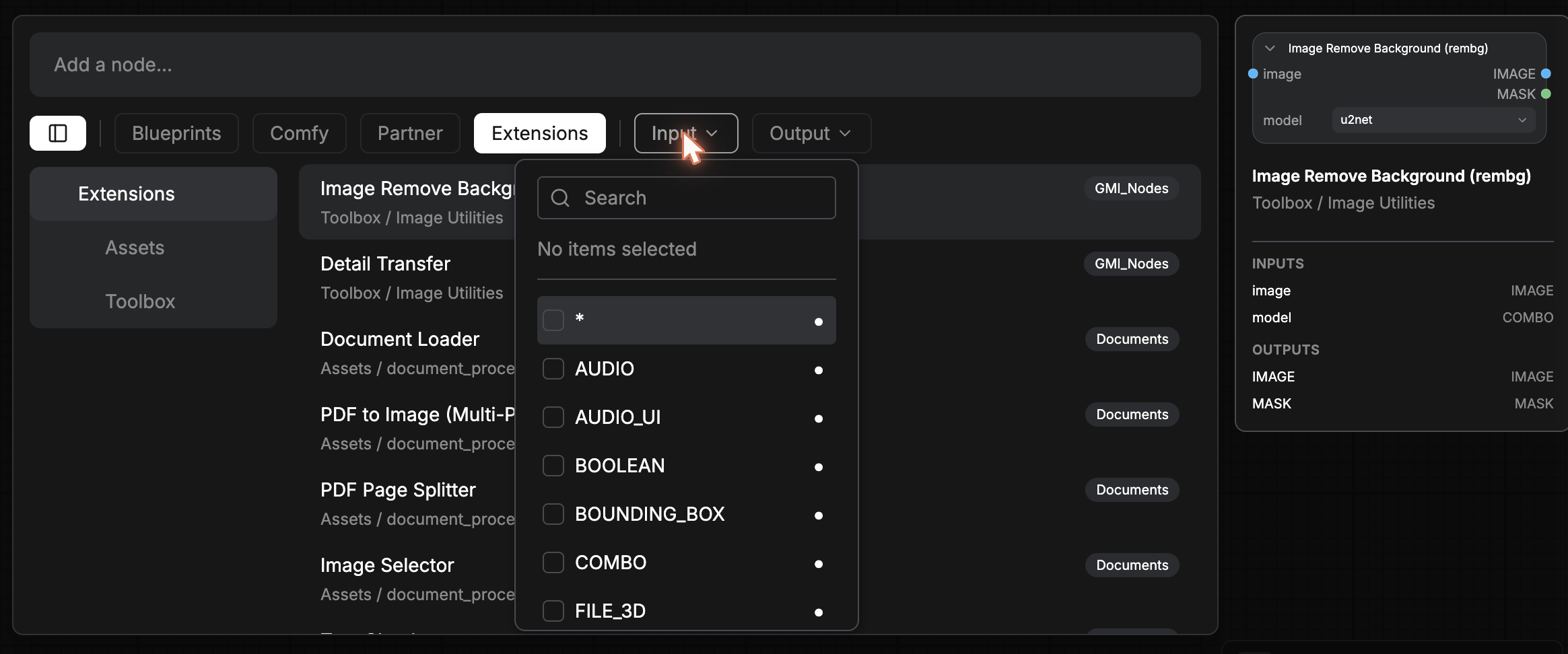 Types include `*` (any), `AUDIO`, `AUDIO_UI`, `BOOLEAN`, `BOUNDING_BOX`, `COMBO`, `FILE_3D`, and many more. Use these to find "every node that takes an `IMAGE`" or "every node that produces a `MASK`".
This is the recommendation engine in its purest form. Combined with the type filter on the socket you're trying to satisfy, it shows you exactly the nodes that can wire into your current selection.
## Adding a result to the canvas
* **Click** a row to highlight and preview.
* **Press Enter** or **double-click** the row to add it at the cursor position.
* **Drag** the row onto a specific spot on the canvas.
Newly-added nodes inherit the canvas default color. Use the [node selection toolbar](/gmi-studio/gmi-studio-user-manual/canvas) to recolor them.
## Saving your own blueprints
Any selection of nodes plus connections can become a blueprint:
1. Select the nodes (drag a marquee or `Shift+click`).
2. Right-click and choose **Save Selected as Template** (visible in the [canvas right-click menu](/gmi-studio/gmi-studio-user-manual/canvas)).
3. The saved template becomes a **User generated subgraph blueprint** and shows up under **Blueprints** in this search dialog.
This is how teams build internal use-case libraries. Once a wiring pattern is good, save it as a blueprint and your teammates can find it in seconds.
Types include `*` (any), `AUDIO`, `AUDIO_UI`, `BOOLEAN`, `BOUNDING_BOX`, `COMBO`, `FILE_3D`, and many more. Use these to find "every node that takes an `IMAGE`" or "every node that produces a `MASK`".
This is the recommendation engine in its purest form. Combined with the type filter on the socket you're trying to satisfy, it shows you exactly the nodes that can wire into your current selection.
## Adding a result to the canvas
* **Click** a row to highlight and preview.
* **Press Enter** or **double-click** the row to add it at the cursor position.
* **Drag** the row onto a specific spot on the canvas.
Newly-added nodes inherit the canvas default color. Use the [node selection toolbar](/gmi-studio/gmi-studio-user-manual/canvas) to recolor them.
## Saving your own blueprints
Any selection of nodes plus connections can become a blueprint:
1. Select the nodes (drag a marquee or `Shift+click`).
2. Right-click and choose **Save Selected as Template** (visible in the [canvas right-click menu](/gmi-studio/gmi-studio-user-manual/canvas)).
3. The saved template becomes a **User generated subgraph blueprint** and shows up under **Blueprints** in this search dialog.
This is how teams build internal use-case libraries. Once a wiring pattern is good, save it as a blueprint and your teammates can find it in seconds.