> ## Documentation Index
> Fetch the complete documentation index at: https://docs.gmicloud.ai/llms.txt
> Use this file to discover all available pages before exploring further.
# Managing Workflows
> Where your workflows, shared team work, and generated media live in the GMI Studio console.
Once you've built workflows, the console gives you three places to find them again: your personal workspace, your team's shared space, and the gallery of everything they've produced.
## My Workflows
Your personal workspace for managing workflows you created or duplicated.
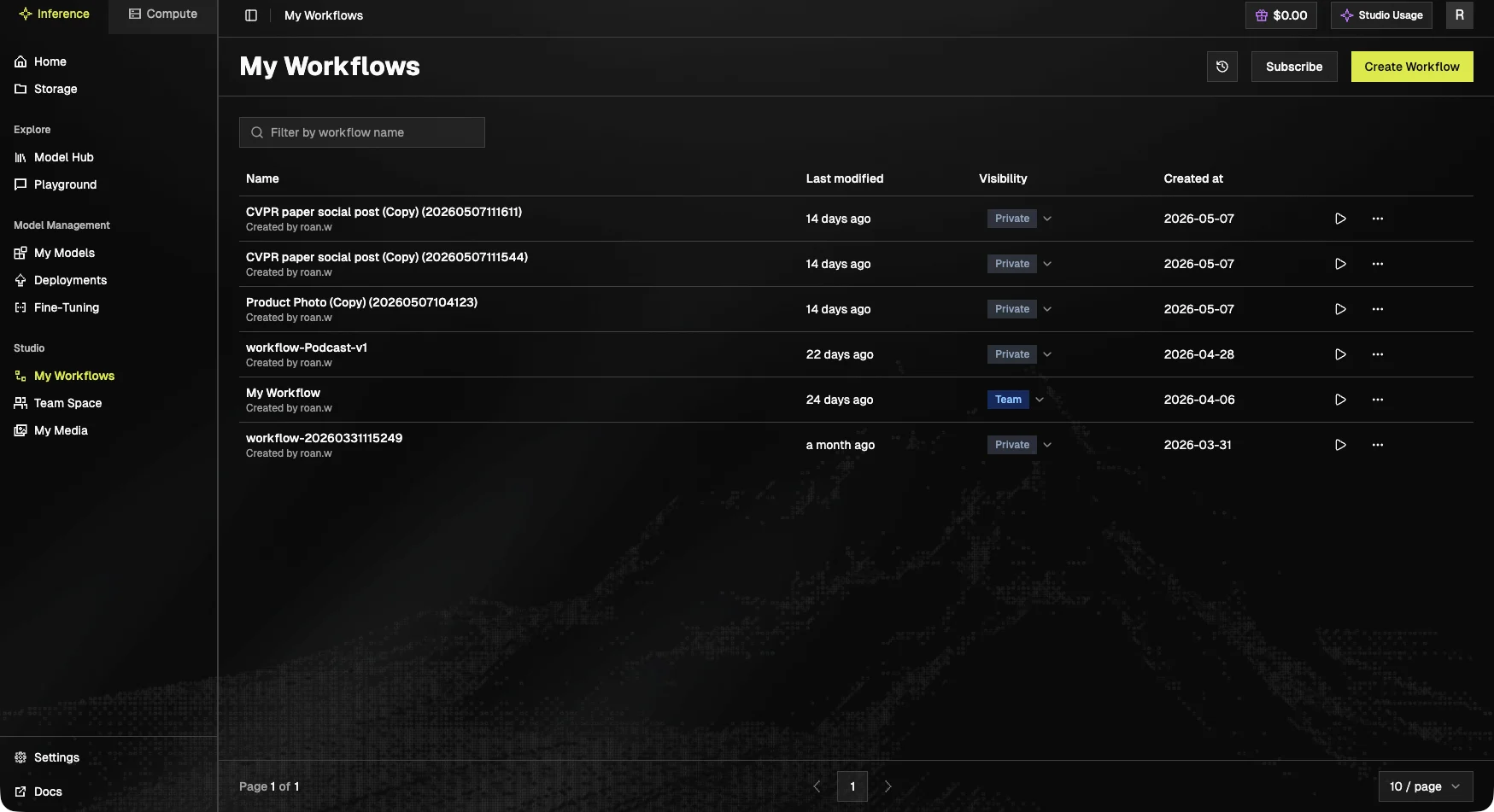 * **Search**: filter by workflow name.
* **Create Workflow**: start a new one from scratch.
* **Actions (⋯)** on each row:
* **Edit metadata**: rename, update description, change tags.
* **Duplicate**: make a copy. The original is untouched, useful for experimentation.
* **Delete**: remove a workflow you no longer need. Deleted workflows are not recoverable.
Rows show **Last modified** and **Created at** timestamps for quick scanning.
To edit the actual node graph, click a workflow's name to open it in the [Workflow Canvas](/gmi-studio/gmi-studio-user-manual/canvas).
## Team Space
A shared workspace where teammates can co-author workflows.
* **Search**: filter by workflow name.
* **Create Workflow**: start a new one from scratch.
* **Actions (⋯)** on each row:
* **Edit metadata**: rename, update description, change tags.
* **Duplicate**: make a copy. The original is untouched, useful for experimentation.
* **Delete**: remove a workflow you no longer need. Deleted workflows are not recoverable.
Rows show **Last modified** and **Created at** timestamps for quick scanning.
To edit the actual node graph, click a workflow's name to open it in the [Workflow Canvas](/gmi-studio/gmi-studio-user-manual/canvas).
## Team Space
A shared workspace where teammates can co-author workflows.
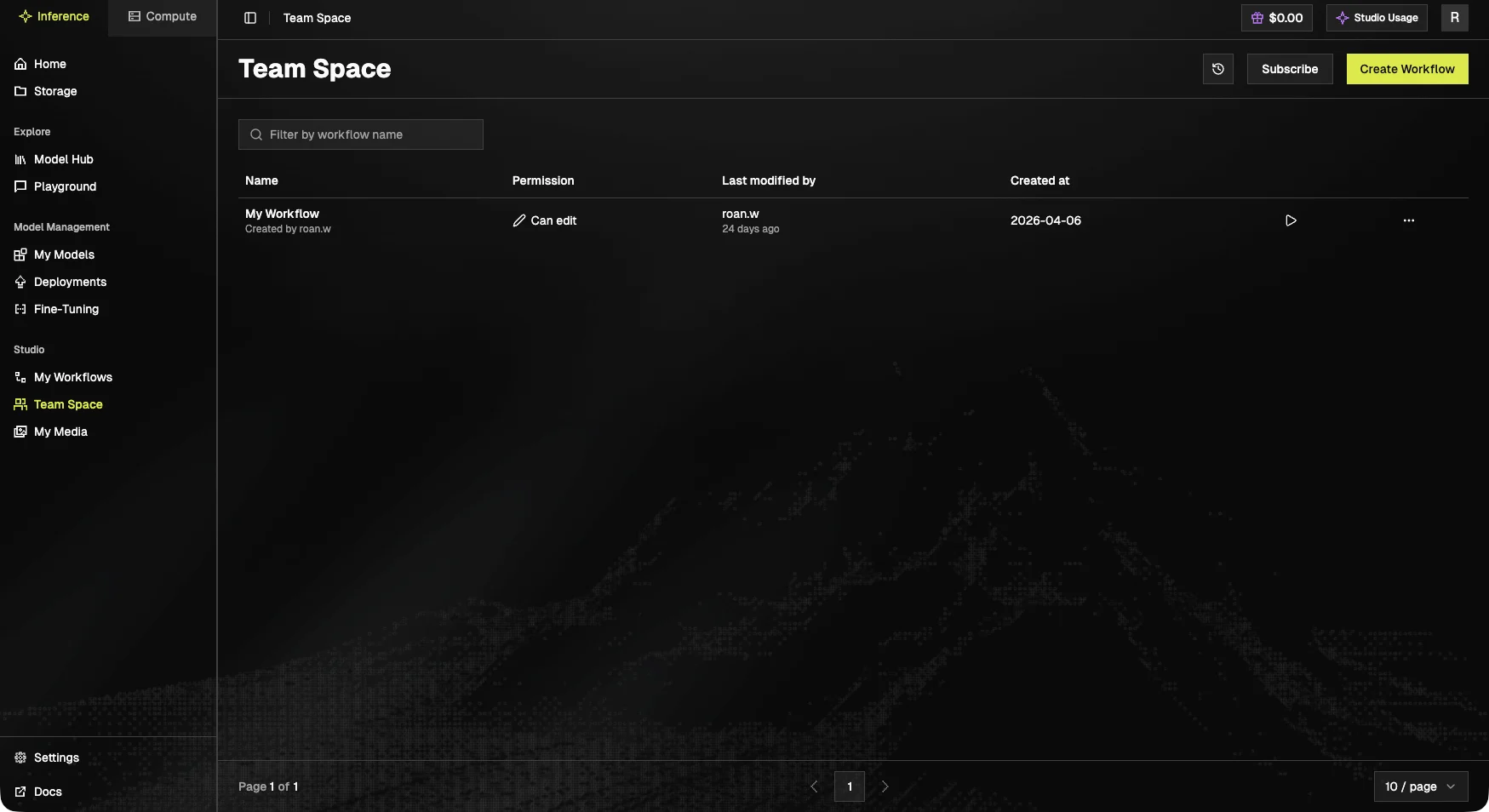 Each row lists:
* **Permission**: `Can edit`, `Can view`.
* **Last modified by**: which teammate last touched the workflow.
* **Created at**: original creation timestamp.
Use **Create Workflow** to start a new shared workflow, **Filter by workflow name** to search, and **Subscribe** to follow updates from other team members.
## My Media
A gallery of every asset your workflow runs have generated, images, videos, and audio.
Each row lists:
* **Permission**: `Can edit`, `Can view`.
* **Last modified by**: which teammate last touched the workflow.
* **Created at**: original creation timestamp.
Use **Create Workflow** to start a new shared workflow, **Filter by workflow name** to search, and **Subscribe** to follow updates from other team members.
## My Media
A gallery of every asset your workflow runs have generated, images, videos, and audio.
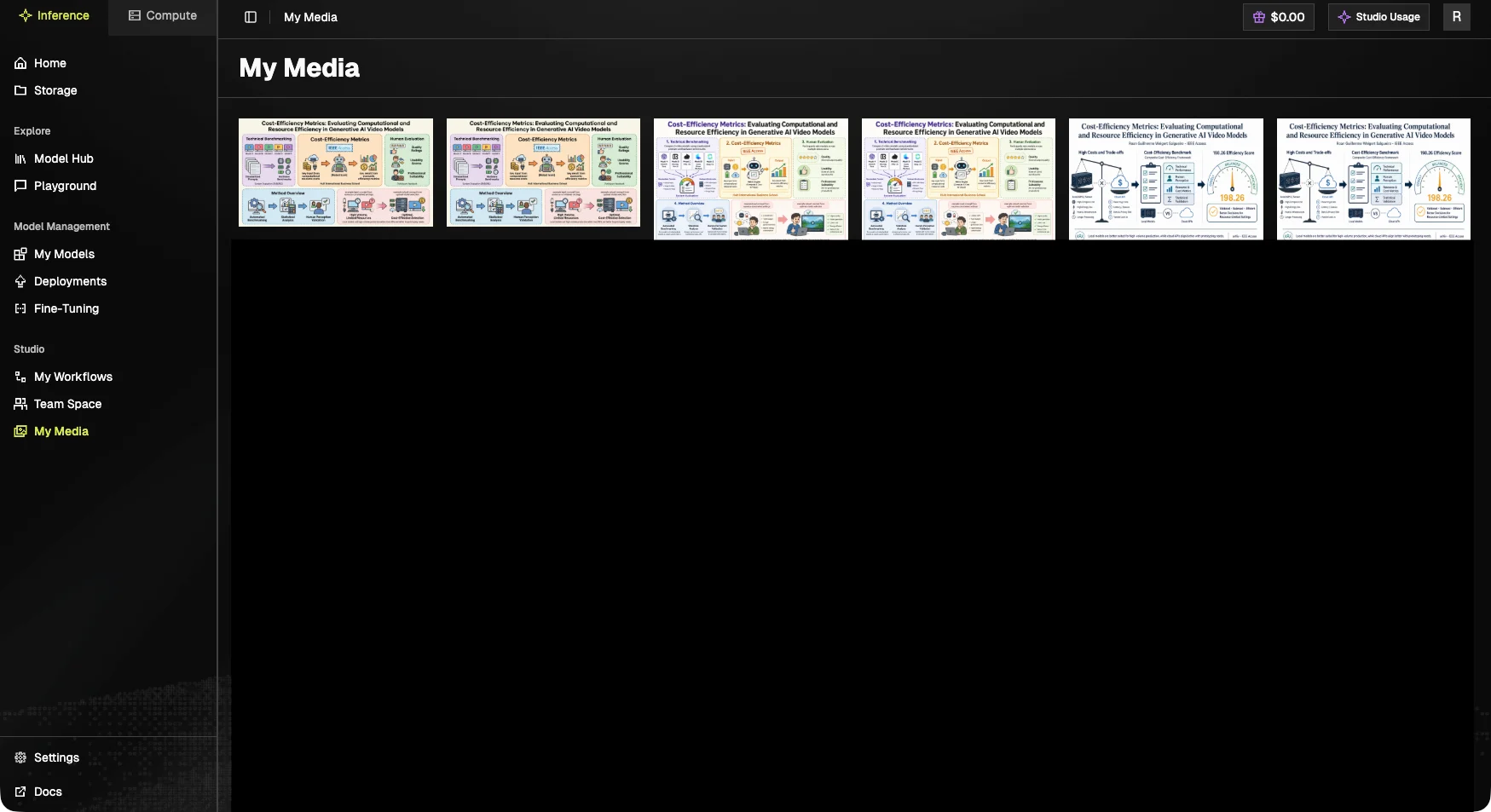 Preview, download, or reuse outputs without re-running the workflow. Useful for picking the best result out of a batch or pulling assets into another tool.
## Publishing a workflow
Published workflows show up in the **Workflow Gallery**, where other users can run them with one click (the node graph is hidden, only required inputs are exposed). Publish from the canvas toolbar when a workflow is ready to share.
## Next steps
* Build a new workflow: [Workflow Canvas](/gmi-studio/gmi-studio-user-manual/canvas).
* Walk through an example: [Tutorials](/gmi-studio/gmi-studio-user-manual/tutorials).
Preview, download, or reuse outputs without re-running the workflow. Useful for picking the best result out of a batch or pulling assets into another tool.
## Publishing a workflow
Published workflows show up in the **Workflow Gallery**, where other users can run them with one click (the node graph is hidden, only required inputs are exposed). Publish from the canvas toolbar when a workflow is ready to share.
## Next steps
* Build a new workflow: [Workflow Canvas](/gmi-studio/gmi-studio-user-manual/canvas).
* Walk through an example: [Tutorials](/gmi-studio/gmi-studio-user-manual/tutorials).