> ## Documentation Index
> Fetch the complete documentation index at: https://docs.gmicloud.ai/llms.txt
> Use this file to discover all available pages before exploring further.
# Tasks
> Track and manage asynchronous inference tasks.
Tasks are designed to create dedicated endpoints for the provided official models or for custom models derived from the artifacts you have built.
## View Tasks
1. Click "Resources Overview" in the upper right corner of the menu.
 2. Click on "Tasks" in the left-hand menu.You can view tasks dashboard.
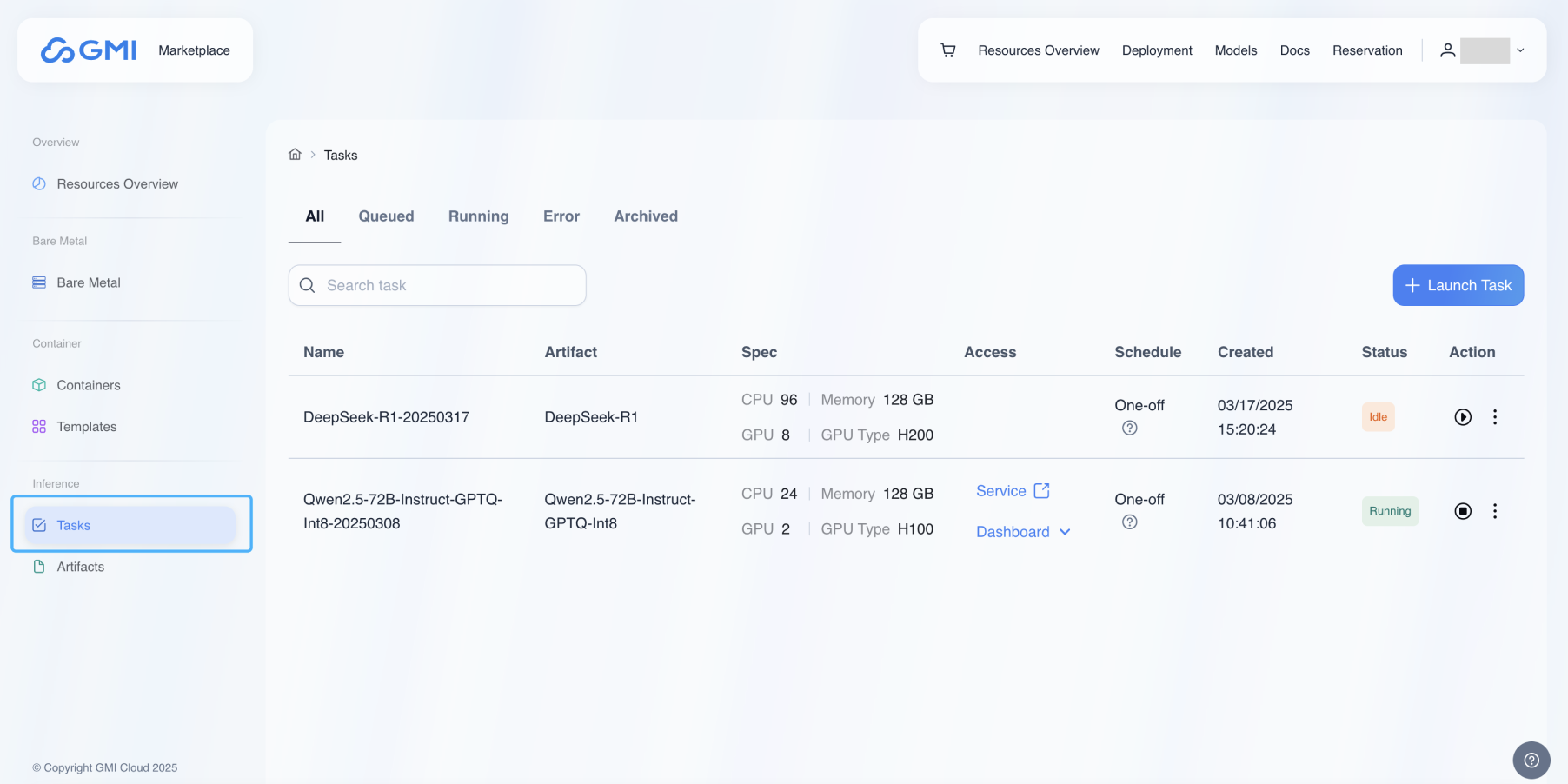 * **Name**: Task name.
* **Artifact**: Task created from which artifact.
* **Spec**: One replica required resources specification.
* **Access**: Service - dedicated endpoint URL
Dashboard - monitor task deployment
* **Schedule**: Task's scheduling, One-off or daily.
* **Created**: Task created time
* **Status**:\
Idle - The task is not currently running and is waiting for execution. No resources are being used.
In-queue - The task is waiting in line to be executed.
Starting - The task is in the process of initializing. Resources are being allocated, and the task is preparing to run.
Running - The task is currently executing. Resources are actively being used to perform the task.
Need Stop - The task is about to be terminated.
* **Actions**: Click button
* **Name**: Task name.
* **Artifact**: Task created from which artifact.
* **Spec**: One replica required resources specification.
* **Access**: Service - dedicated endpoint URL
Dashboard - monitor task deployment
* **Schedule**: Task's scheduling, One-off or daily.
* **Created**: Task created time
* **Status**:\
Idle - The task is not currently running and is waiting for execution. No resources are being used.
In-queue - The task is waiting in line to be executed.
Starting - The task is in the process of initializing. Resources are being allocated, and the task is preparing to run.
Running - The task is currently executing. Resources are actively being used to perform the task.
Need Stop - The task is about to be terminated.
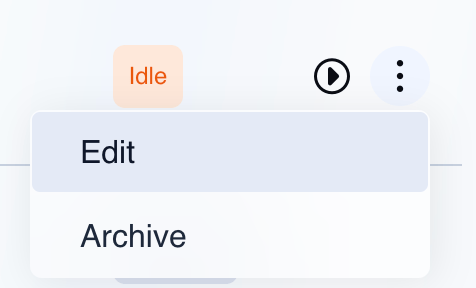
* **Actions**: Click button  to deactive the running task.
Click button
to deactive the running task.
Click button  to active the idle task.
Click Edit menu to edit the task.
Click Archive menu to archive the task.
to active the idle task.
Click Edit menu to edit the task.
Click Archive menu to archive the task.
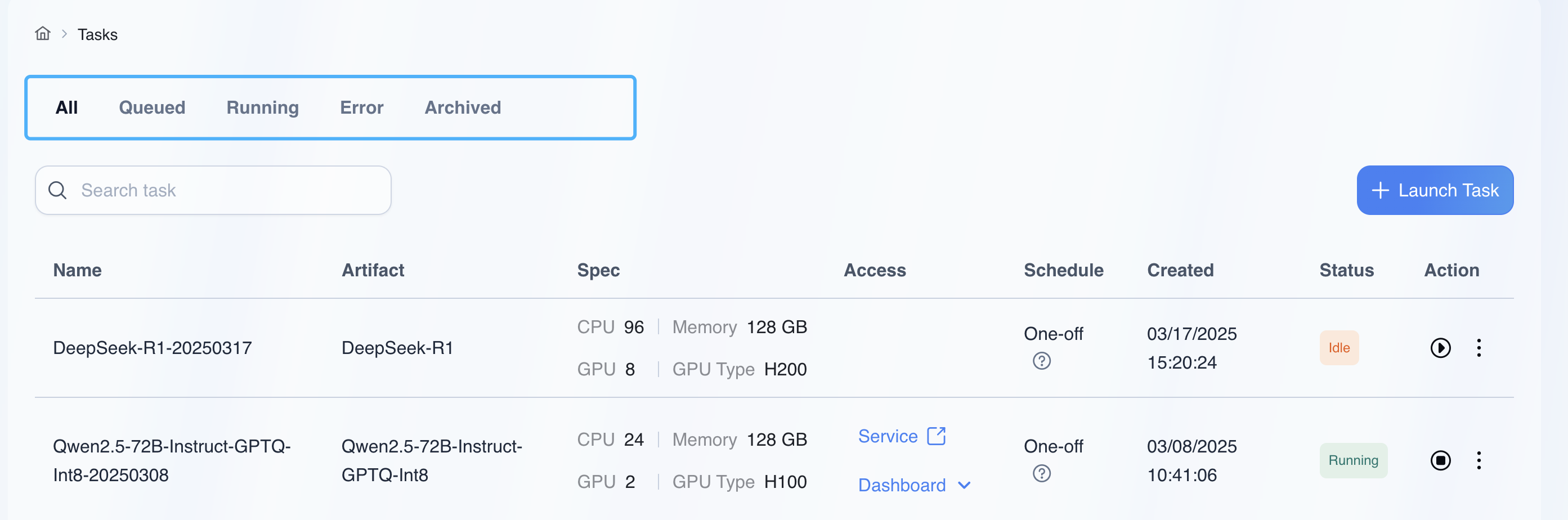
 4. Click the status tab to review the tasks corresponding to each status.
 ## Launch Tasks
1. Click "Launch Task" button to launch task for provided models or customized artifacts.
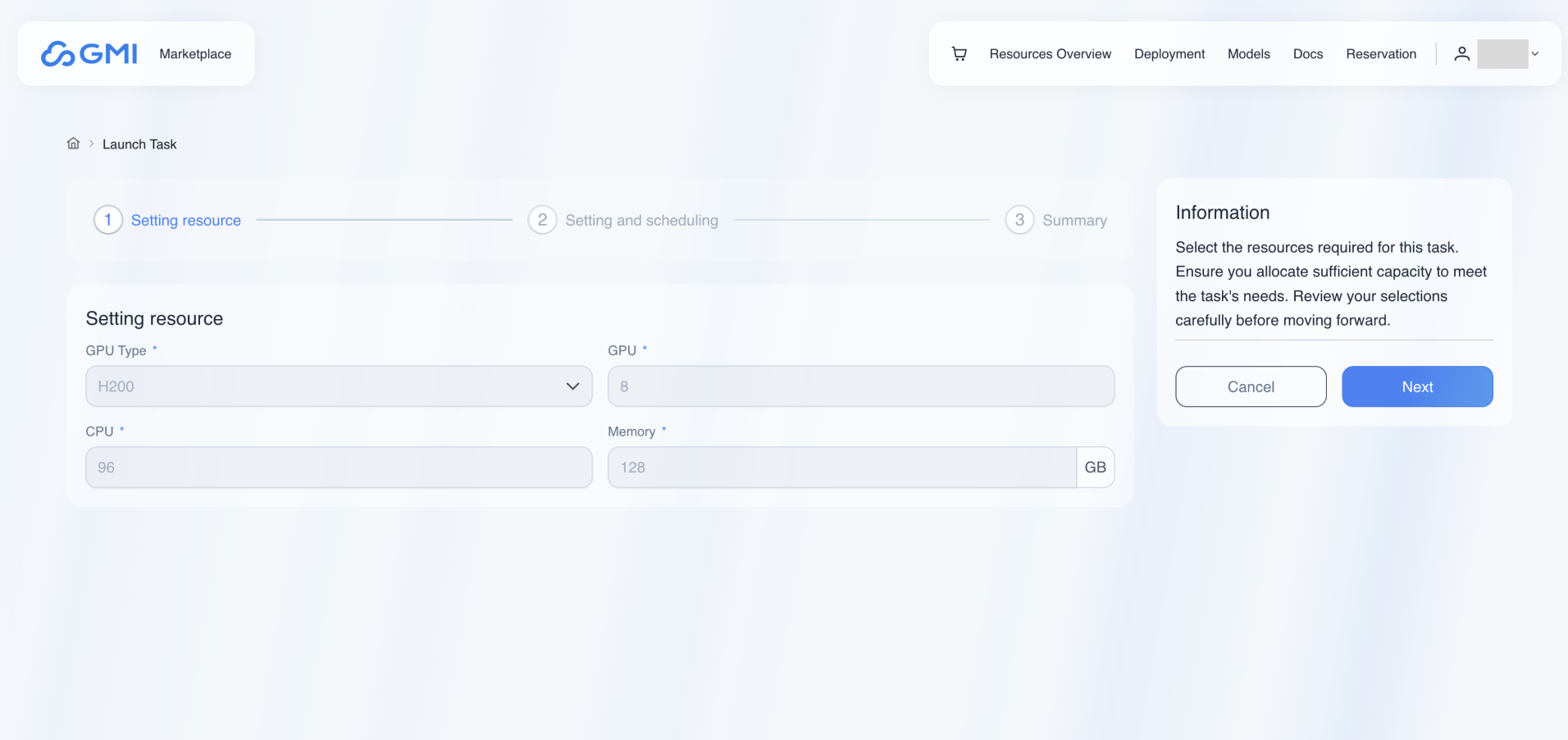
2. Setting resource
The resource cannot be edited; click the "Next" button.
## Launch Tasks
1. Click "Launch Task" button to launch task for provided models or customized artifacts.
2. Setting resource
The resource cannot be edited; click the "Next" button.
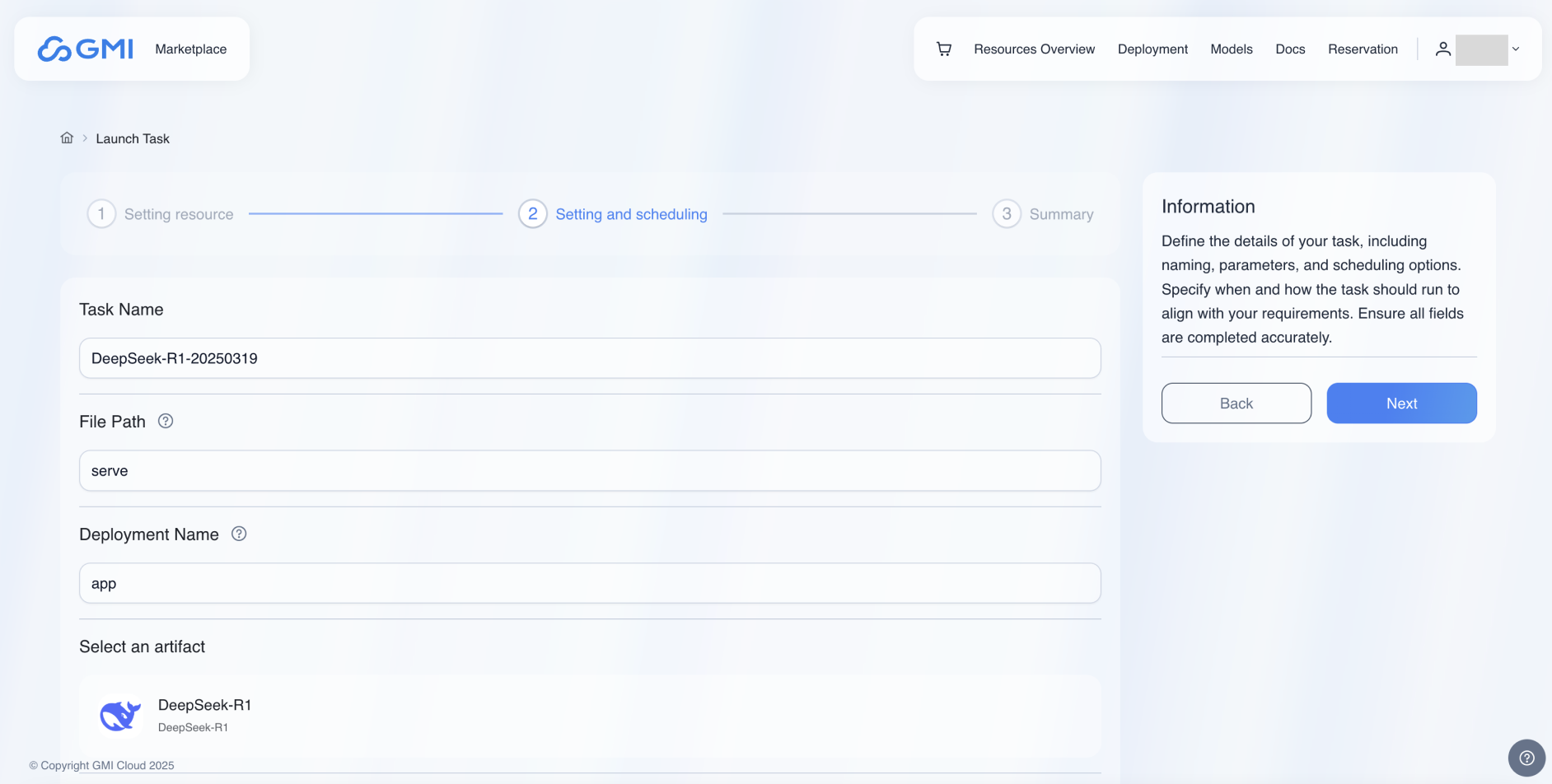
 3. Setting and scheduling
**Task Name**: Define task name.
**File Path**: Specify the script file name to be executed in the Docker image(without the file extension). Fox example, if the image includes a script named serve.py, enter serve here.
**Deployment Name**: Specify the deployment name that will be exposed to the Ray cluster by the script. For example, you can use app as the deployment name.
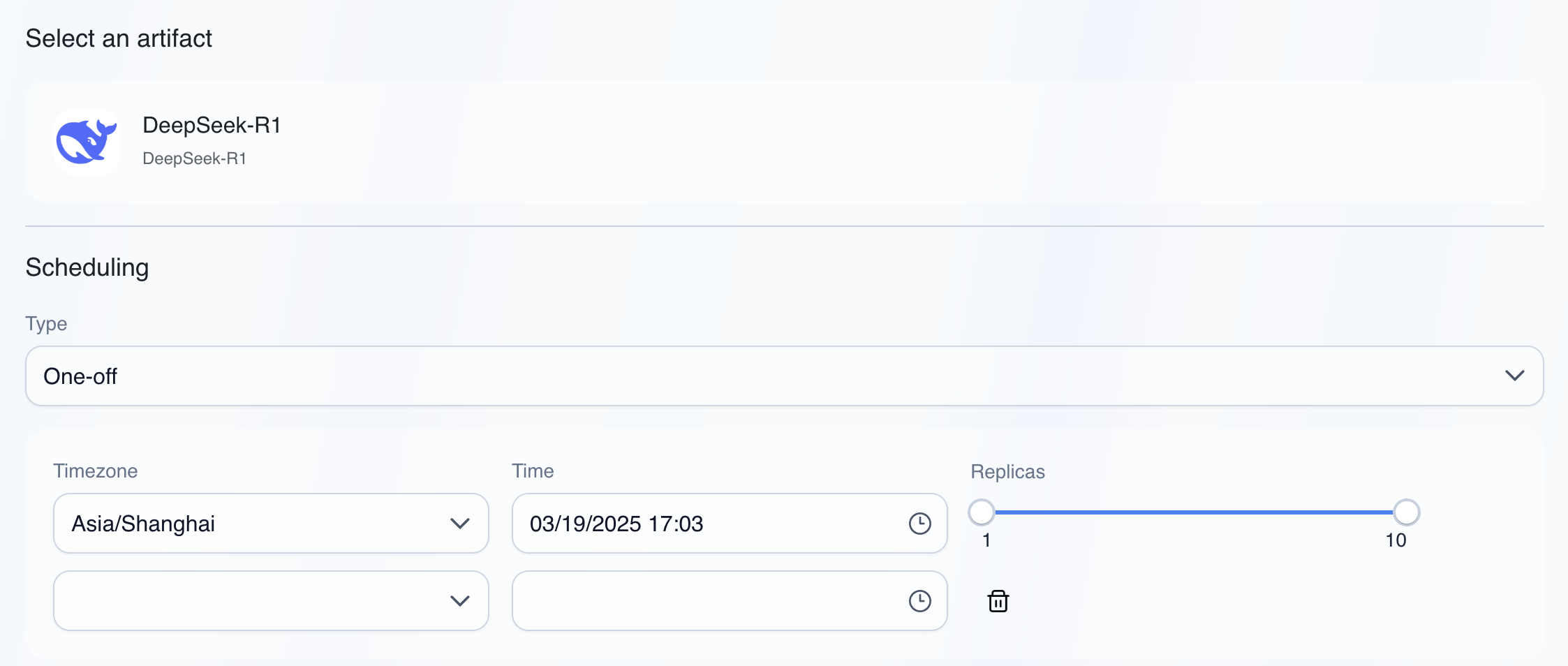
**Type**: One-off or Daily
One-off - The task runs once as scheduled time.
Daily - The task runs at the first scheduled time and can update replica numbers at subsequent daily scheduled times. This option is designed for recurring, predictable workloads where scaling needs follow a consistent daily pattern.
**Timezone**: Select the timezone for scheduling.
**Time**: Select the time for scheduling.
**Replicas**: Select the Min replicas and Max replicas for schedule.
3. Setting and scheduling
**Task Name**: Define task name.
**File Path**: Specify the script file name to be executed in the Docker image(without the file extension). Fox example, if the image includes a script named serve.py, enter serve here.
**Deployment Name**: Specify the deployment name that will be exposed to the Ray cluster by the script. For example, you can use app as the deployment name.
**Type**: One-off or Daily
One-off - The task runs once as scheduled time.
Daily - The task runs at the first scheduled time and can update replica numbers at subsequent daily scheduled times. This option is designed for recurring, predictable workloads where scaling needs follow a consistent daily pattern.
**Timezone**: Select the timezone for scheduling.
**Time**: Select the time for scheduling.
**Replicas**: Select the Min replicas and Max replicas for schedule.
 4. Summary
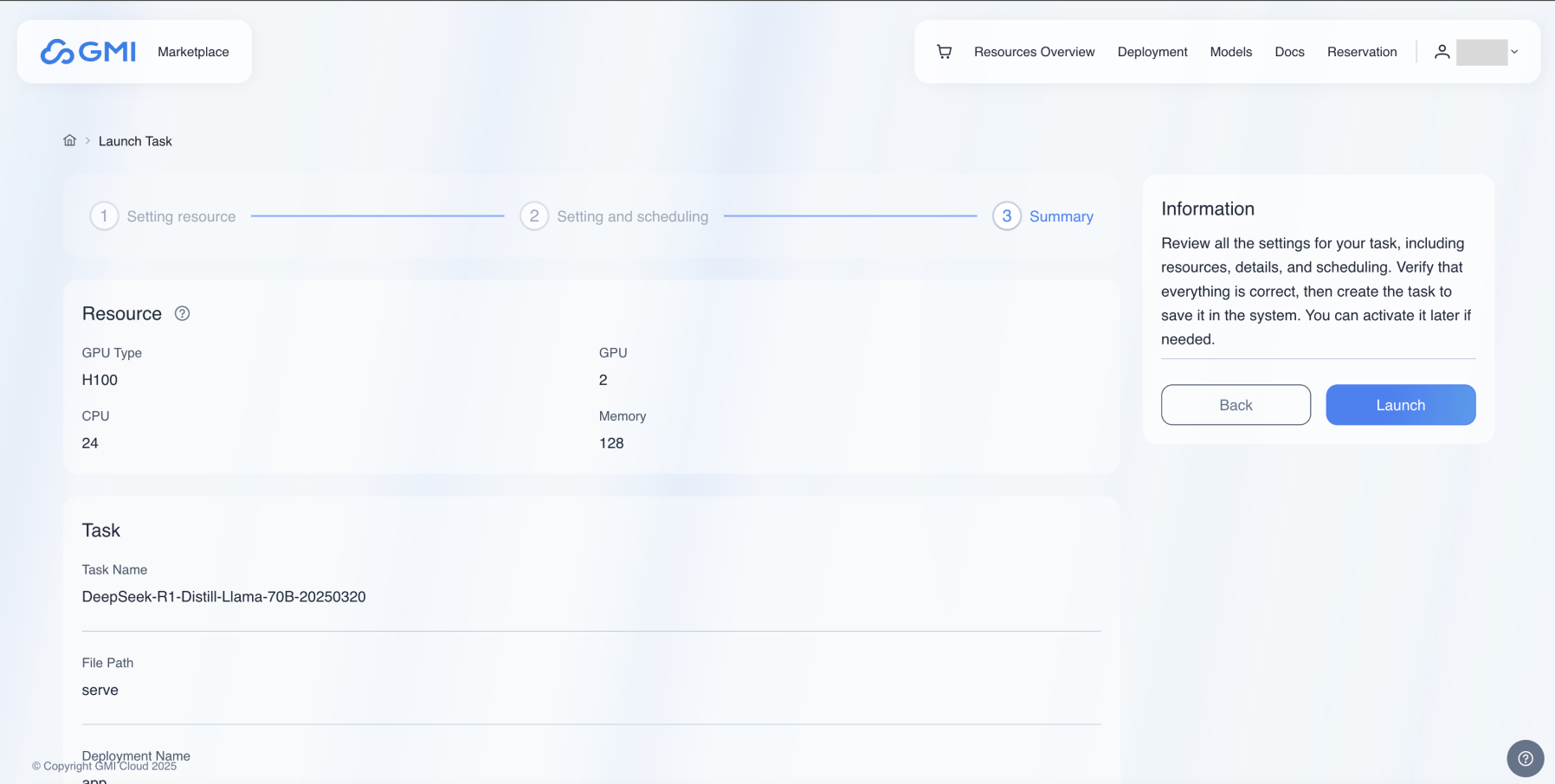
Review the information in the summary page. After confirmation, click the "Launch" button to launch task.
4. Summary
Review the information in the summary page. After confirmation, click the "Launch" button to launch task.
 5. Active the Task
In the task list, locate the task and then click button to active the idle task.
5. Active the Task
In the task list, locate the task and then click button to active the idle task.