

- The Model Library palette on the left (Audio, Image, Video, LLM, Task tabs).
- The Assets and Toolbox / Comfy Library palettes accessed from the other inner-toolbar icons.
- The universal node search, opened by double-clicking anywhere on the canvas, which spans every catalog above plus Blueprints (saved subgraphs / use cases), Partner models, and Extensions.
Opening the search
Double-click on an empty area of the canvas. The “Add a node…” dialog appears: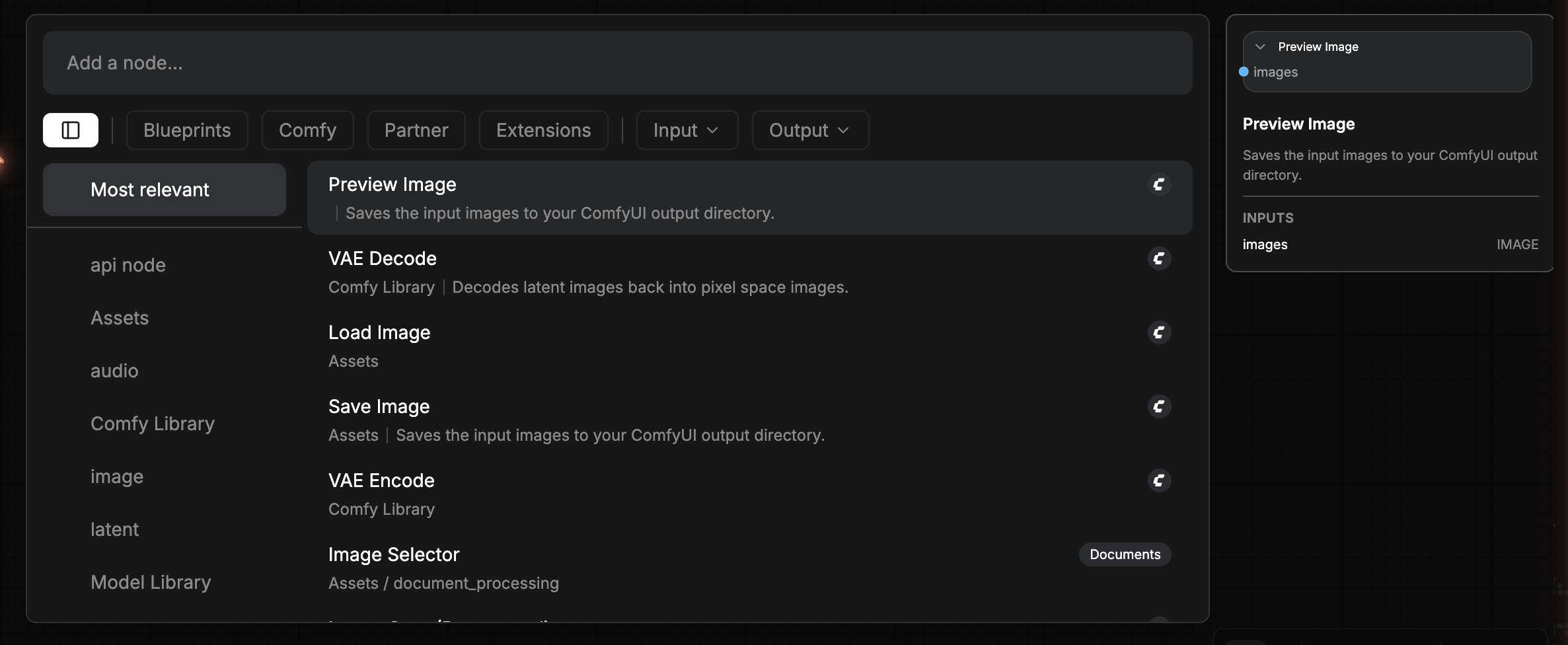
- Top filter pills: layout toggle (sidebar / no sidebar), Blueprints, Comfy, Partner, Extensions, Input ▾, Output ▾.
- Left category sidebar: contextual to the active filter. Default is Most relevant (heuristic).
- Result list (center): one row per match. Tag chips on the right show source (Blueprint / Documents / GMI_Nodes / …).
- Right preview panel: detail of the highlighted result with INPUTS / OUTPUTS, description, and quick “Add” affordance.
Enter adds the highlighted node to the canvas at the click position.
Blueprints, Use Cases
The Blueprints filter is GMI Studio’s library of prebuilt mini-workflows (called subgraph blueprints). Think of them as use-case starting points: drop one onto the canvas and you get a ready-to-tweak subgraph instead of having to wire from scratch.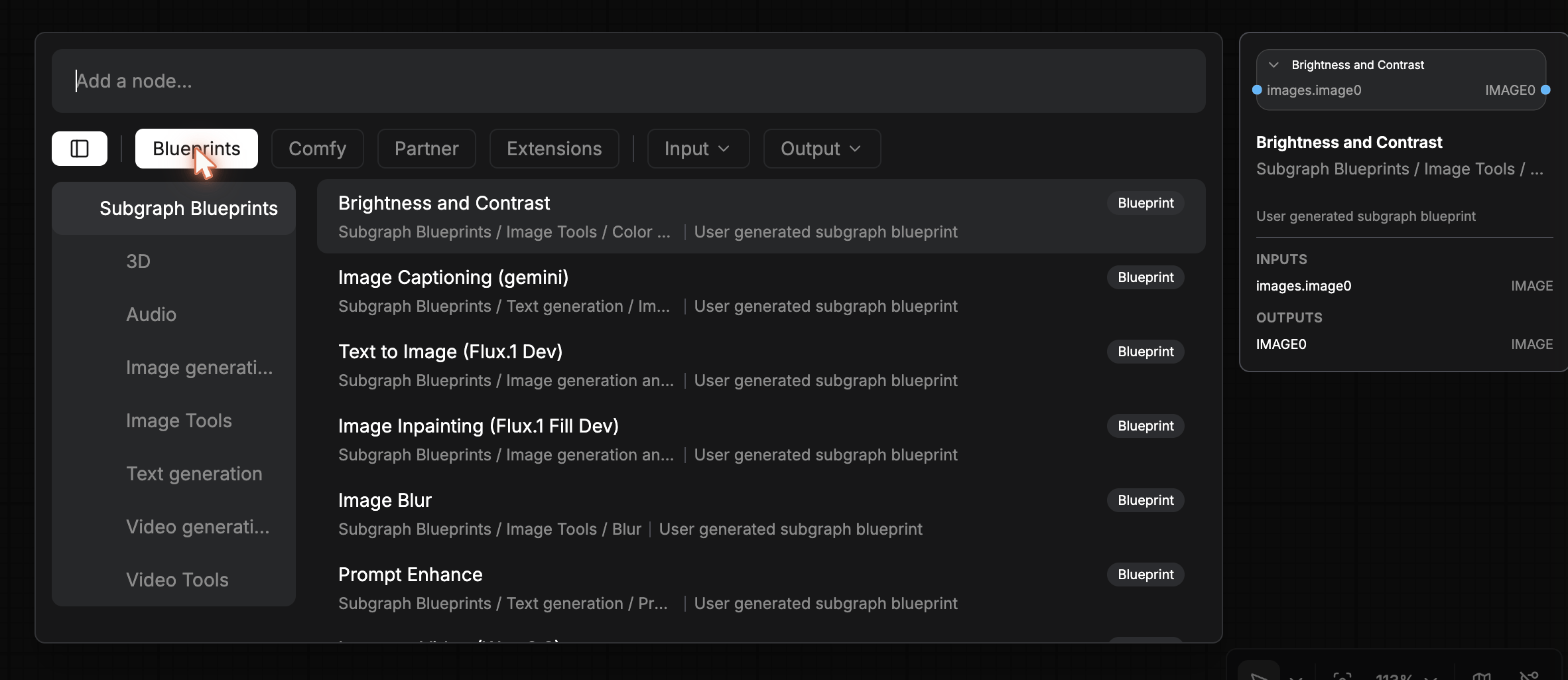
- Subgraph Blueprints (top-level)
- 3D
- Audio
- Image generation
- Image Tools
- Text generation
- Video generation
- Video Tools
The right panel previews the blueprint as if it were a single node, its INPUTS and OUTPUTS, because that’s exactly how a subgraph behaves once placed.
Comfy, native ComfyUI nodes
The Comfy filter narrows results to native ComfyUI nodes (anything sourced from the upstream ComfyUI repo). The sidebar categories include Comfy, Assets, audio, Comfy Library, image, latent, Model Library, Toolbox, utils.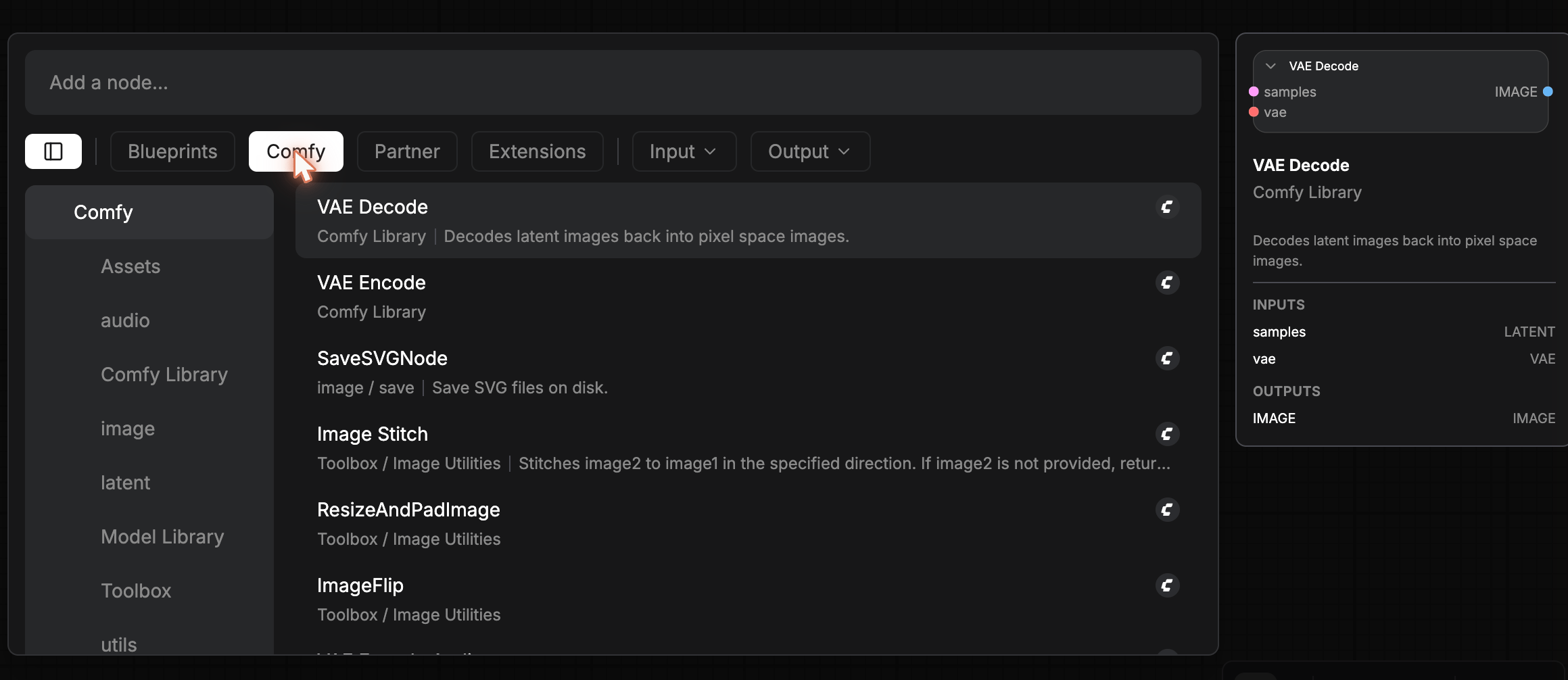
samples LATENT + vae VAE and OUTPUTS IMAGE.
Partner, provider model nodes
The Partner filter shows nodes contributed by integrated partners. The sub-category Use Case Models is GMI’s curated set of single-purpose model nodes that do exactly one thing well.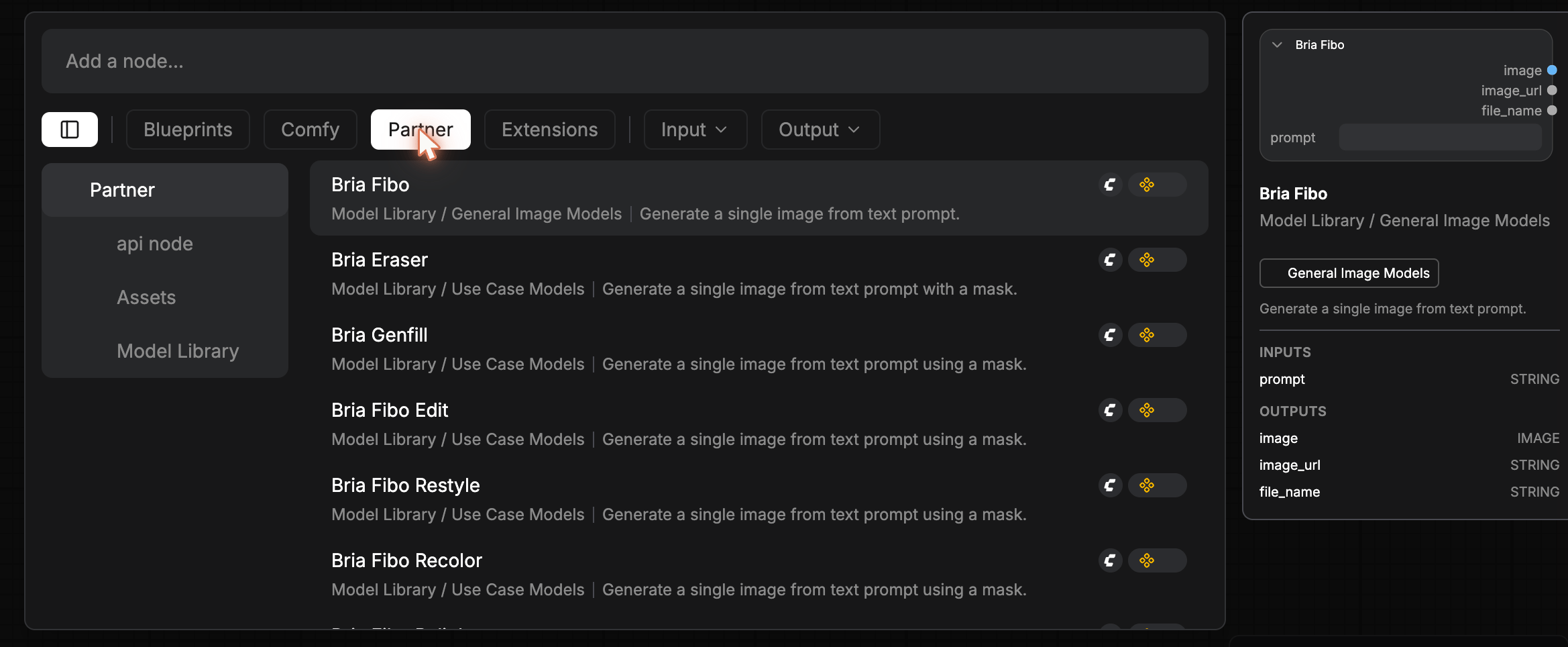
The right panel of Bria Fibo shows the standard model-node shape: INPUTS
prompt STRING, OUTPUTS image IMAGE / image_url STRING / file_name STRING.
Extensions, GMI-specific & document tools
The Extensions filter surfaces nodes taggedGMI_Nodes (Studio-specific utilities) and Documents (document processing).
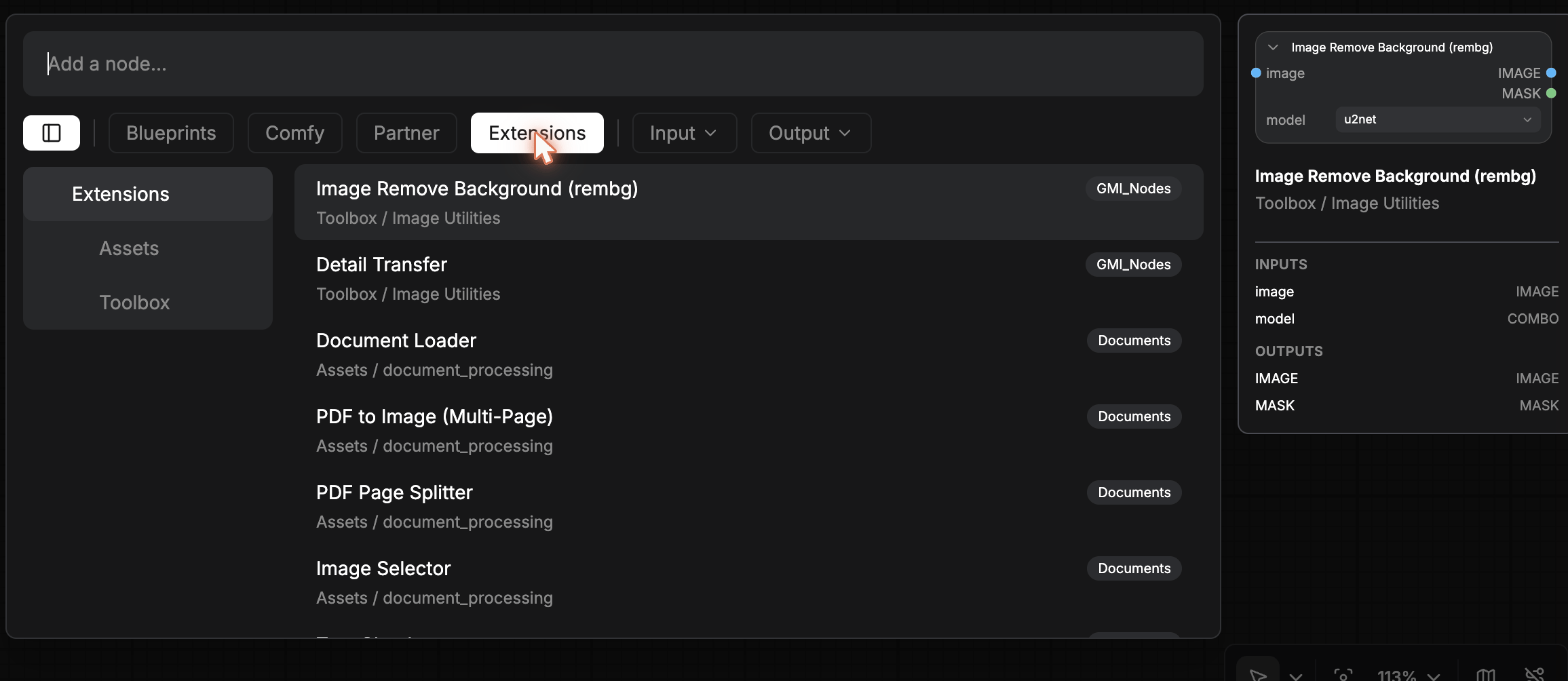
The right panel for Image Remove Background shows
image IMAGE + model COMBO (e.g. u2net) inputs and IMAGE / MASK outputs.
Type filters, Input and Output
The Input ▾ and Output ▾ pills open a multi-select dropdown of data types: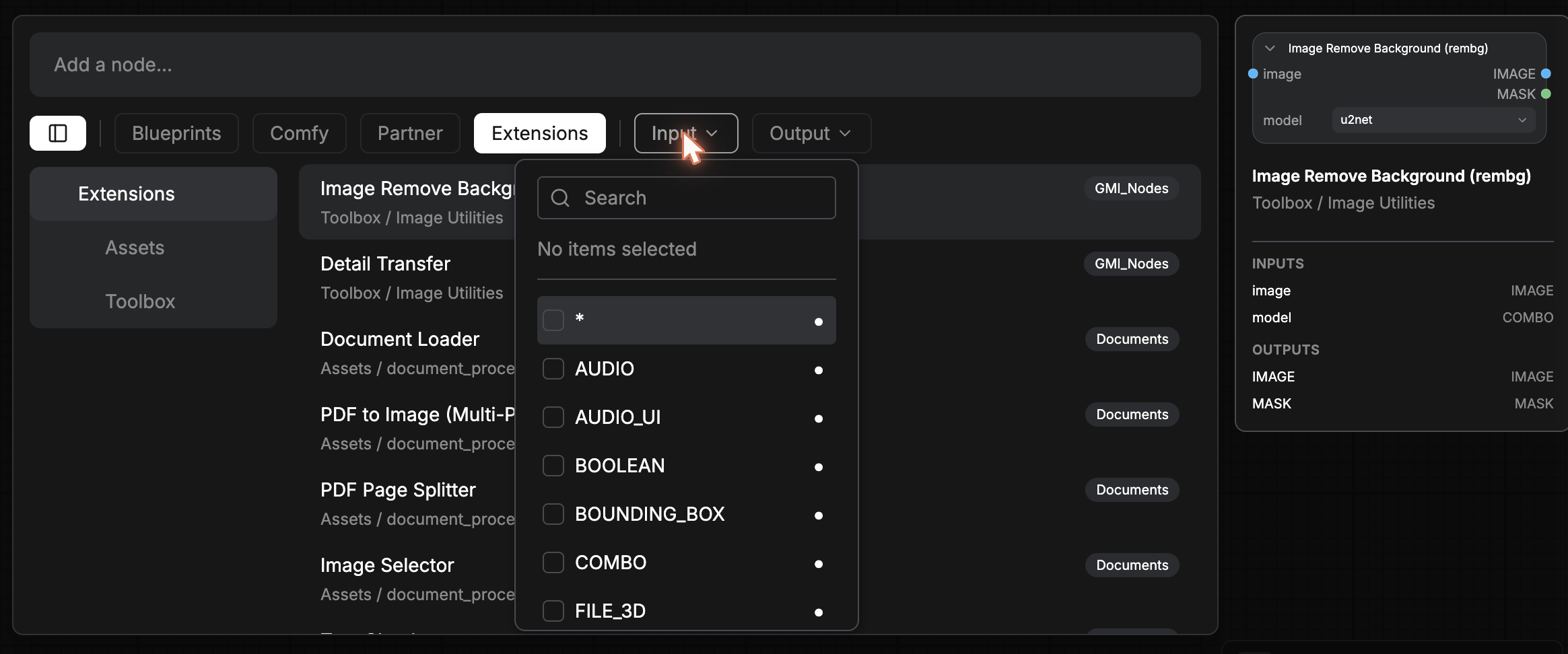
* (any), AUDIO, AUDIO_UI, BOOLEAN, BOUNDING_BOX, COMBO, FILE_3D, and many more. Use these to find “every node that takes an IMAGE” or “every node that produces a MASK”.
This is the recommendation engine in its purest form. Combined with the type filter on the socket you’re trying to satisfy, it shows you exactly the nodes that can wire into your current selection.
Adding a result to the canvas
- Click a row to highlight and preview.
- Press Enter or double-click the row to add it at the cursor position.
- Drag the row onto a specific spot on the canvas.
Saving your own blueprints
Any selection of nodes plus connections can become a blueprint:- Select the nodes (drag a marquee or
Shift+click). - Right-click and choose Save Selected as Template (visible in the canvas right-click menu).
- The saved template becomes a User generated subgraph blueprint and shows up under Blueprints in this search dialog.