

Prerequisites
- A Mac or Linux machine (or a VPS)
- A GMI Cloud account at console.gmicloud.ai
- A Telegram account at telegram.org
- About 10 minutes
Step 1: Install Hermes Agent
Open your terminal and run the one-line installer.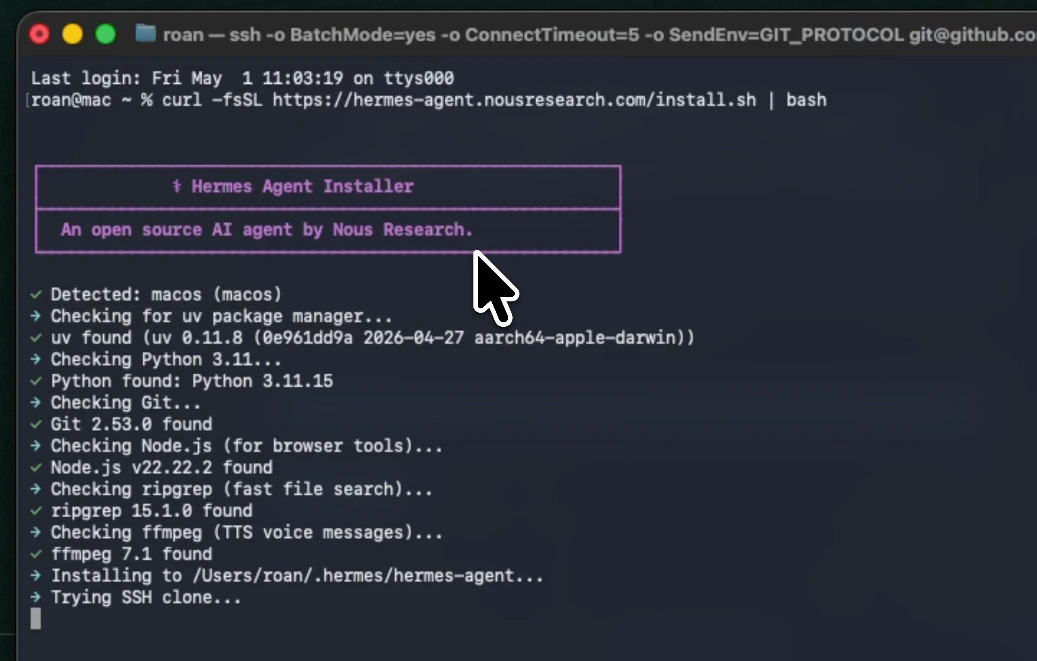
Step 2: Run the Setup Wizard
Start the configuration wizard:Step 3: Select GMI Cloud as Your Provider
When the wizard asks you to select a provider, scroll down and choose GMI Cloud.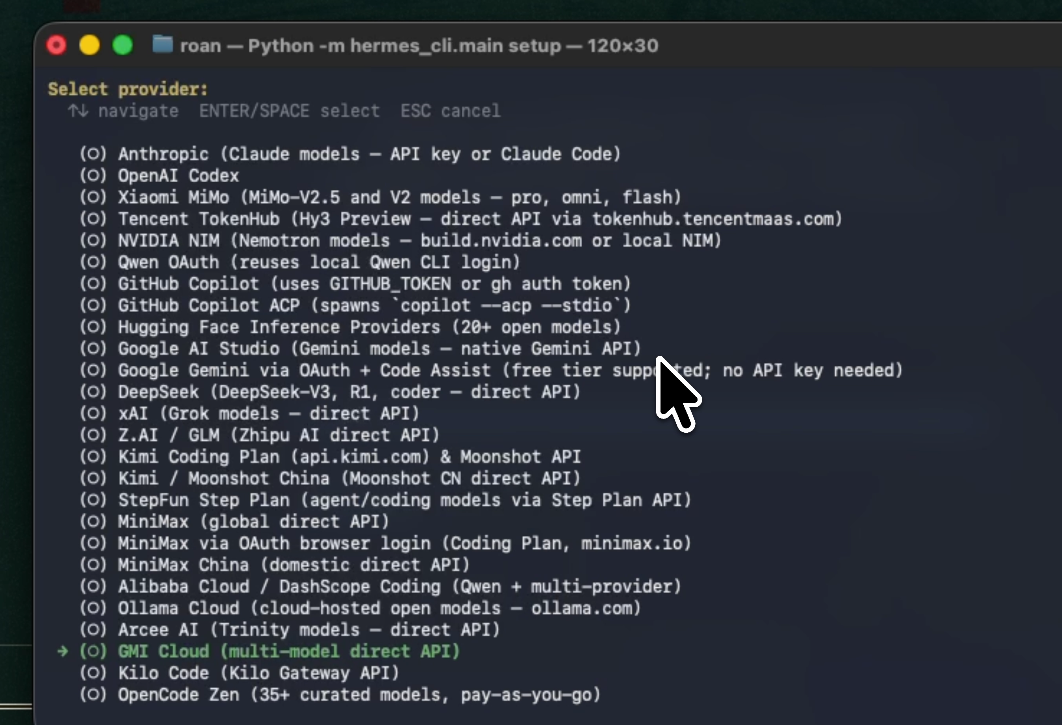
Step 4: Get Your GMI Cloud API Key
Go to: https://console.gmicloud.ai/user-setting/api-keys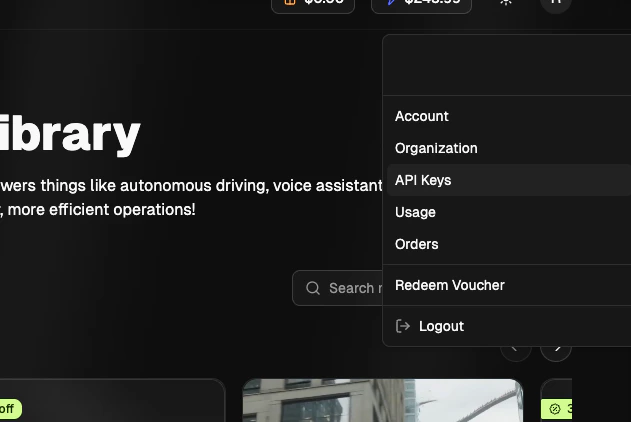
hermes-01, and copy the key.
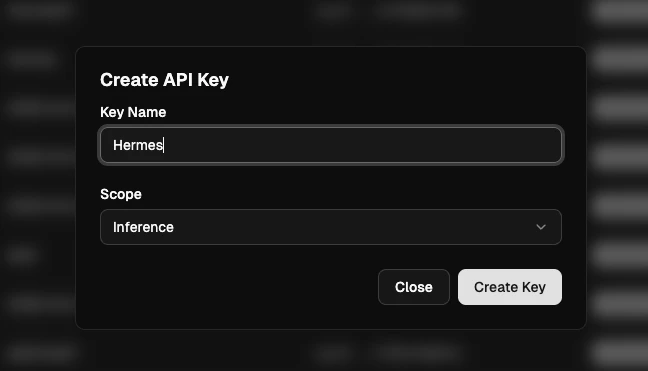
Step 5: Set the Base URL
After the API key, the wizard will ask for a base URL. You do not need to change anything here. Just press Enter to use the default GMI Cloud endpoint:Step 6: Select Your Model
GMI Cloud gives you access to a wide range of models. During setup, you can pick the one you want to use. If you are not sure, a strong general-purpose choice is one of the Claude or DeepSeek models available in your GMI account.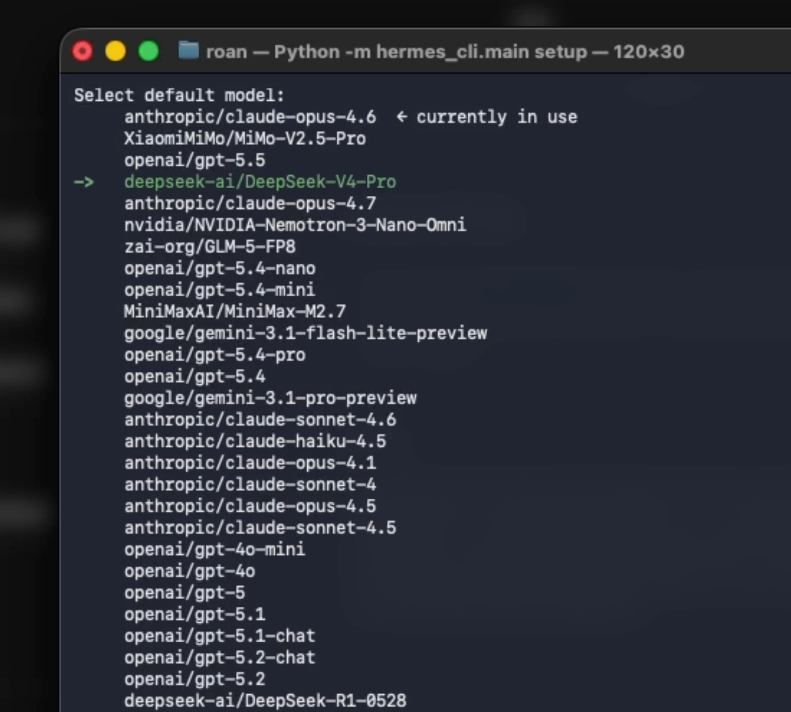
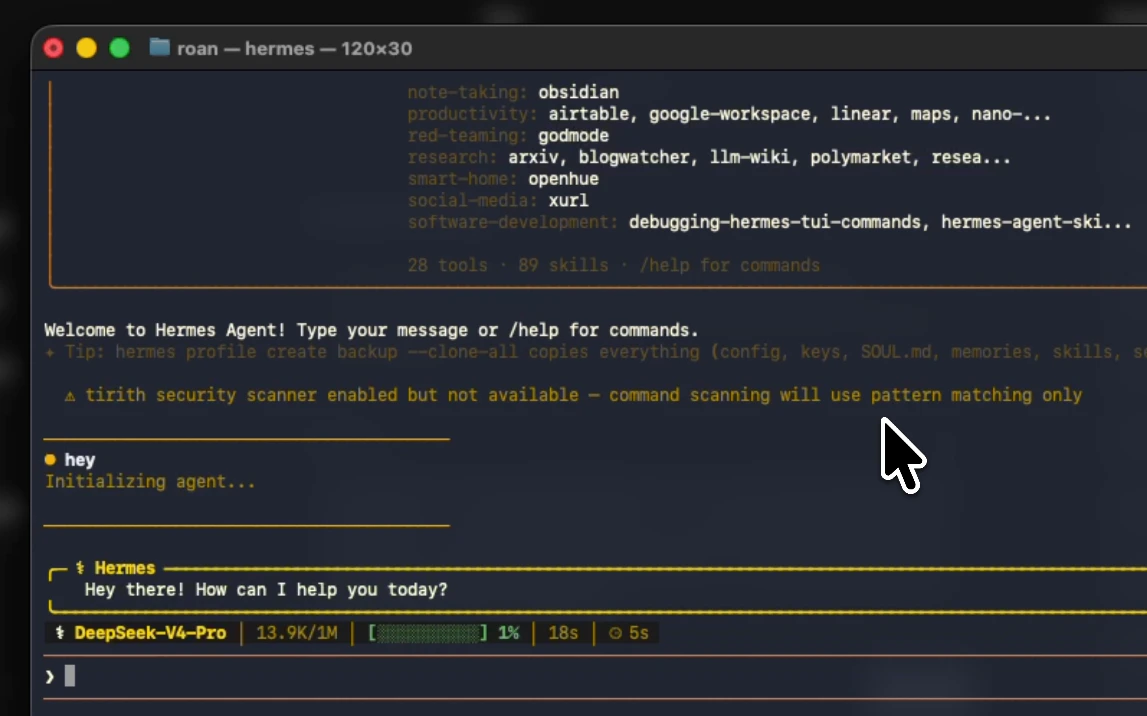
~/.hermes/config.yaml:
Step 7: Choose Telegram as Your Messaging Platform
When the wizard asks which messaging platform to use, select Telegram.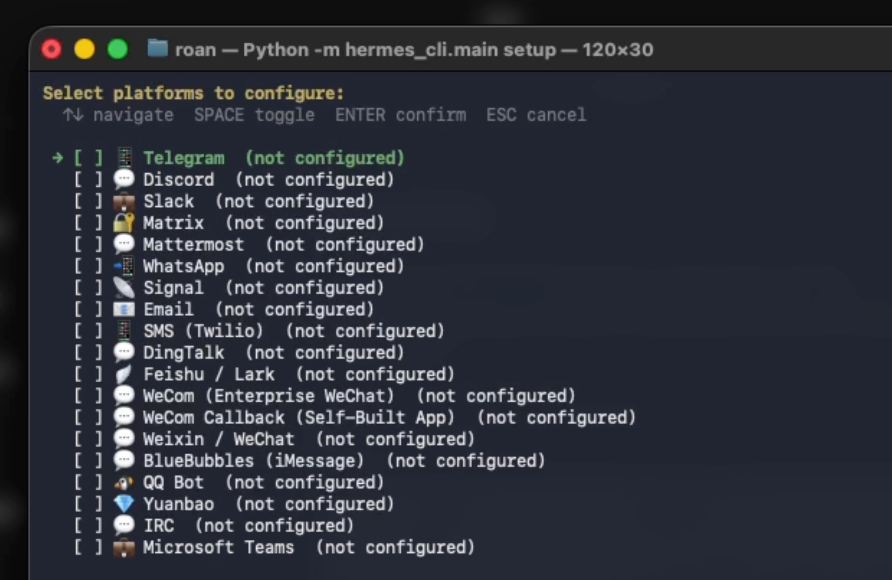
Step 8: Create a Telegram Bot
Go to Telegram and open a chat with @BotFather: https://t.me/BotFather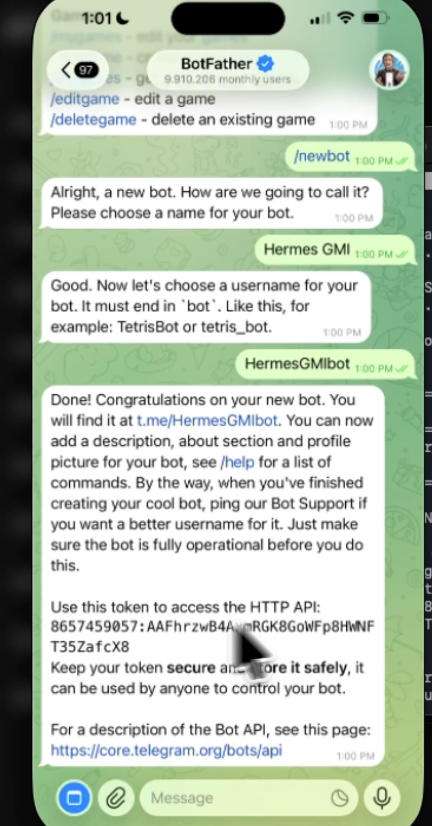
Step 9: Configure Your Telegram Settings
Open your Hermes environment file:# from the front of each line if they are commented out:
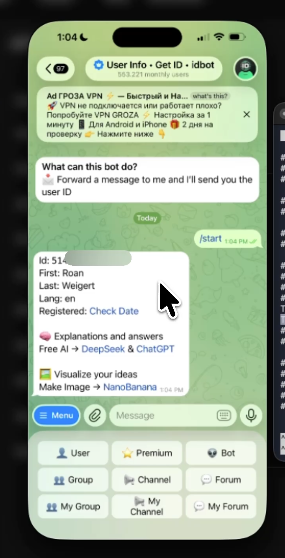
TELEGRAM_ALLOWED_USERS value.
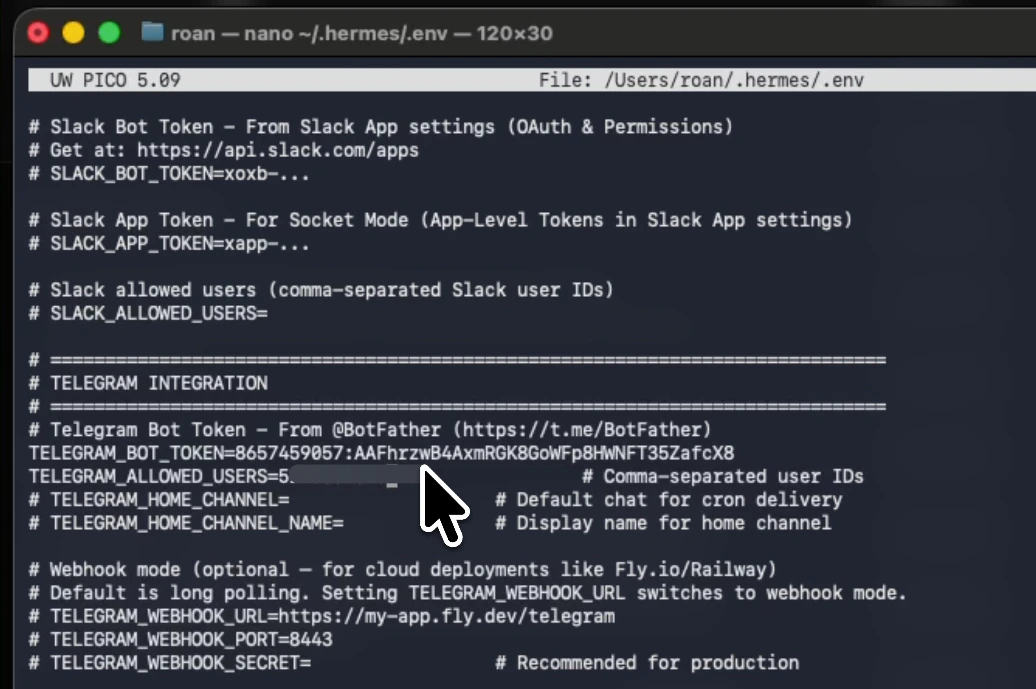
Ctrl+O, then exit with Ctrl+X.
Step 10: Start the Gateway
Start the Hermes gateway so your agent can receive messages from Telegram: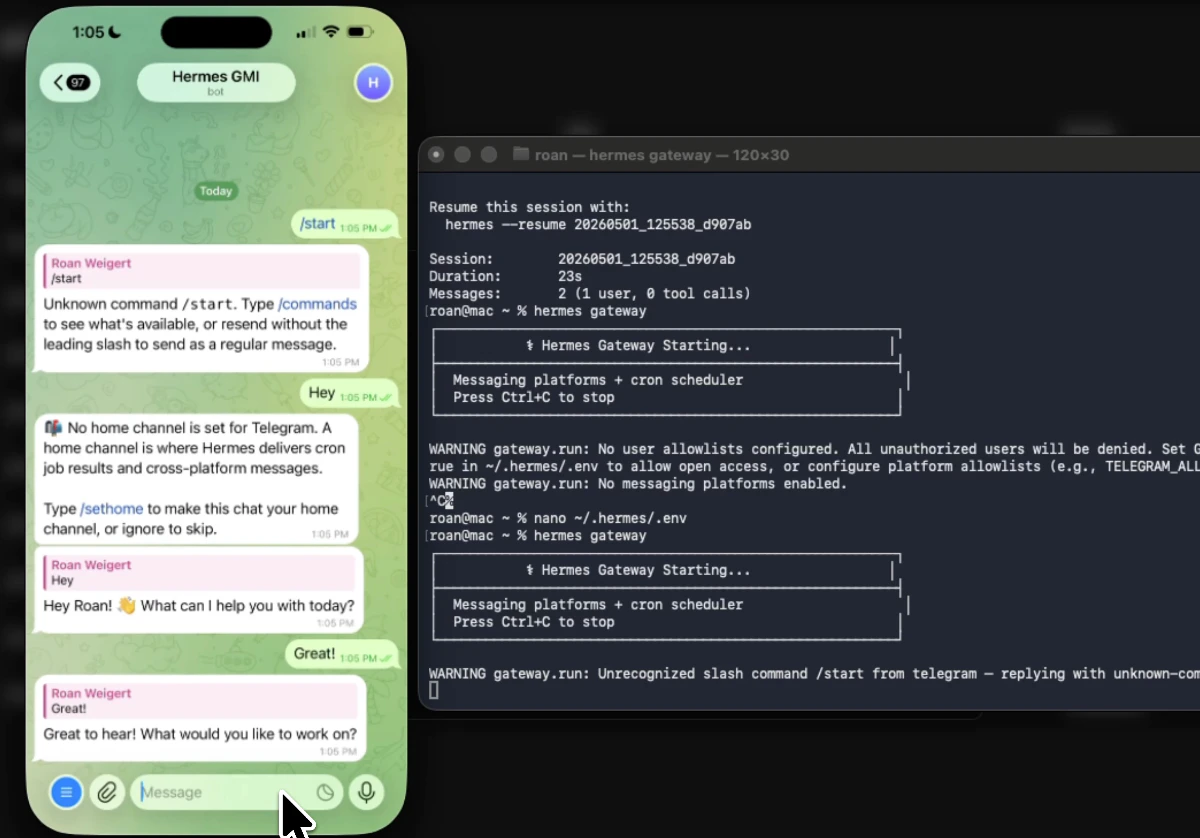
Step 11: Send Your First Message
Open Telegram and search for your bot by the username you created in BotFather. Click Start. Send it a message. You should get a response within a few seconds.Step 12: Try a Real Task
Here is an example to see the self-improving skill system in action. Send your bot this message:Troubleshooting
Gateway shows “No messaging platforms enabled” This means yourTELEGRAM_BOT_TOKEN is missing or commented out in ~/.hermes/.env. Open the file and make sure the line does not start with a # and that the token is pasted correctly.
API key rejected (401 error)
Run hermes setup again to re-enter your GMI Cloud API key. Double-check that you have added credits to your GMI account at https://console.gmicloud.ai before generating the key.
Hermes crashes on launch with an OSError
This usually means Hermes is being launched from a non-standard terminal, such as VS Code’s integrated terminal. Try running it from a plain Terminal window instead.
Wrong API key or want to change it
Edit ~/.hermes/.env directly and update the GMI_API_KEY value, or run hermes setup to go through the wizard again.
Next steps
- Wire GMI into an agent framework with Dify or OpenClaw.
- Browse the model catalog: Text models.
- Stuck? Email support@gmicloud.ai.