

Prerequisites
- A Mac, Linux, or Windows machine with a terminal
- A GMI Cloud account at console.gmicloud.ai
- About 5 minutes
Step 1. Install OpenCode
Run this command in your terminal:1.15.11.
Step 2. Open OpenCode in your project
Navigate to any code project and launch OpenCode: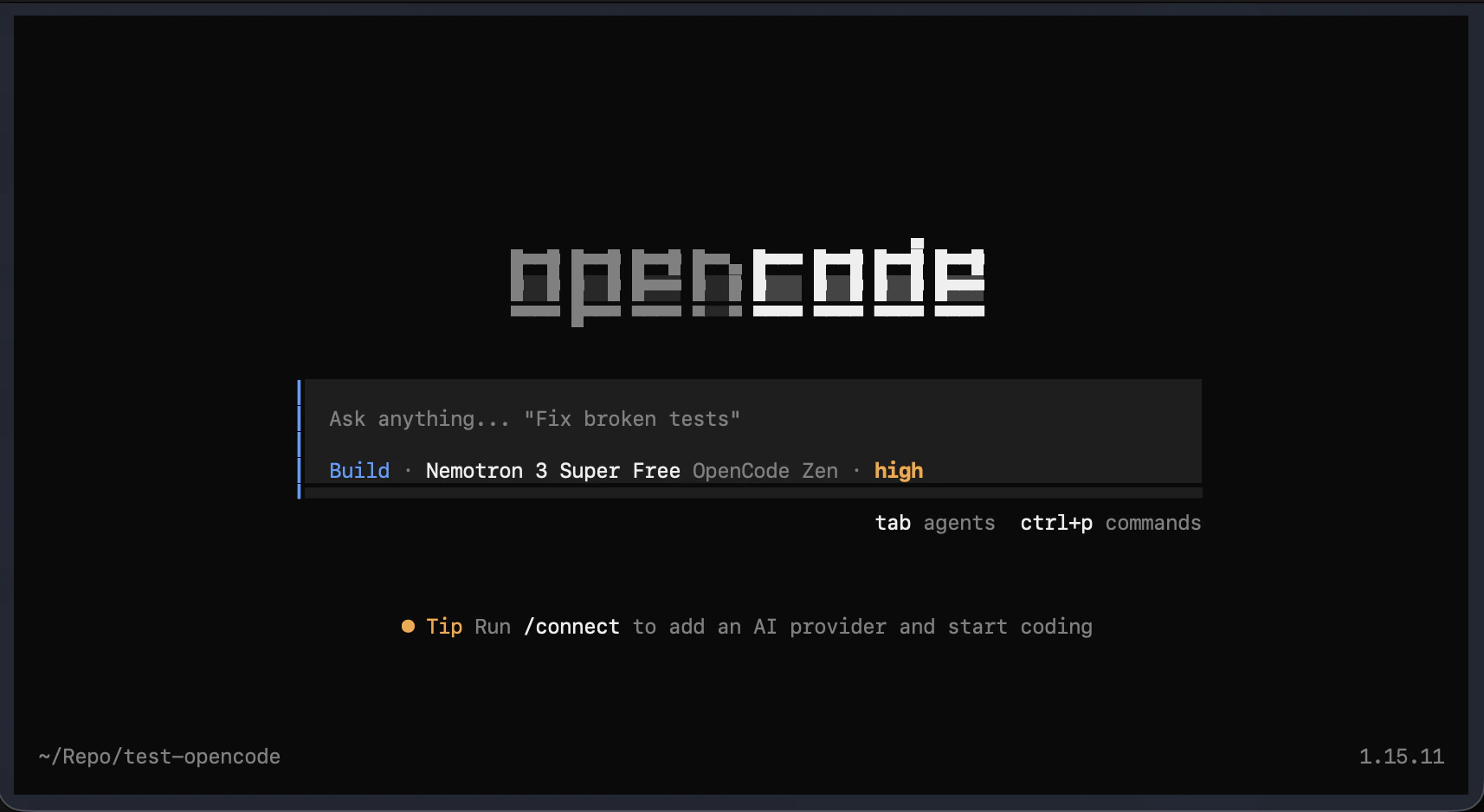
Step 3. Connect GMI Cloud
Inside OpenCode, type: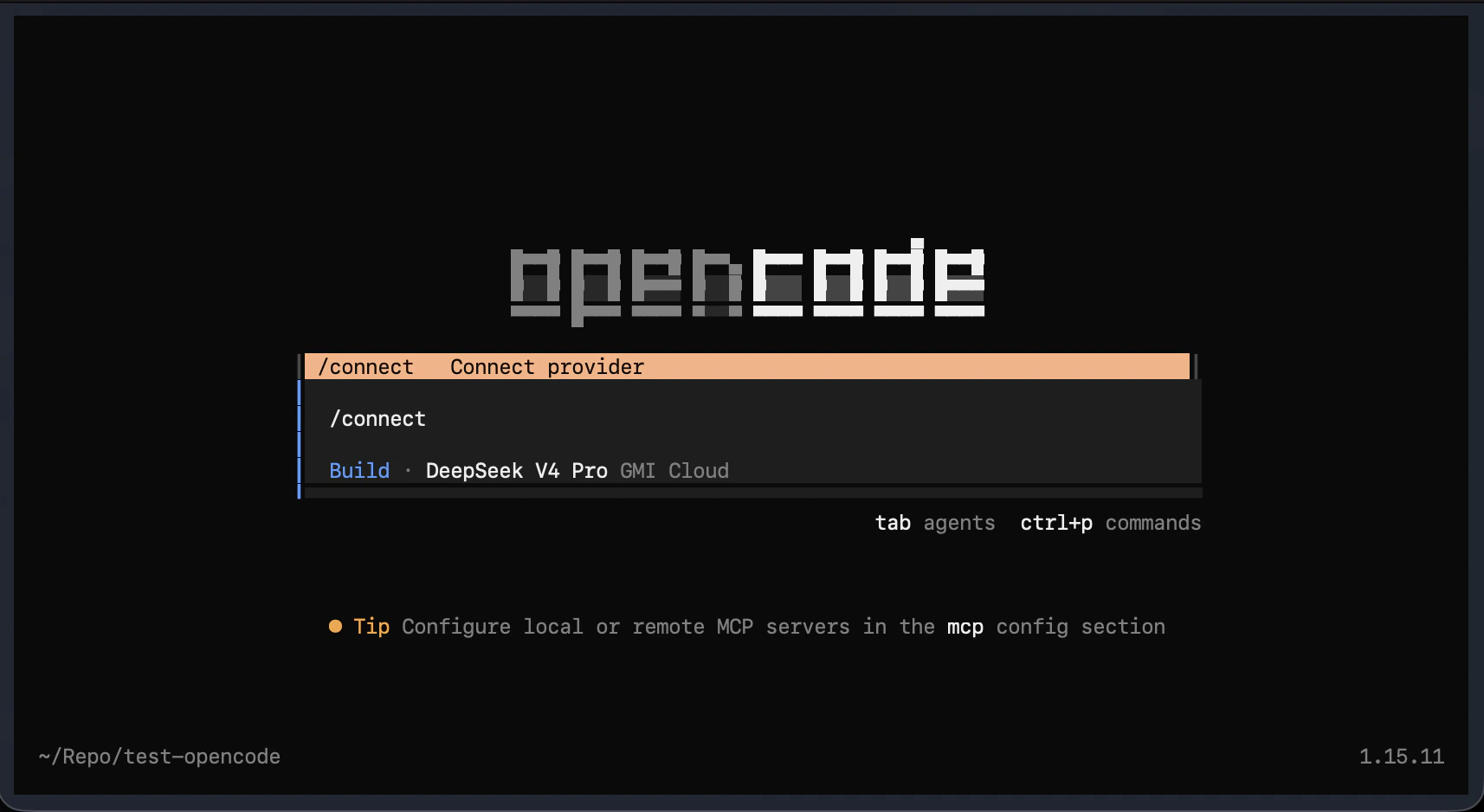
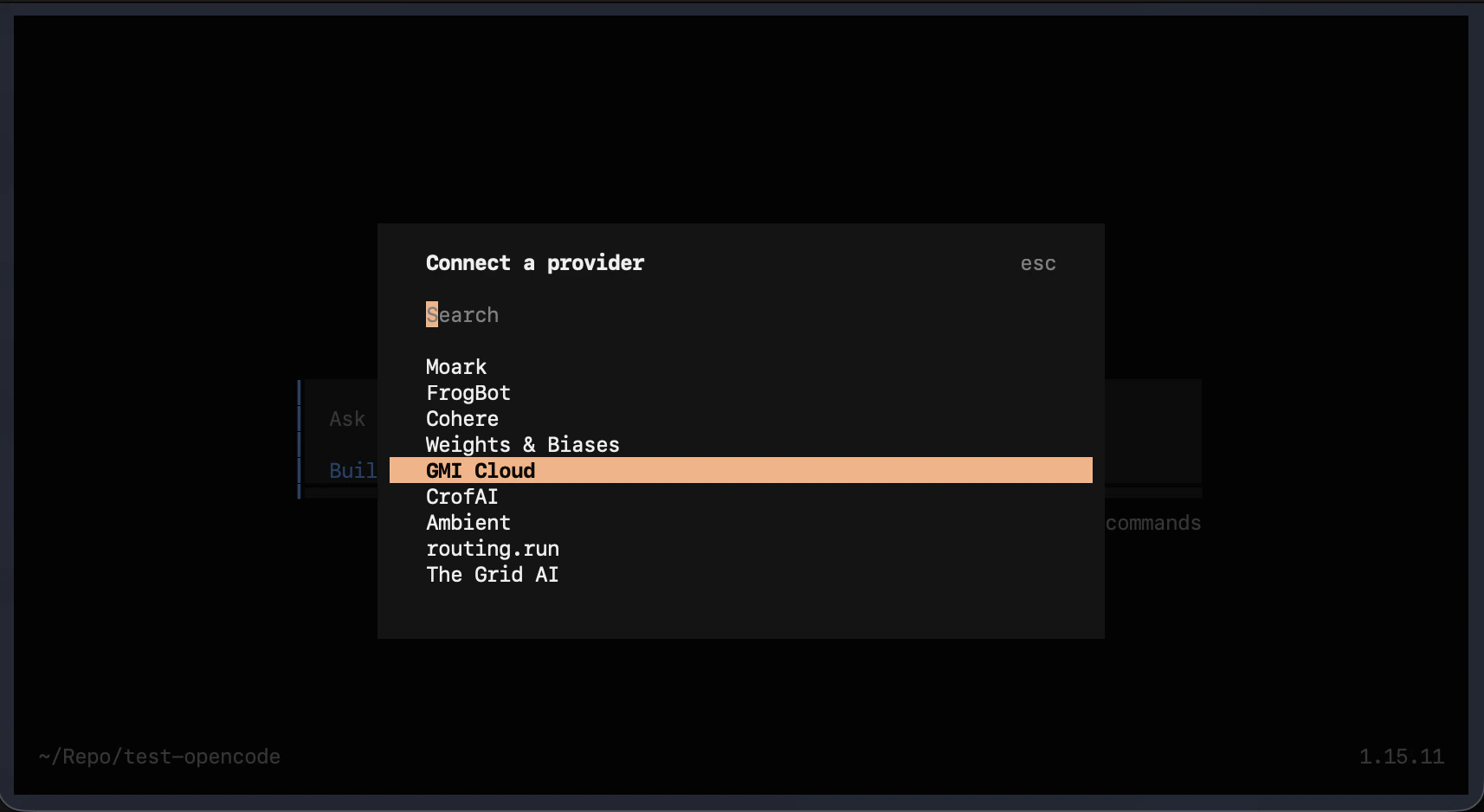
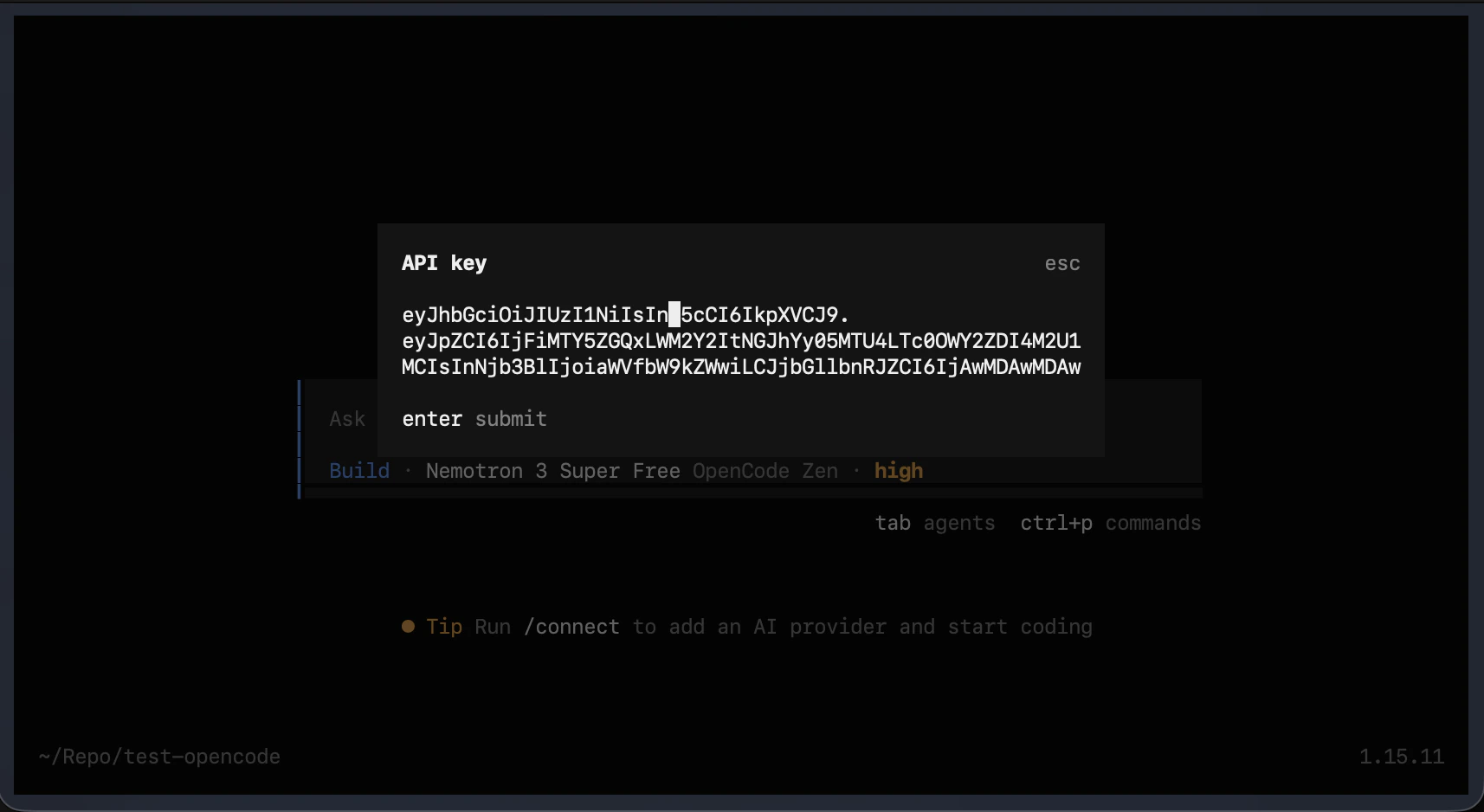
- Go to console.gmicloud.ai.
- Open API Keys and copy your key.
- Paste it into OpenCode and press Enter to confirm.
Step 4. Pick a model
Inside OpenCode, type:
Select a model and press Enter.
Step 5. Start coding
You’re all set. Type any task in the prompt and hit Enter:Useful commands
Next steps
- Try Claude Code, Codex, or Cursor with the same GMI account.
- Browse models in the Text catalog.
- OpenCode docs: opencode.ai/docs