

https://console.gmicloud.ai/user-console/ce/elastic-ip
Elastic IPs are static public IPv4 addresses that you can allocate and attach to bare metal servers or container instances. Unlike dynamic IPs, Elastic IPs persist across server restarts and can be remapped to different instances.
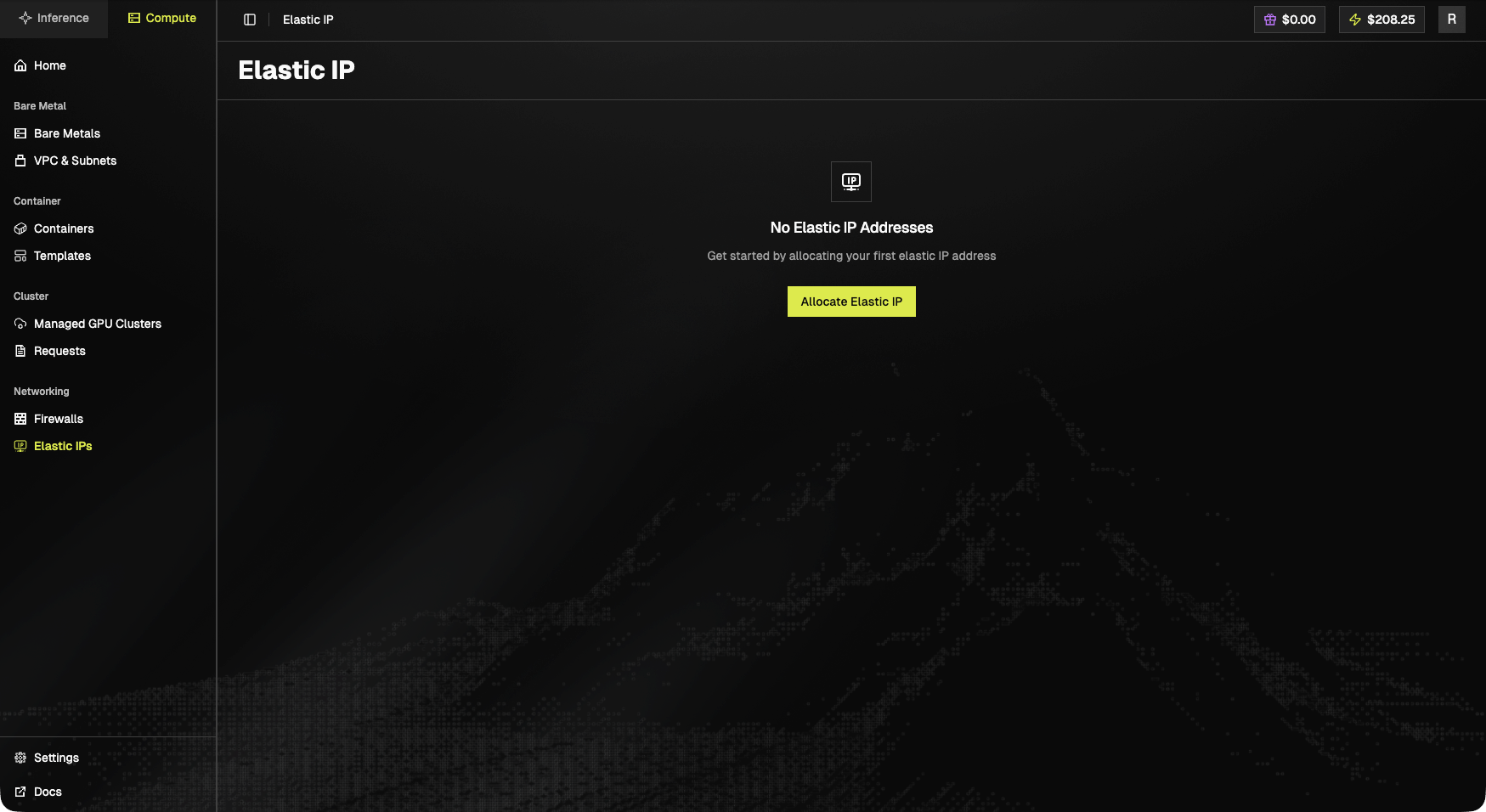
Empty state
No Elastic IP Addresses. Get started by allocating your first elastic IP address.The Allocate Elastic IP button starts the allocation flow.
Access Elastic IP
- Click “Elastic IP” in the left sidebar under the “Networking” section
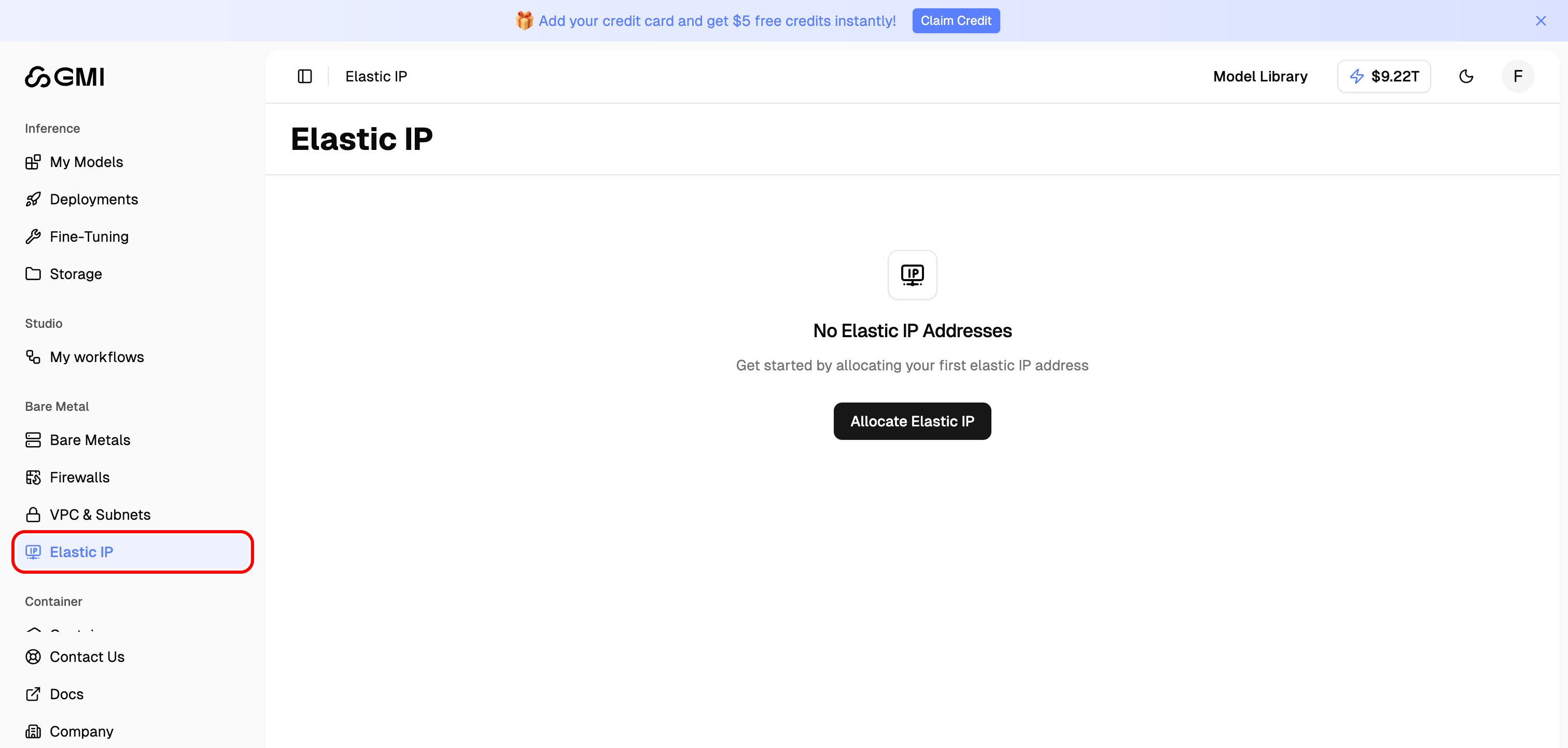
- You will see the Elastic IP list page
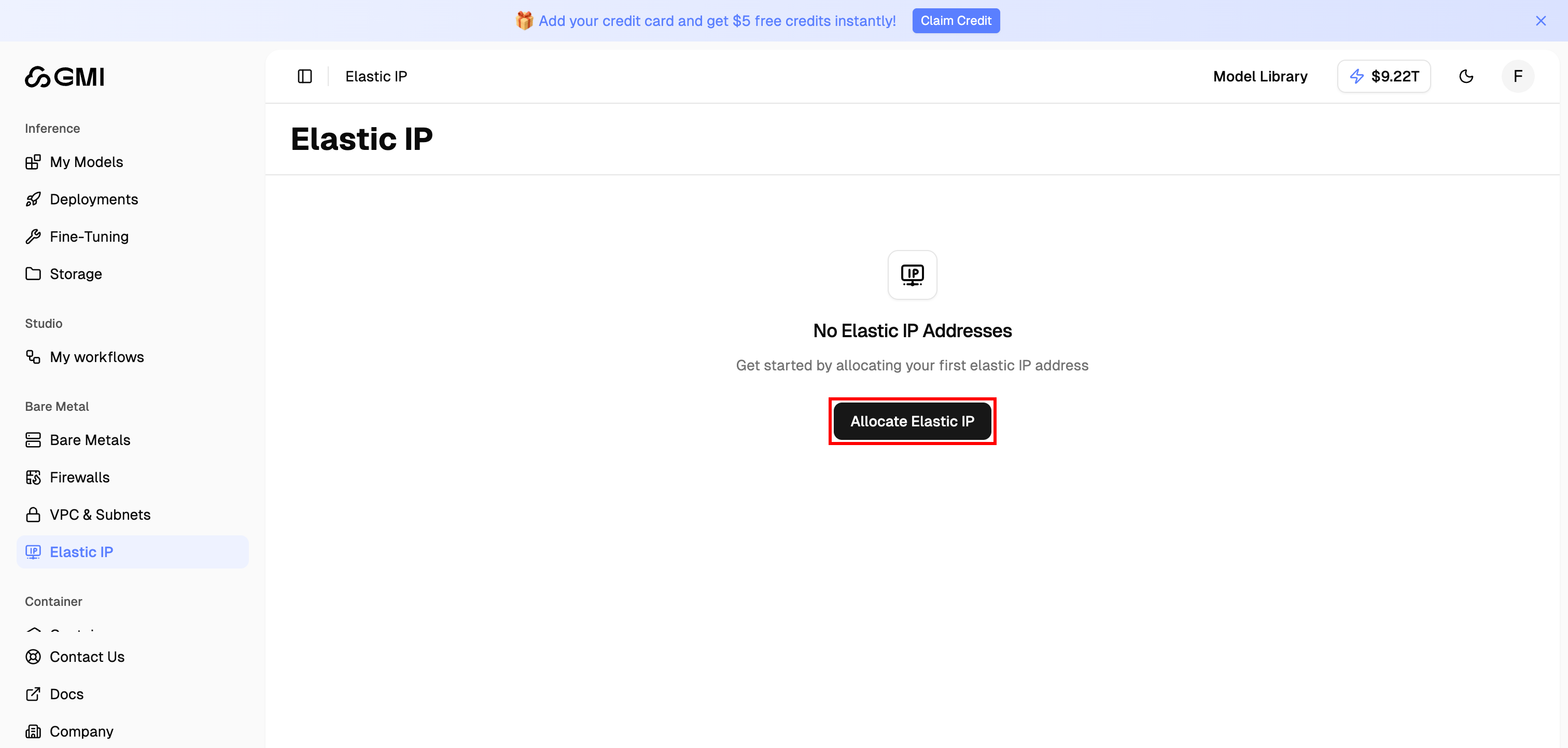
Allocate an Elastic IP
- Click the “Allocate Elastic IP” button
- Configure the Elastic IP settings:
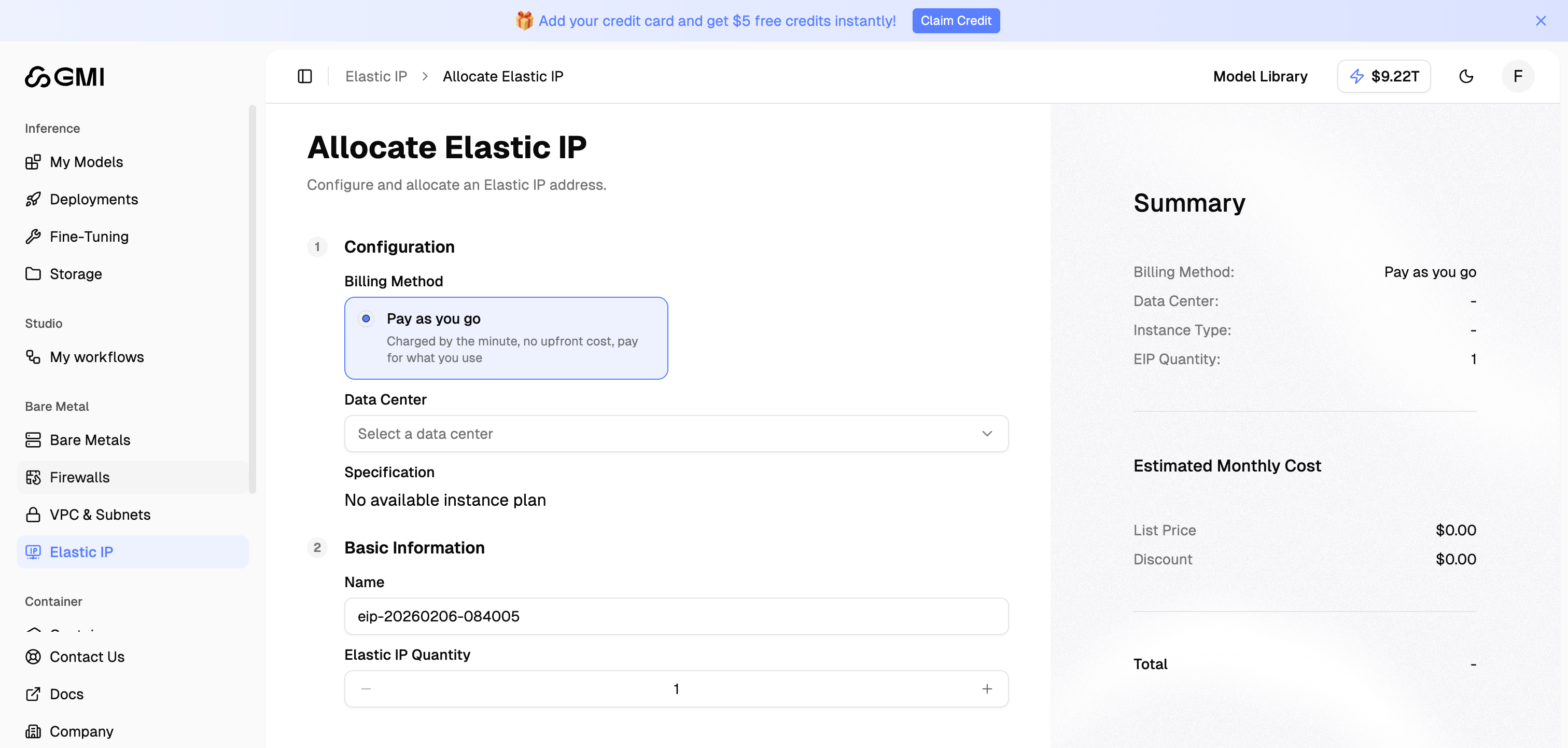
Configuration
Basic Information
Summary
The Summary panel shows:- Billing method
- Selected data center
- Instance type
- EIP quantity
- Estimated monthly cost breakdown (List Price, Discount, Total)
- Click “Go to Pay” to complete the allocation
Associate an Elastic IP
You can associate an allocated Elastic IP with either a Bare Metal server or a Container instance.- On the Elastic IP list page, locate the EIP you want to associate
- Click the “Associate” button in the Actions column

-
In the Associate Elastic IP dialog:
- Product Type: Select Container (or Bare Metal)
- Target Instance: Pick the instance to attach the EIP to

- Click “Confirm” to complete the association

Only instances in the same data center as the Elastic IP will appear in the Target Instance list. If no instances are listed, make sure the EIP and the instance share the same data center.
Disassociate an Elastic IP
Detach an Elastic IP from its current instance while keeping the IP allocated to your account.- On the Elastic IP list page, locate an EIP with status Associated
- Click the “Disassociate” button in the Actions column

- In the confirmation dialog, type
DISASSOCIATEin the input field to confirm

- Click “Confirm” to detach the Elastic IP
Disassociated Elastic IPs continue to incur charges. Release the EIP if you no longer need it (see Manage Elastic IPs below).
Release an Elastic IP
Permanently release an Elastic IP back to the pool when you no longer need it. This stops all billing for the EIP.- On the Elastic IP list page, locate a Disassociated EIP (you must disassociate first if it’s still attached)
- Click the “More actions” button (three dots) in the Actions column and choose “Release”

- In the confirmation dialog, type
RELEASEin the input field to confirm

- Click “Confirm” to release the Elastic IP
Manage Elastic IPs
From the Elastic IP list page, you can:- Associate: Attach an Elastic IP to a bare metal server or container
- Disassociate: Detach an Elastic IP from its current instance (the IP remains allocated)
- Release: Permanently release an Elastic IP back to the pool
Best Practices
- Use Elastic IPs for services that require consistent public addresses - such as web servers, APIs, or any service that needs a stable endpoint
- Release unused Elastic IPs - You are charged for allocated Elastic IPs even when not associated with an instance
- Plan your IP allocation - Elastic IPs are limited resources; allocate only what you need