

https://console.gmicloud.ai/user-console/ce/managed-clusters/clusters
GMI Cloud’s Managed GPU Cluster Service (MGCS) provides fully managed Kubernetes-based GPU clusters for large-scale AI workloads. Unlike individual containers, MGCS offers dedicated GPU worker nodes with Kubernetes orchestration, giving you cluster-level control over your compute resources.
Use Cluster Requests to launch new ones.
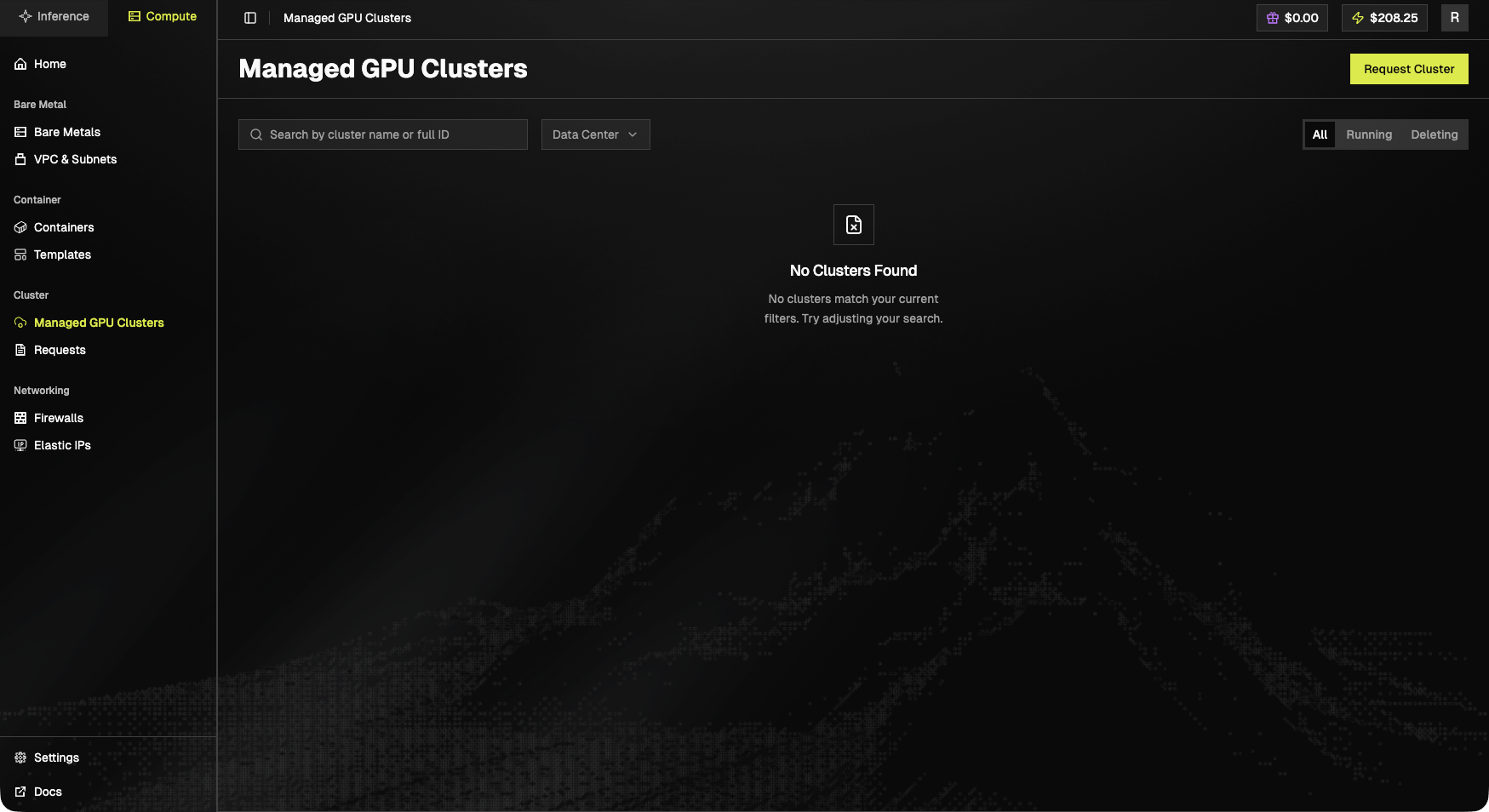
Toolbar
- Search by cluster name or full ID.
- Data Center dropdown filter.
- Status pills: All, Running, Deleting.
- Request Cluster (top-right), same flow as the Compute Home catalog.
Empty state
No Clusters Found. No clusters match your current filters. Try adjusting your search.When populated, each cluster row exposes name, ID, data center, node count, status, and per-cluster actions (open, delete).
The request for GPU Cluster Service is not processed automatically. After submitting a request, please contact support to activate it.
View Managed GPU Clusters
- Click “Managed GPU Clusters” in the left sidebar under the “Cluster” section
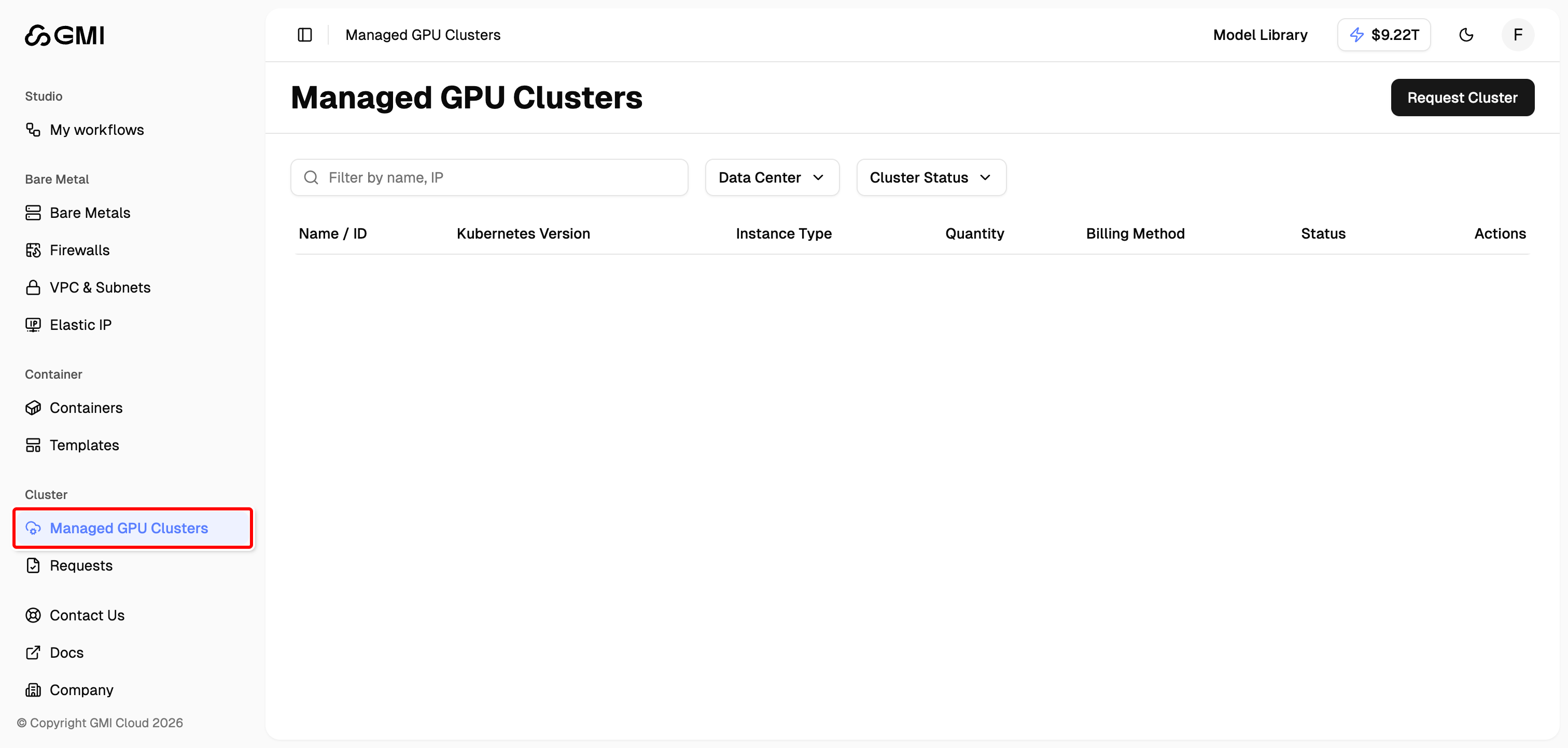
- The cluster list displays the following information for each cluster:
- Use the filters to narrow down your clusters:
- Search: Filter by cluster name or IP address
- Data Center: Filter by data center location
- Cluster Status: Filter by cluster status
Request a New Cluster
To request a new managed GPU cluster, follow the 3-step configuration process:- Click the “Request Cluster” button on the Managed GPU Clusters page or the Requests page
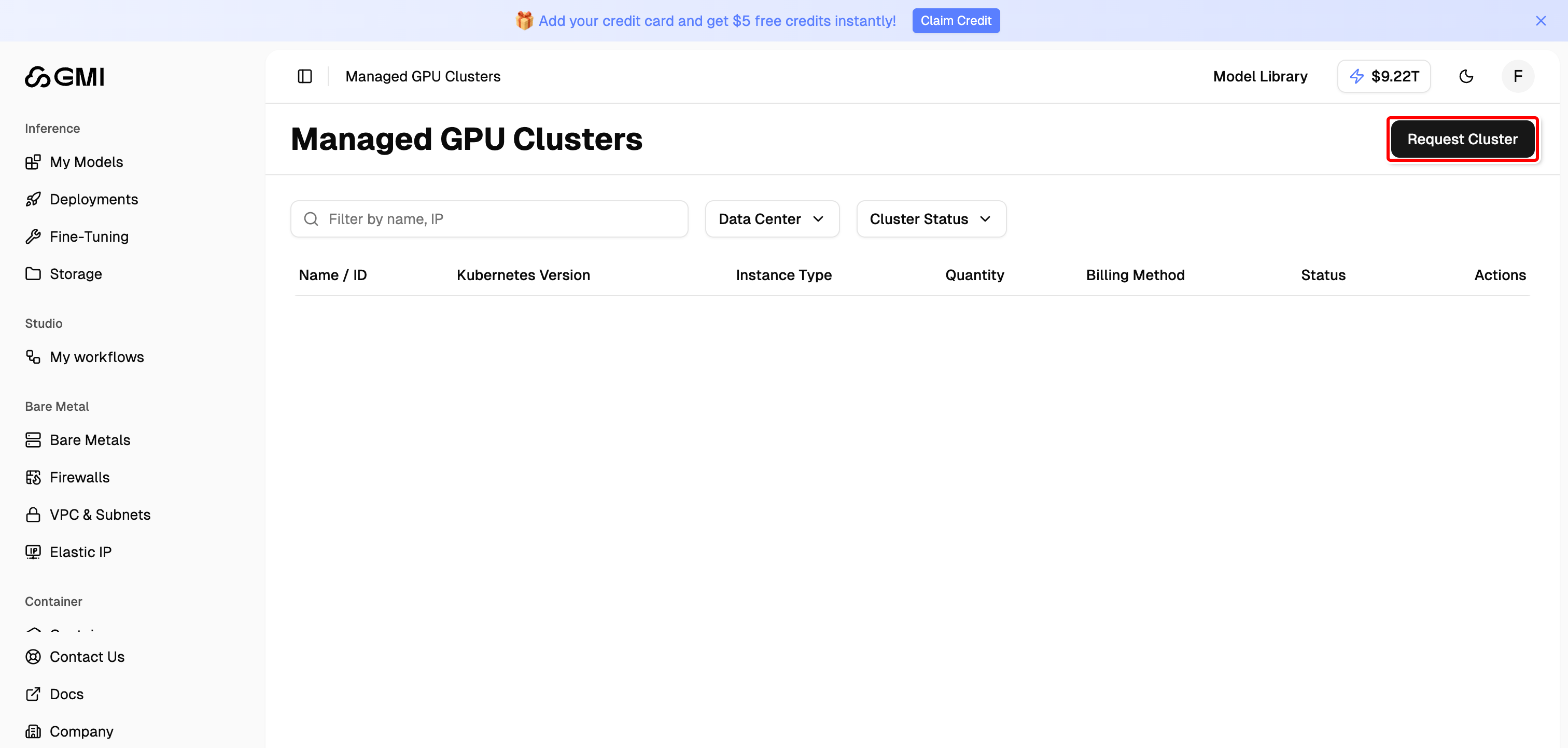
Step 1: Choose Your GPU Worker Node
Configure the compute resources for your cluster: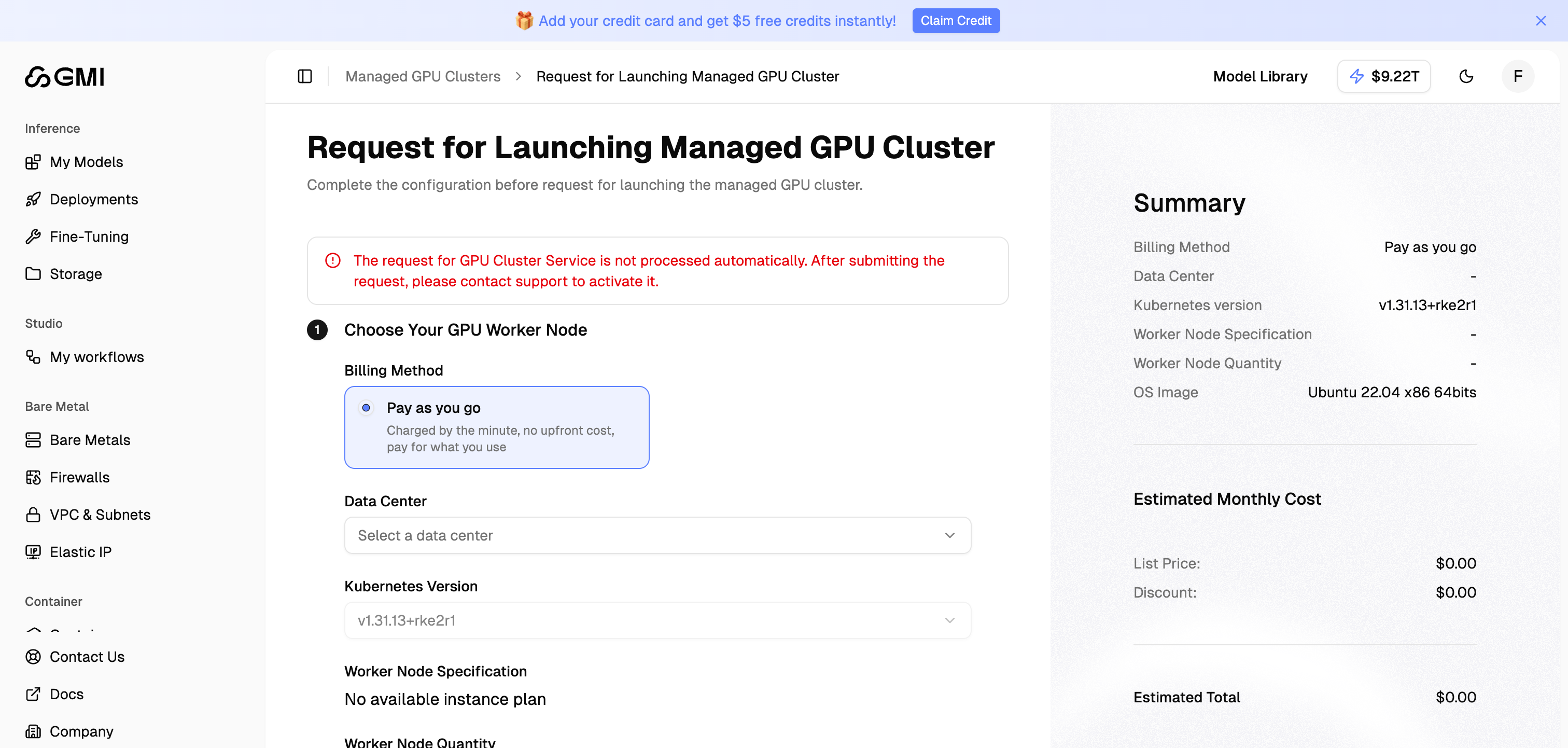
-
Billing Method: Select your preferred billing method
- Pay as you go: Charged by the minute, no upfront cost, pay for what you use
- Data Center: Choose your preferred data center location
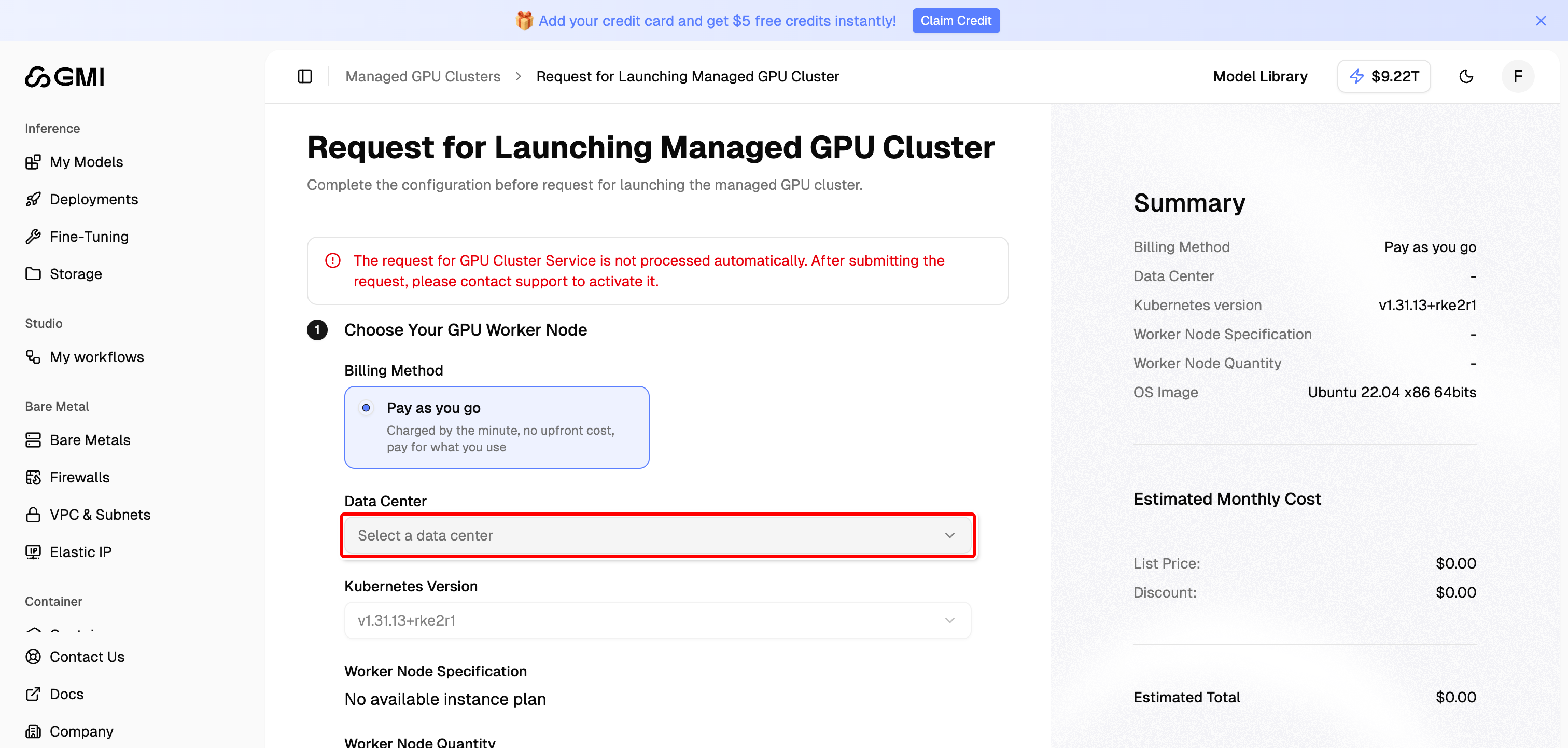
- Kubernetes Version: Select the Kubernetes version for your cluster (available after selecting a data center)
- Worker Node Specification: Choose the GPU instance type for your worker nodes (available after selecting a data center)
- Worker Node Quantity: Set the number of worker nodes for your cluster
- Click “Continue” to proceed to the next step
Step 2: OS Image
Select the operating system image for your worker nodes. The default is Ubuntu 22.04 x86 64bits.Step 3: Basic Information
Provide the basic information for your cluster, such as the cluster name. After completing all steps, review the Summary panel on the right side which shows:- Billing Method
- Data Center
- Kubernetes Version
- Worker Node Specification
- Worker Node Quantity
- OS Image
- Estimated Monthly Cost (List Price, Discount, and Estimated Total)
View Cluster Requests
Track the status of your cluster requests on the Requests page.- Click “Requests” in the left sidebar under the “Cluster” section
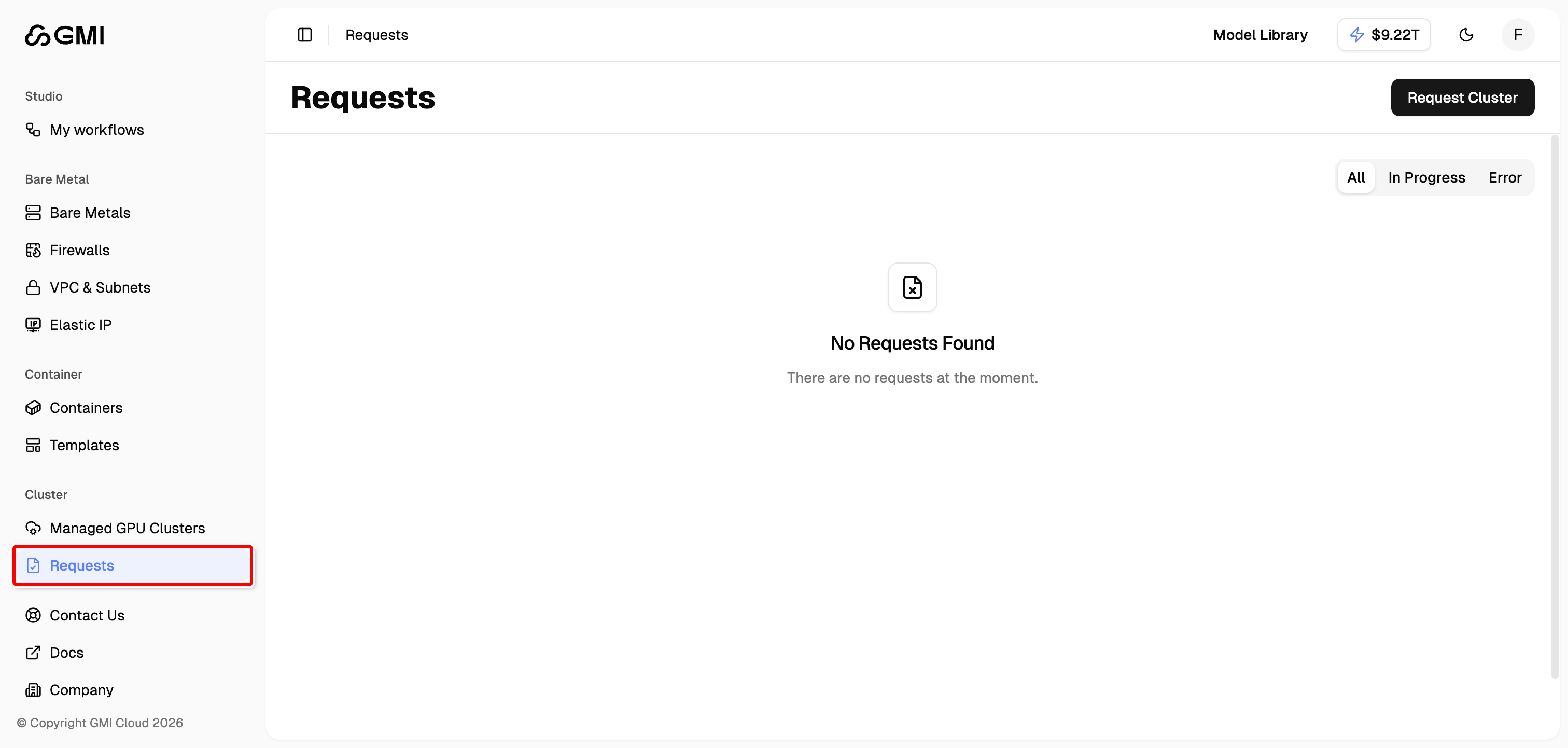
- Use the tabs to filter requests by status:
- All: View all requests
- In Progress: View requests currently being processed
- Error: View requests that encountered errors